Exams & marks
Create and publish exams (including AOI), open marks entry, and track completion before report cards.
Who can use this
- ADMIN
Path
/admin/assessments
Dependencies
- Classes, subjects, and terms exist (Academic calendar, Subjects).
- Register Learner subjects before teachers can fill a full sheet.
- Grade bands should be configured if cards show letter grades (Grade bands).
Screenshot
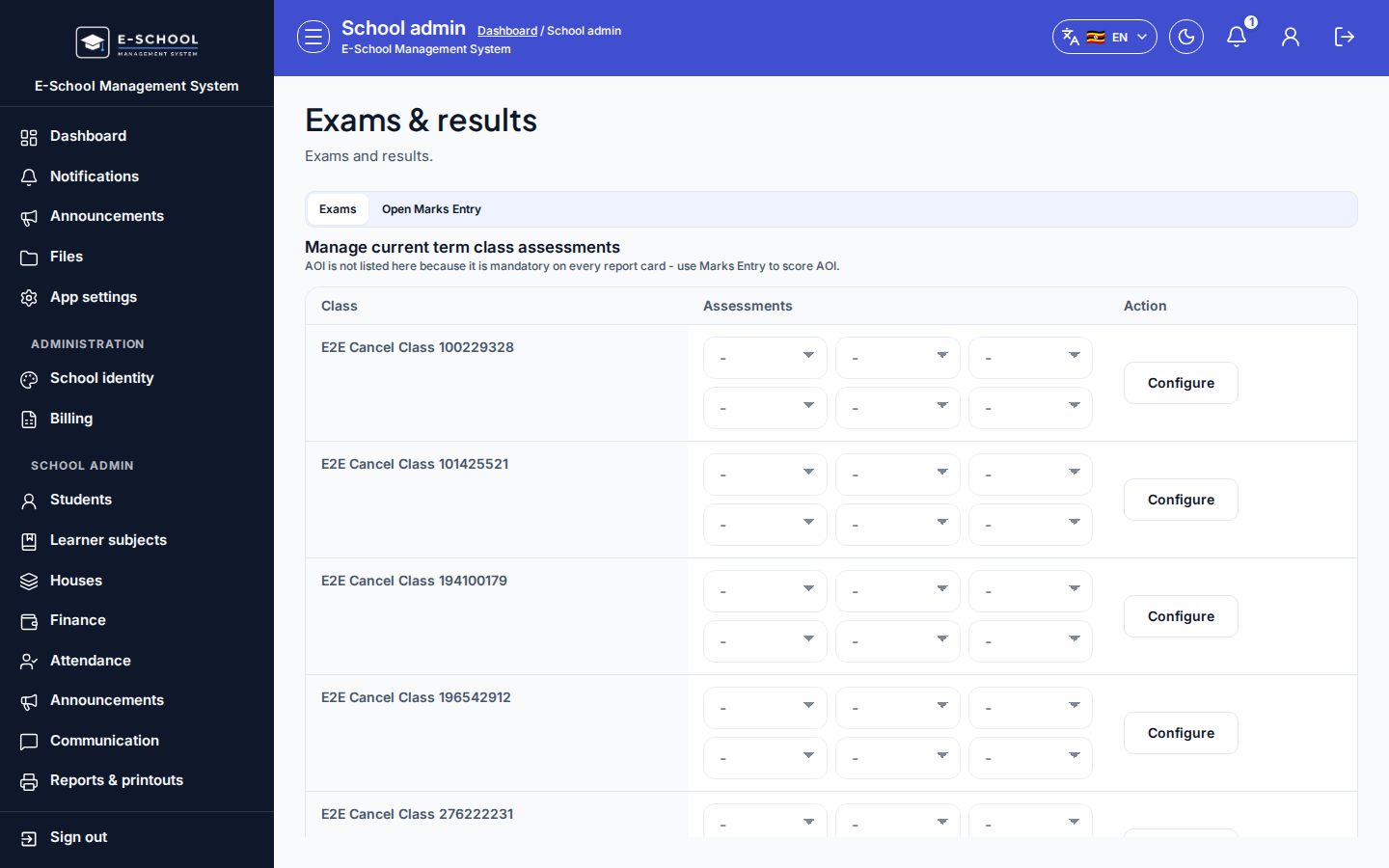
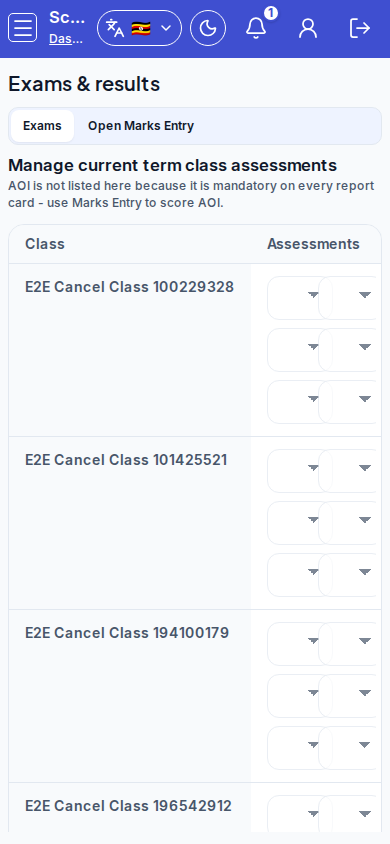
Steps
- Open Exams & marks at
/admin/assessmentsas ADMIN.
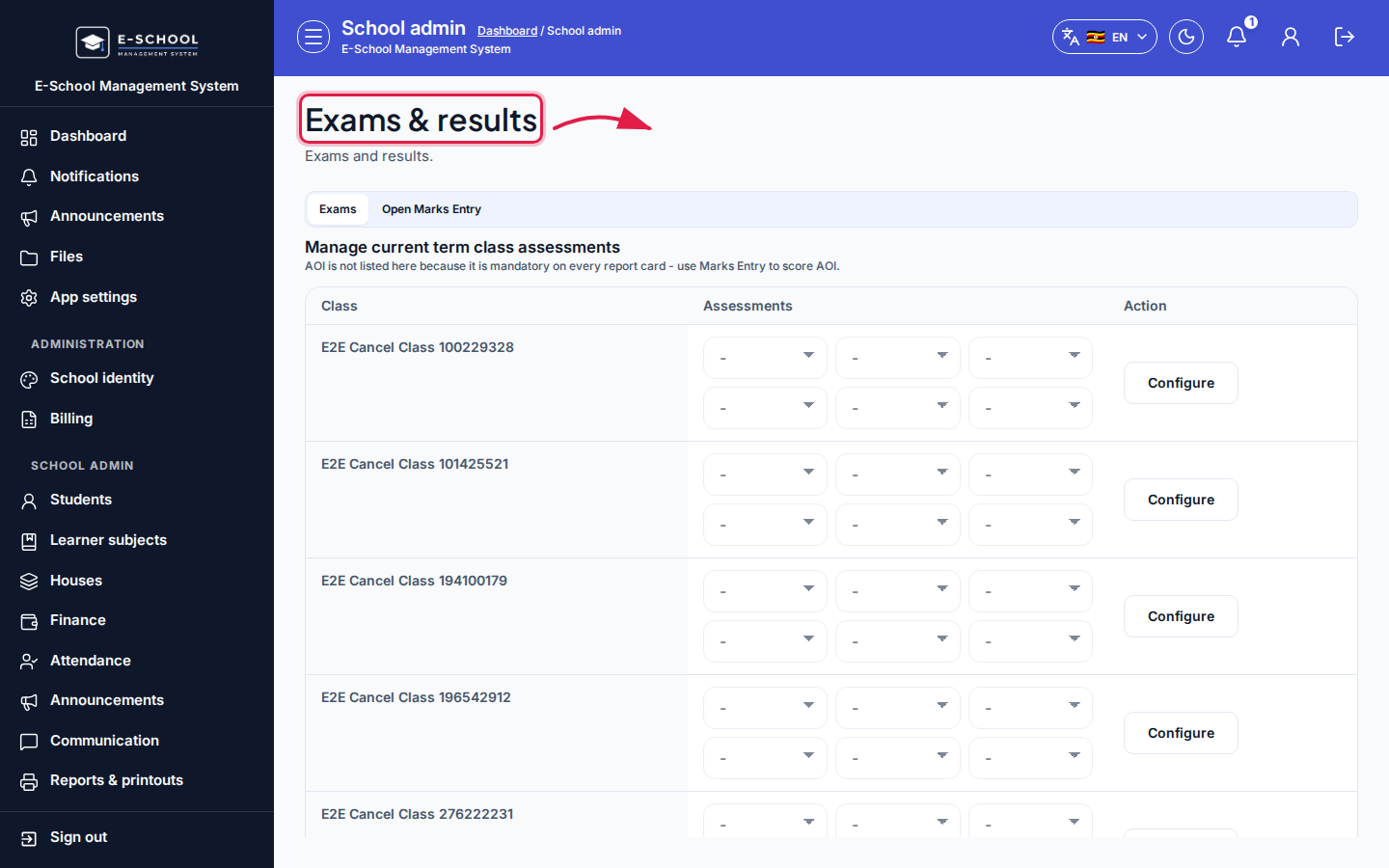 Desktop - focus for step 1
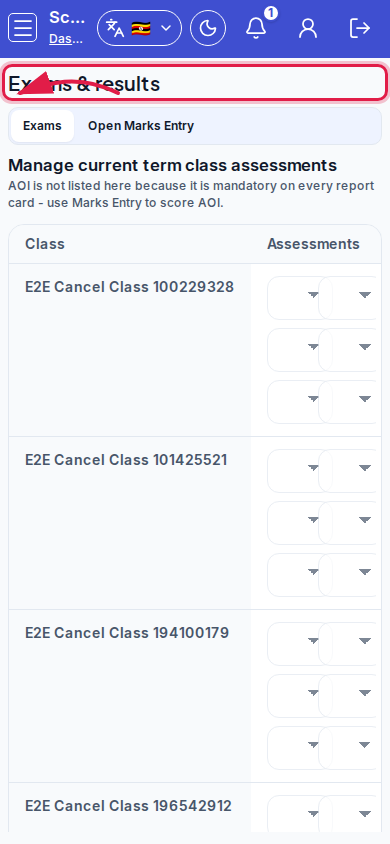 Mobile - focus for step 1
- Use the Exams tab for the exam list; the Open Marks Entry tab jumps to
/admin/marks-entry.
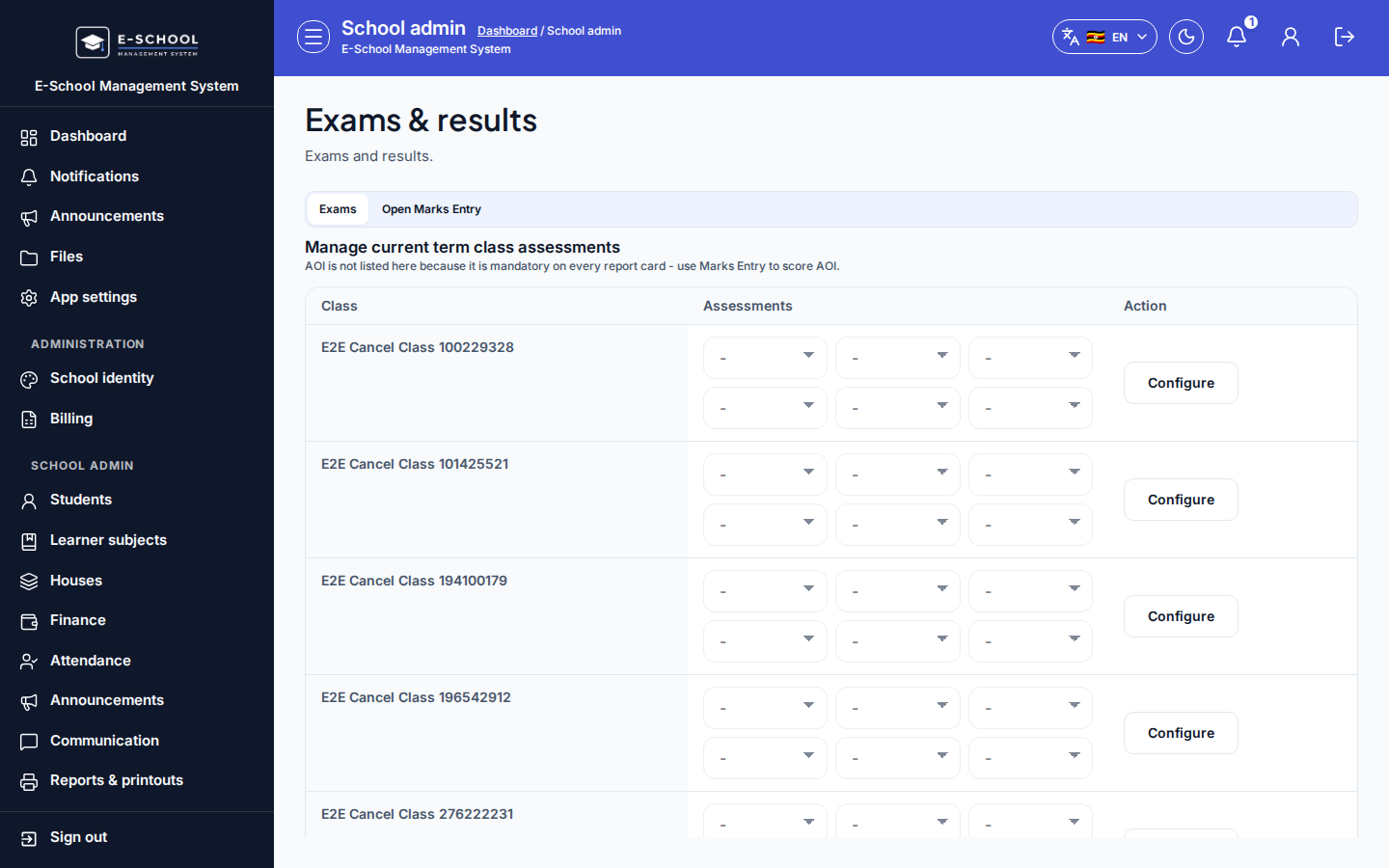 Desktop - focus for step 2
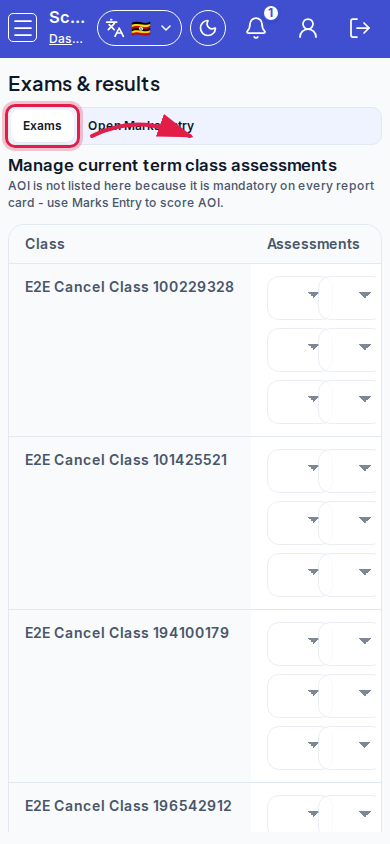 Mobile - focus for step 2
- Click Create exam (or Create AOI exam when that workflow applies). Set class, type, max marks (CA/EOT conventions), then save before publish.
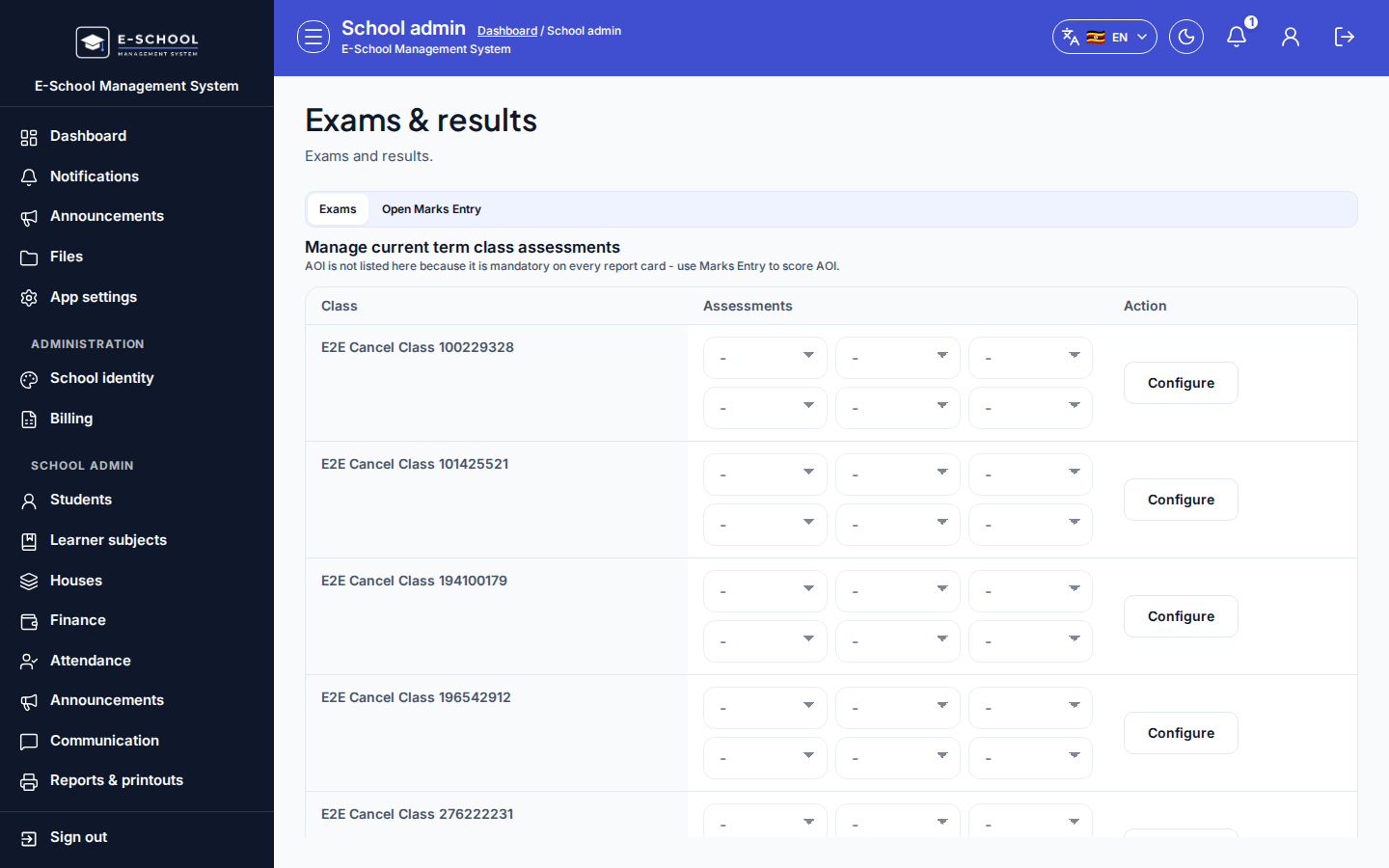 Desktop - focus for step 3
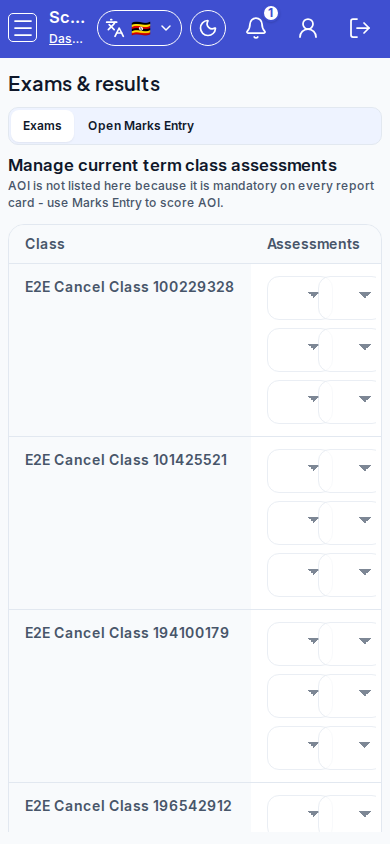 Mobile - focus for step 3
- Select a row to Edit, Publish / Unpublish, open Completion, or Delete (when permitted).
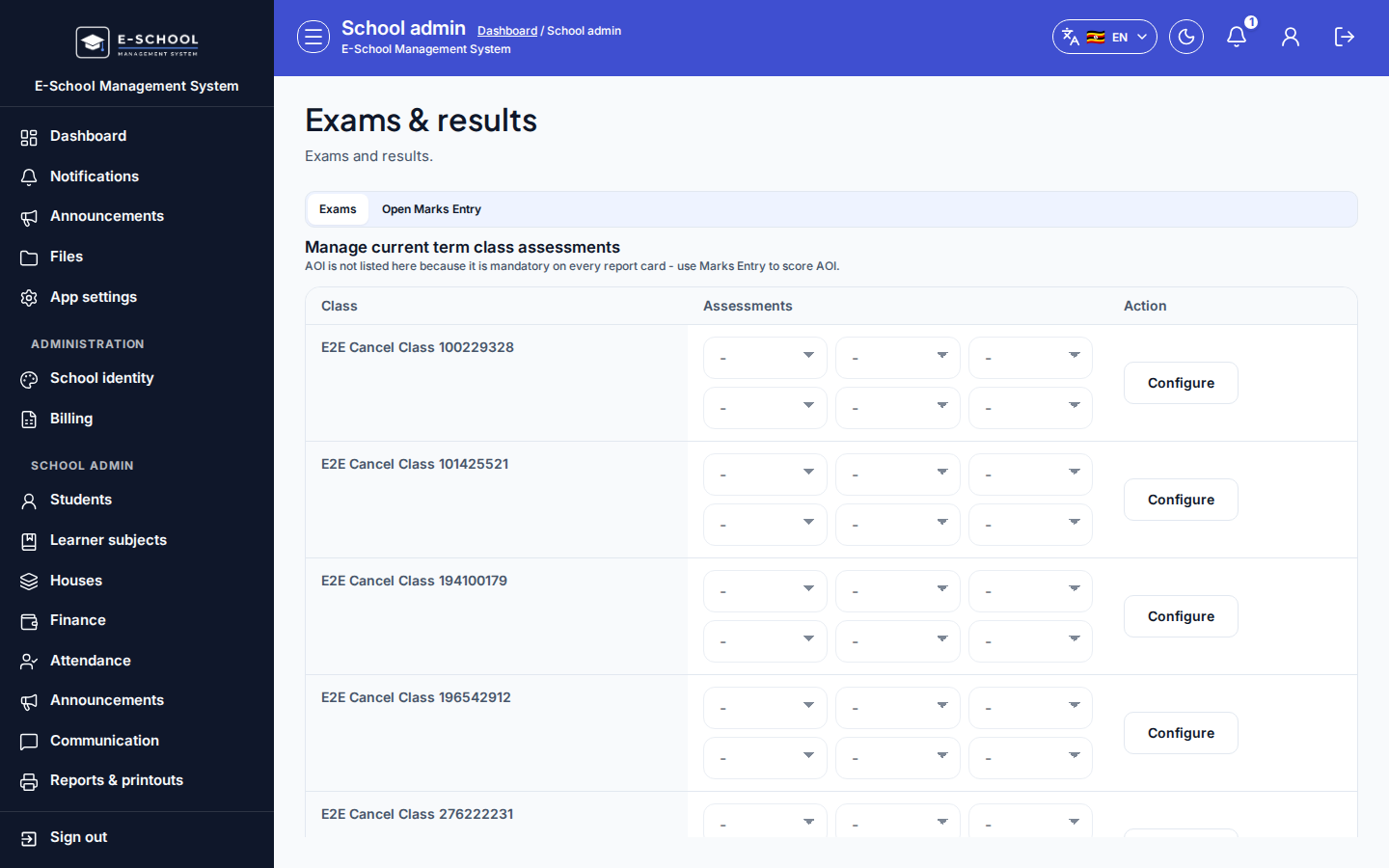 Desktop - focus for step 4
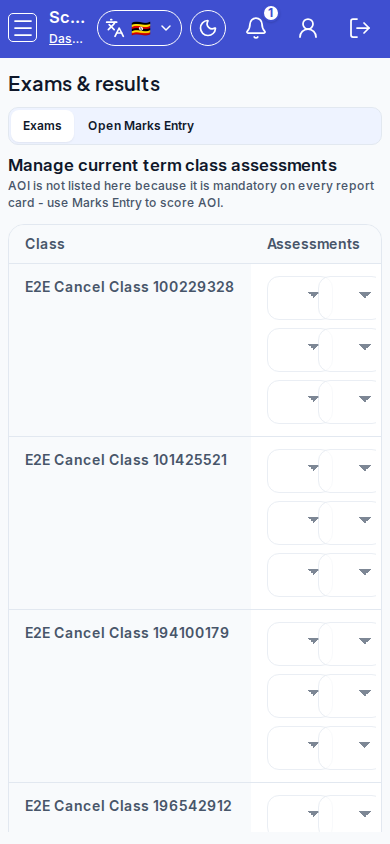 Mobile - focus for step 4
- Use toolbar links Open Marks Entry and class performance; export Excel/PDF from overflow when needed.
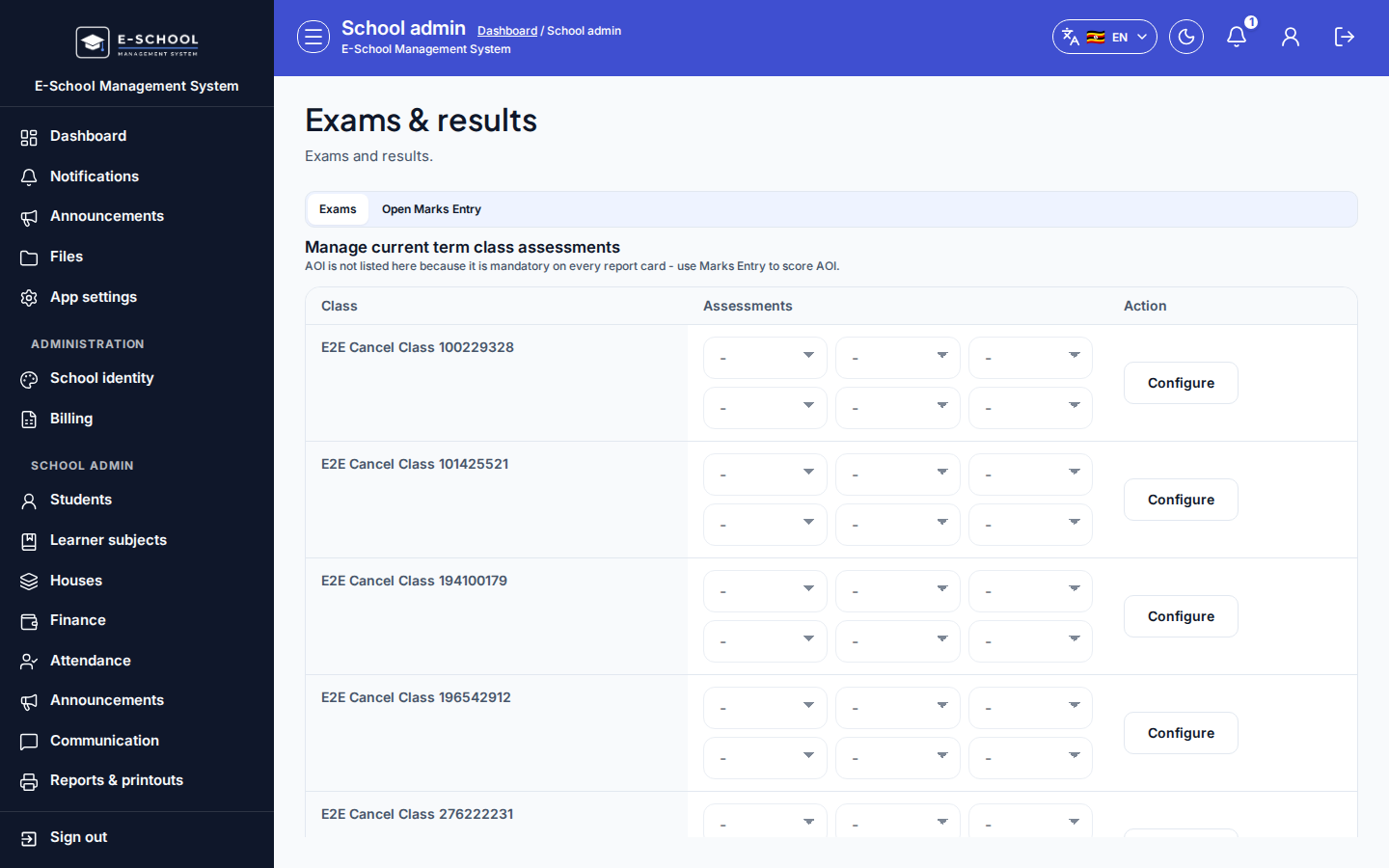 Desktop - focus for step 5
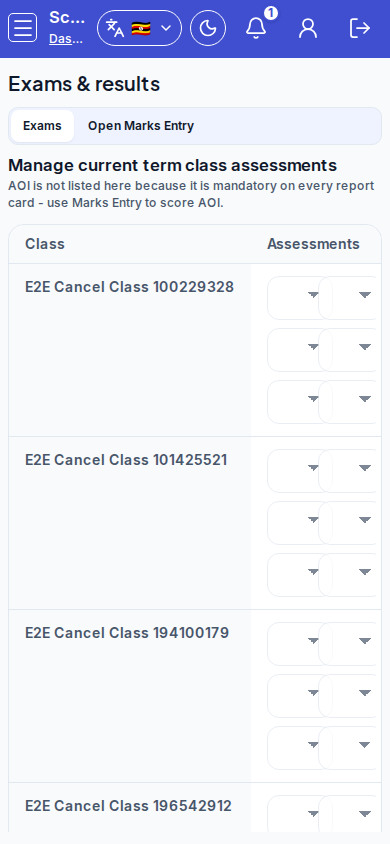 Mobile - focus for step 5
- After all teachers saved and you published, generate cards on Report cards.
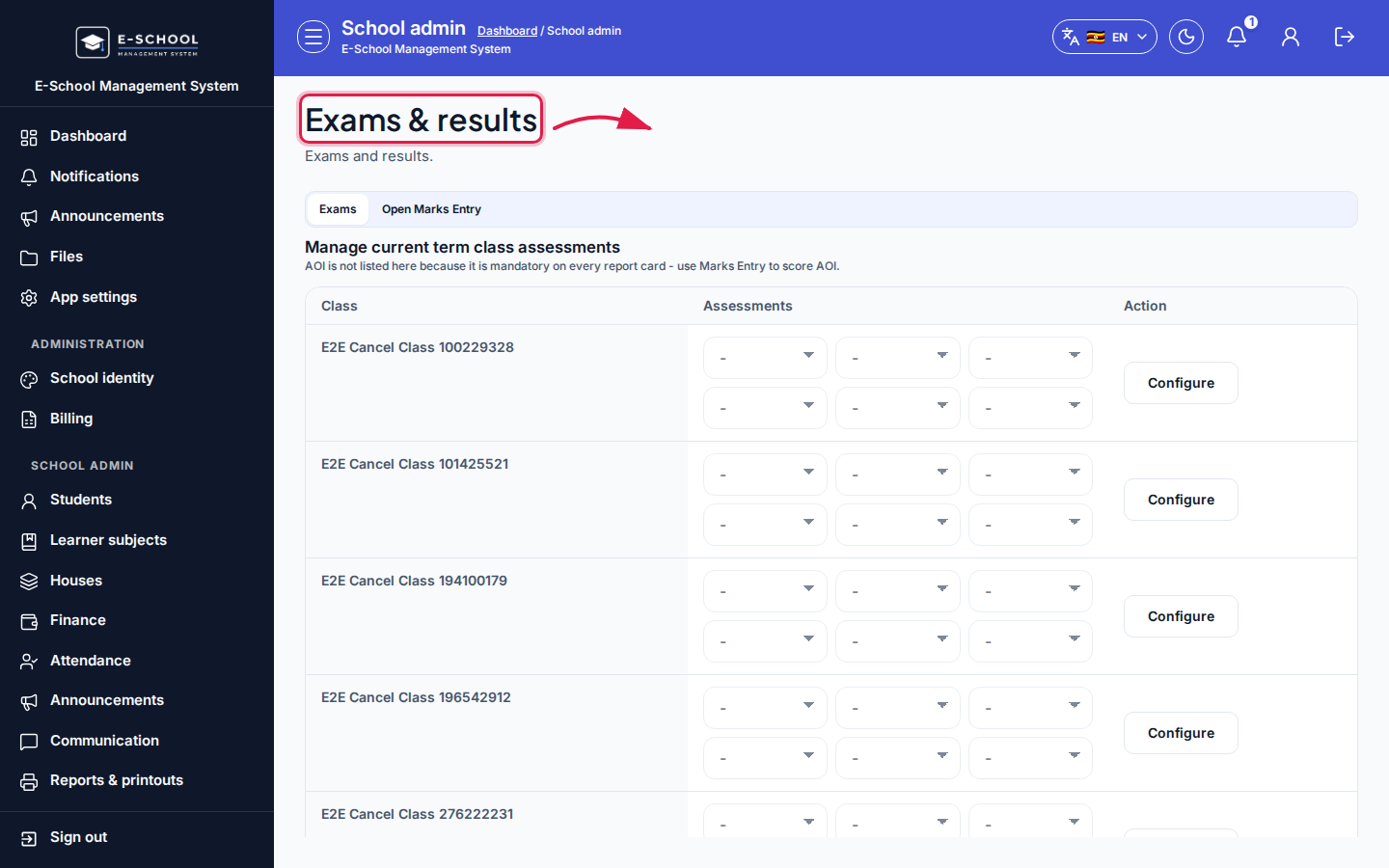 Desktop - focus for step 6
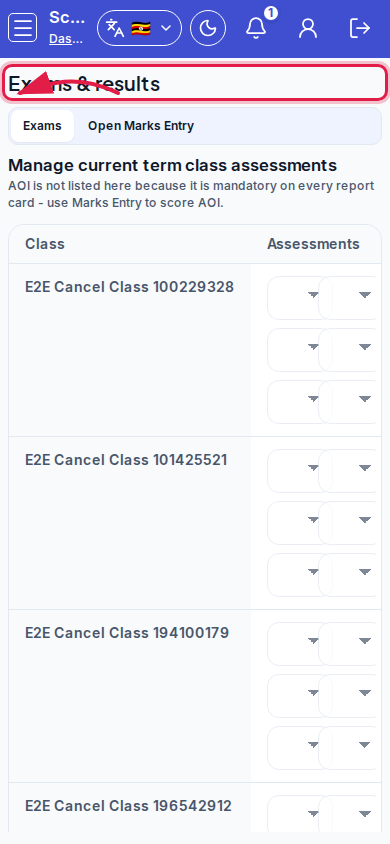 Mobile - focus for step 6
Fields and actions
- Tabs: Exams / Open Marks Entry
- Create exam / Create AOI exam / Edit / Publish / Unpublish / Completion / Delete
- Class assessments matrix (when enabled for your school)
- Export Excel / Export PDF / Configure columns
- Open class performance marksheet
Common mistakes
- Publishing before max marks and class/type are saved correctly
- Wrong max marks breaking grade totals on cards
- Generating report cards while marks are still unpublished
- Deleting an exam that already has entered scores