Report cards
Generate term report cards from published marks, preview sheets, print selected or all, then release the term to students and parents.
Who can use this
- ADMIN
Path
/admin/report-cards (also from Reports & printouts → Report cards)
Dependencies
- Learners have Learner subjects for the term (empty subject sets produce empty cards).
- Exams are created and published on Exams & marks; teachers finished Marks Entry.
- Academic year + term selected; houses help residence lines (Houses).
- Missing photos fall back to gender placeholders on print - upload photos on the student profile when possible.
Screenshot
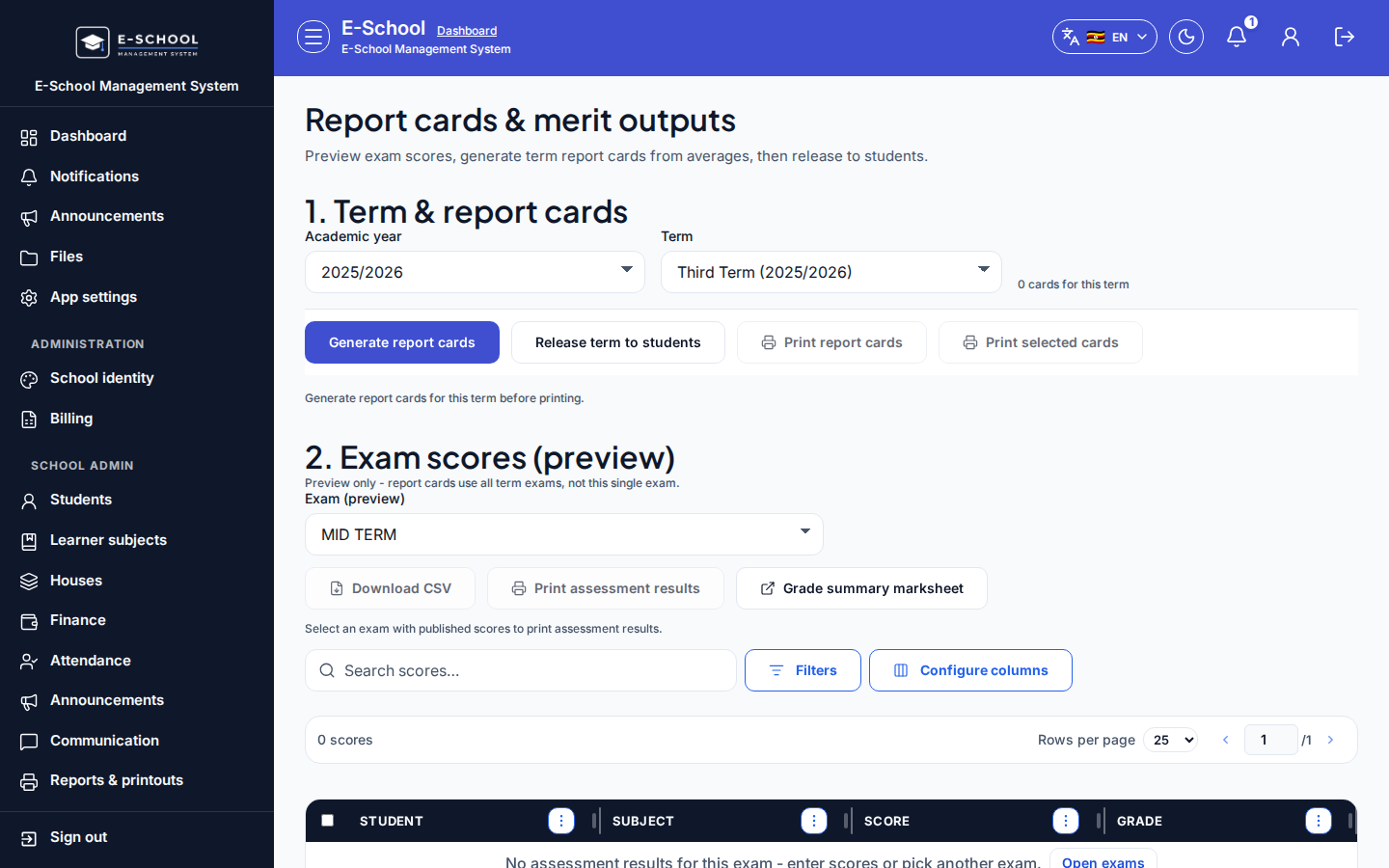
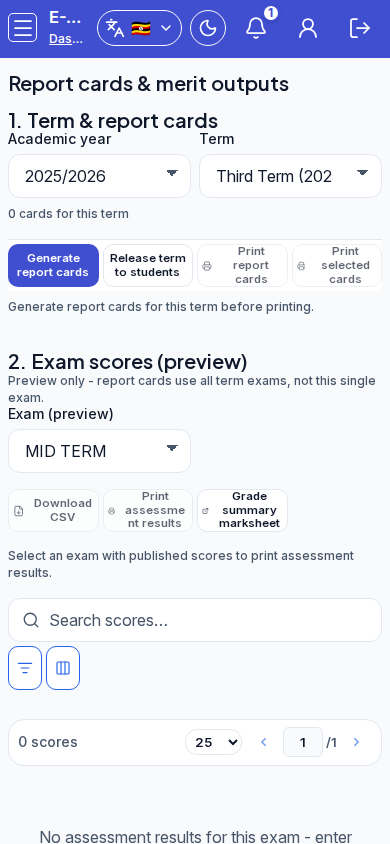
Controls inventory
| Control | Type |
|---|---|
| Academic year | select |
| Term | select |
| Generate report cards | button |
| Release term to students | button |
| Print report cards / Print selected cards | button |
| Exam (preview) | select |
| Download CSV / Print assessment results / Grade summary marksheet | button |
| Search scores… / Search cards… | table-action |
| Filters / Configure columns | menu |
| Generate wizard (Class, Stream, Report title, Generate all / one by one) | dialog |
Interaction path
- Open Report cards & merit outputs at
/admin/report-cards(or via Printouts → Report cards).
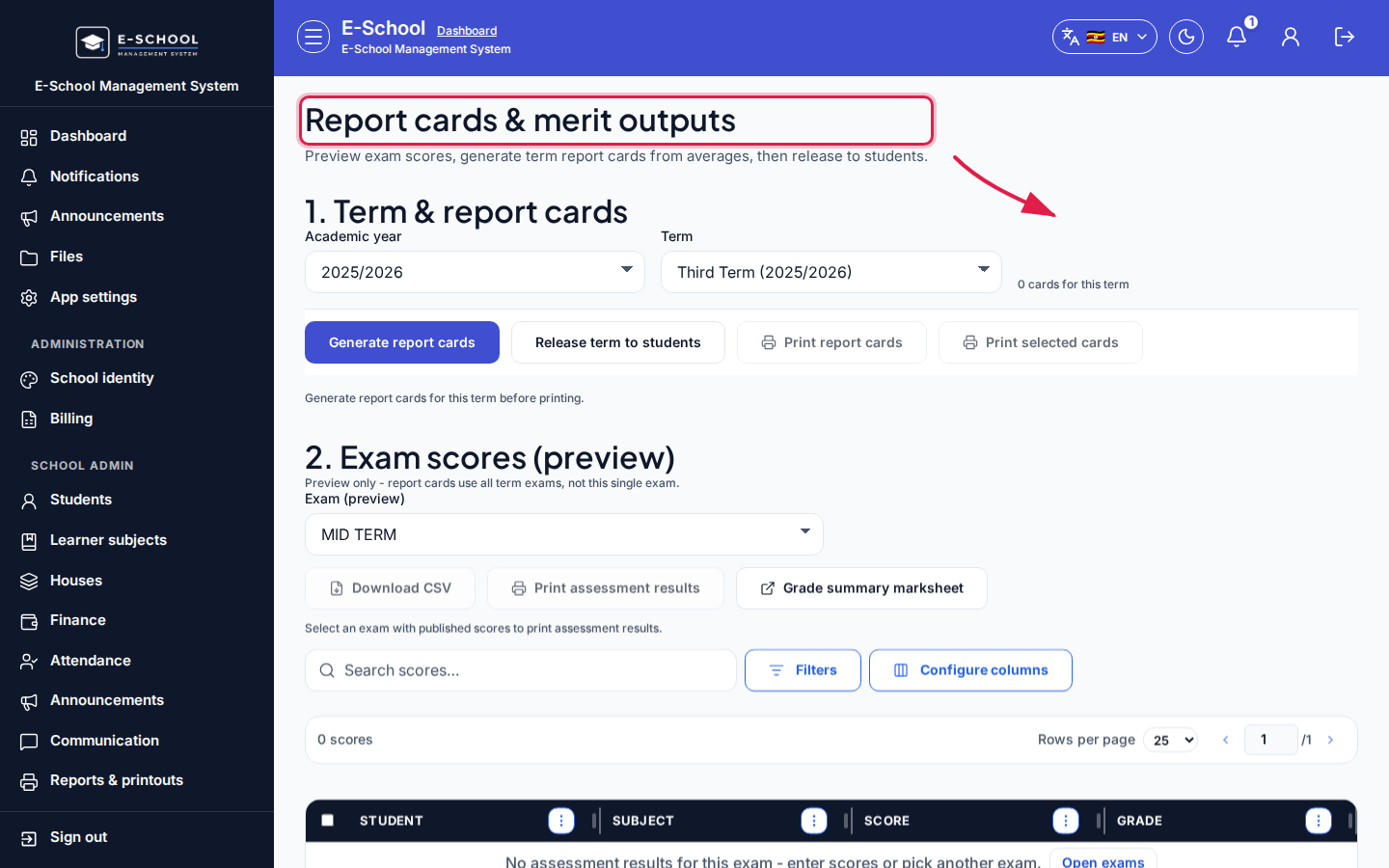 Desktop - page focus
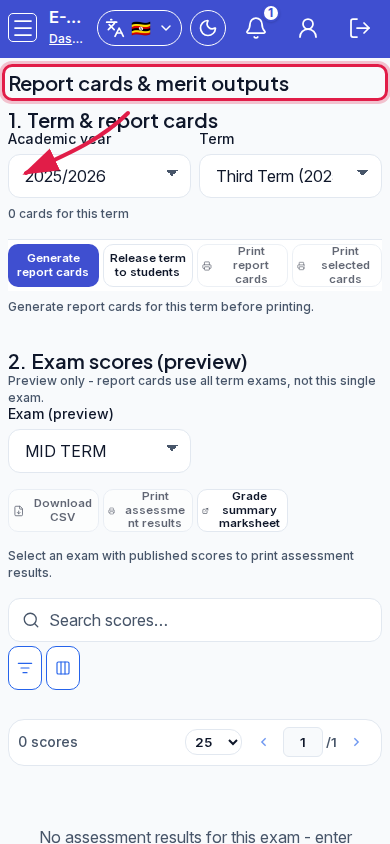 Mobile - page focus
- In 1. Term & report cards, open the Academic year dropdown (list must be visible).
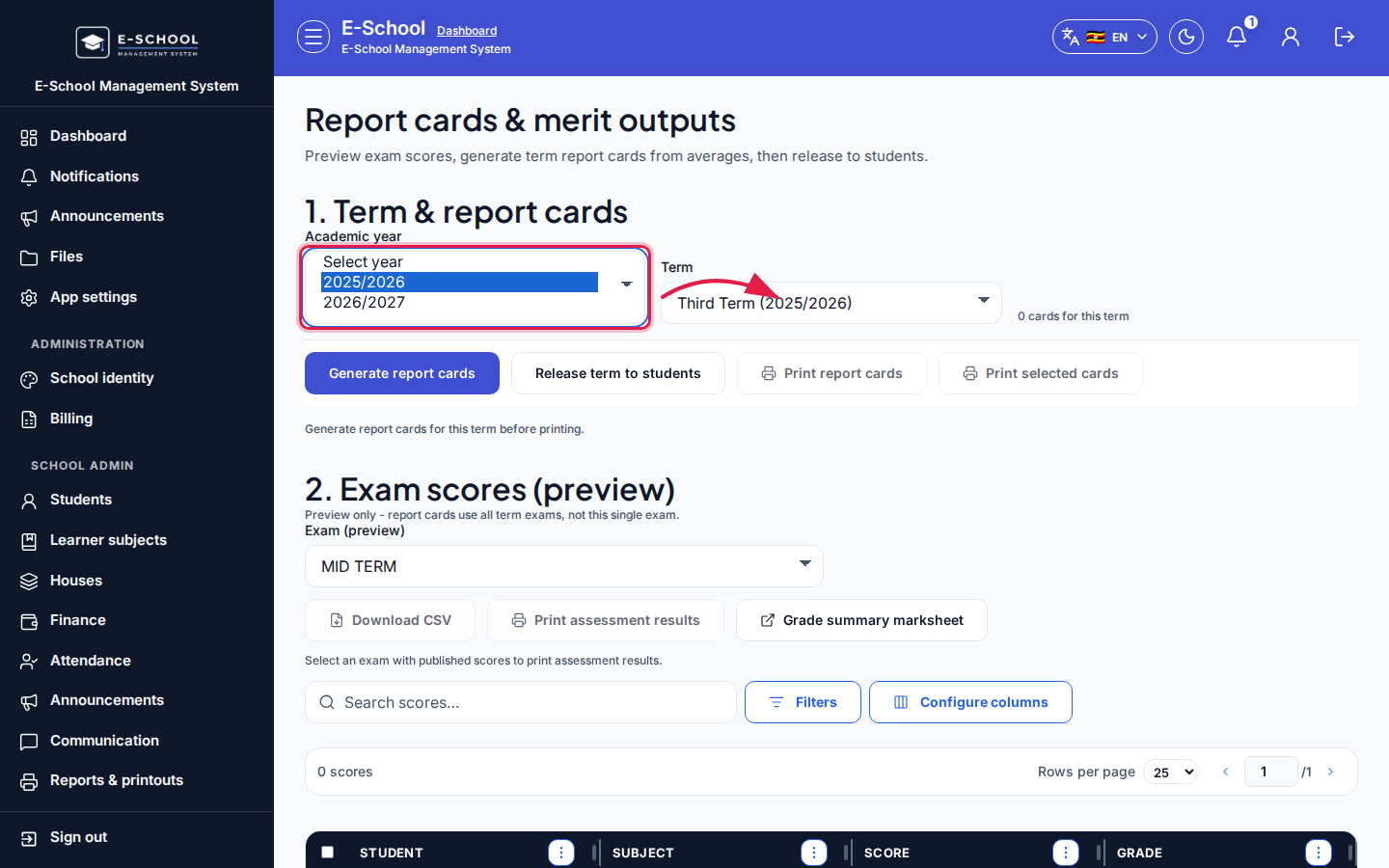 Desktop - Academic year list open
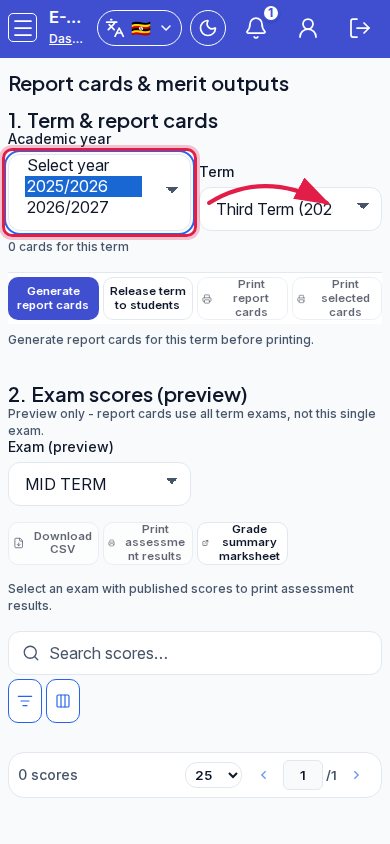 Mobile - Academic year list open
- Point and select the year you need (example seed: 2025/2026). Do not leave the closed field undocumented - the open list is required for IF.
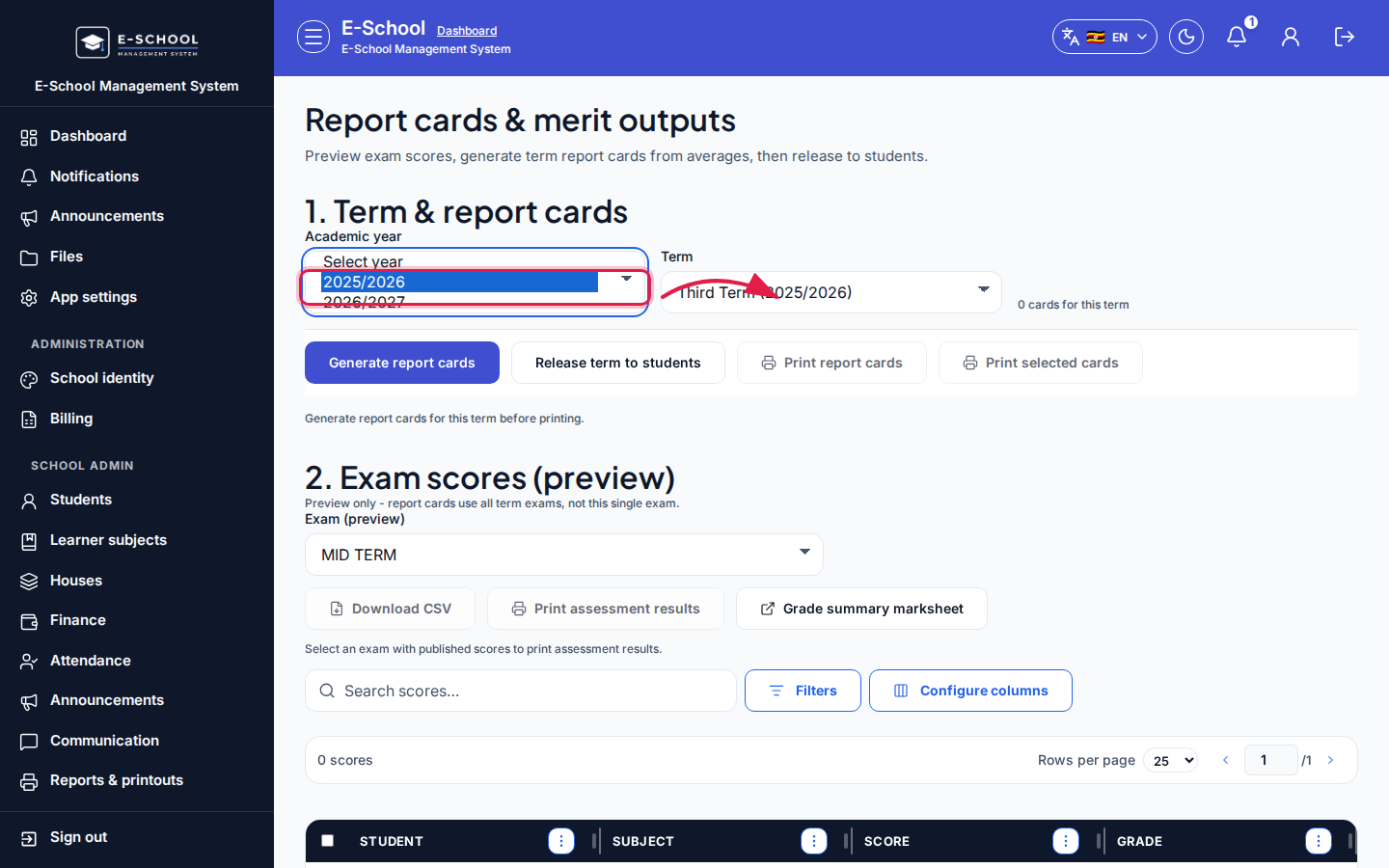 Desktop - arrow on option 2025/2026
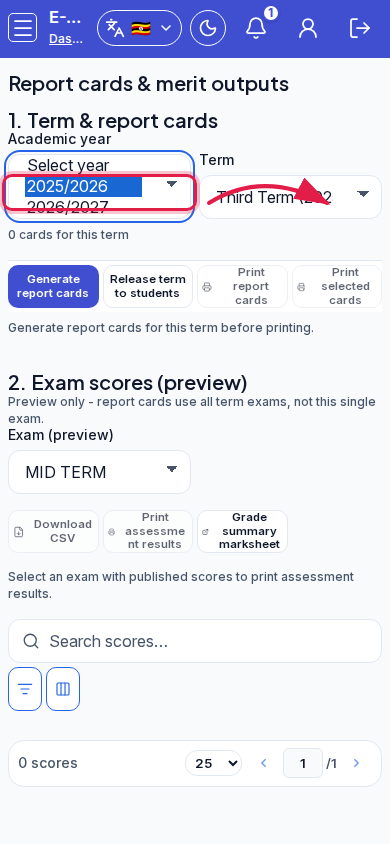 Mobile - option 2025/2026
- Open Term and pick the term that matches the published exams (example: First Term).
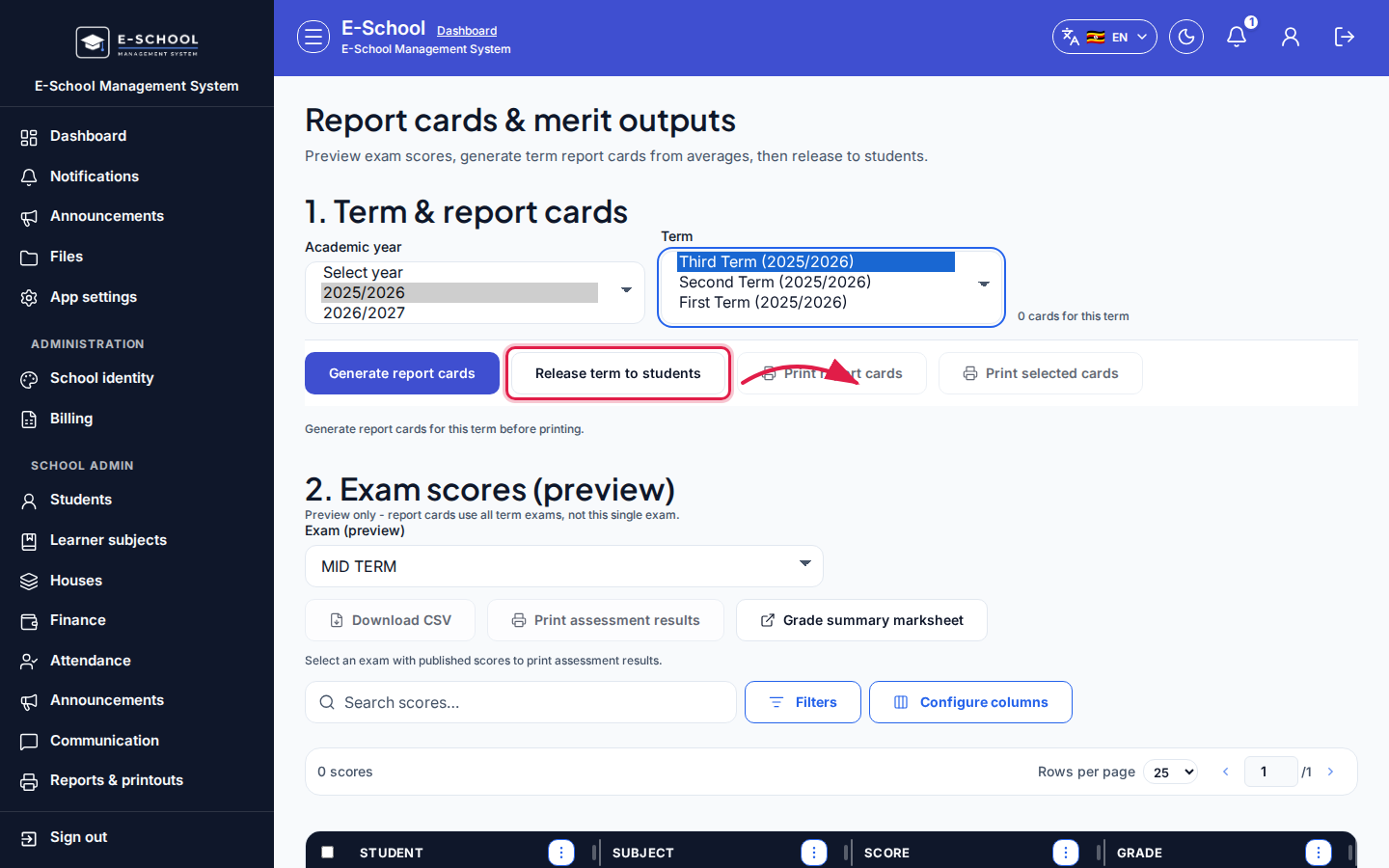 Desktop - Term list open
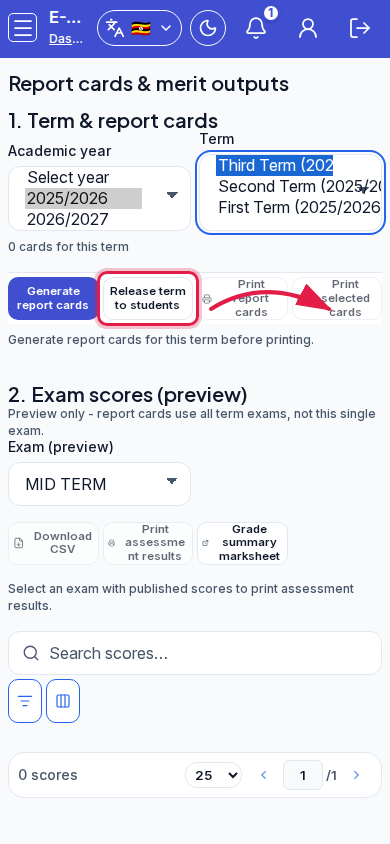 Mobile - Term list open
- Click Generate report cards (primary CTA in section 1).
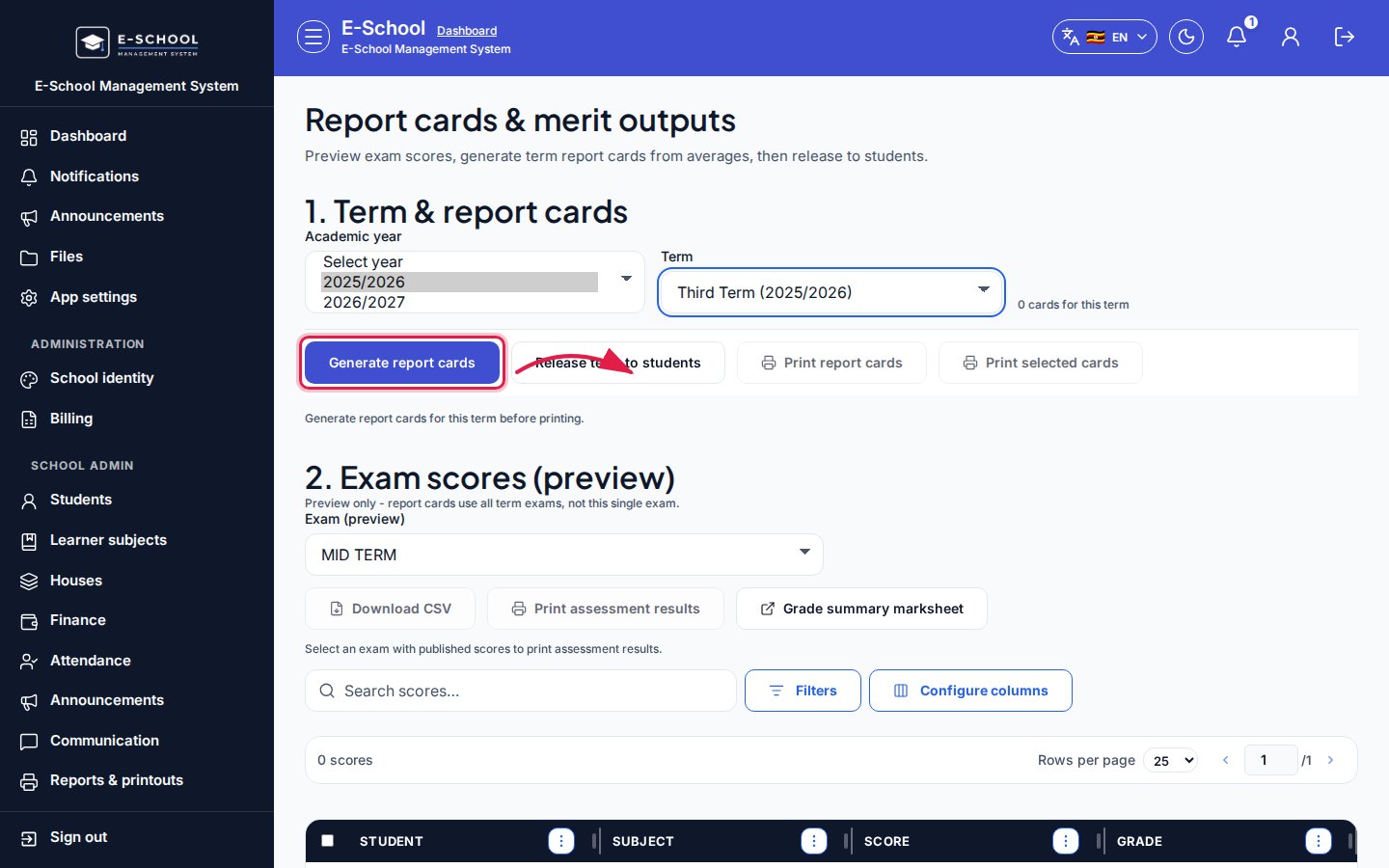 Desktop - Generate report cards button
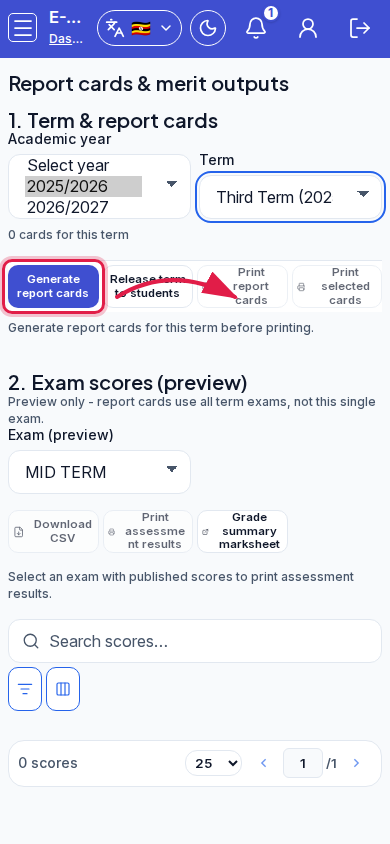 Mobile - Generate report cards button
- In the generate wizard dialog, review Class / Stream / Report title, then continue.
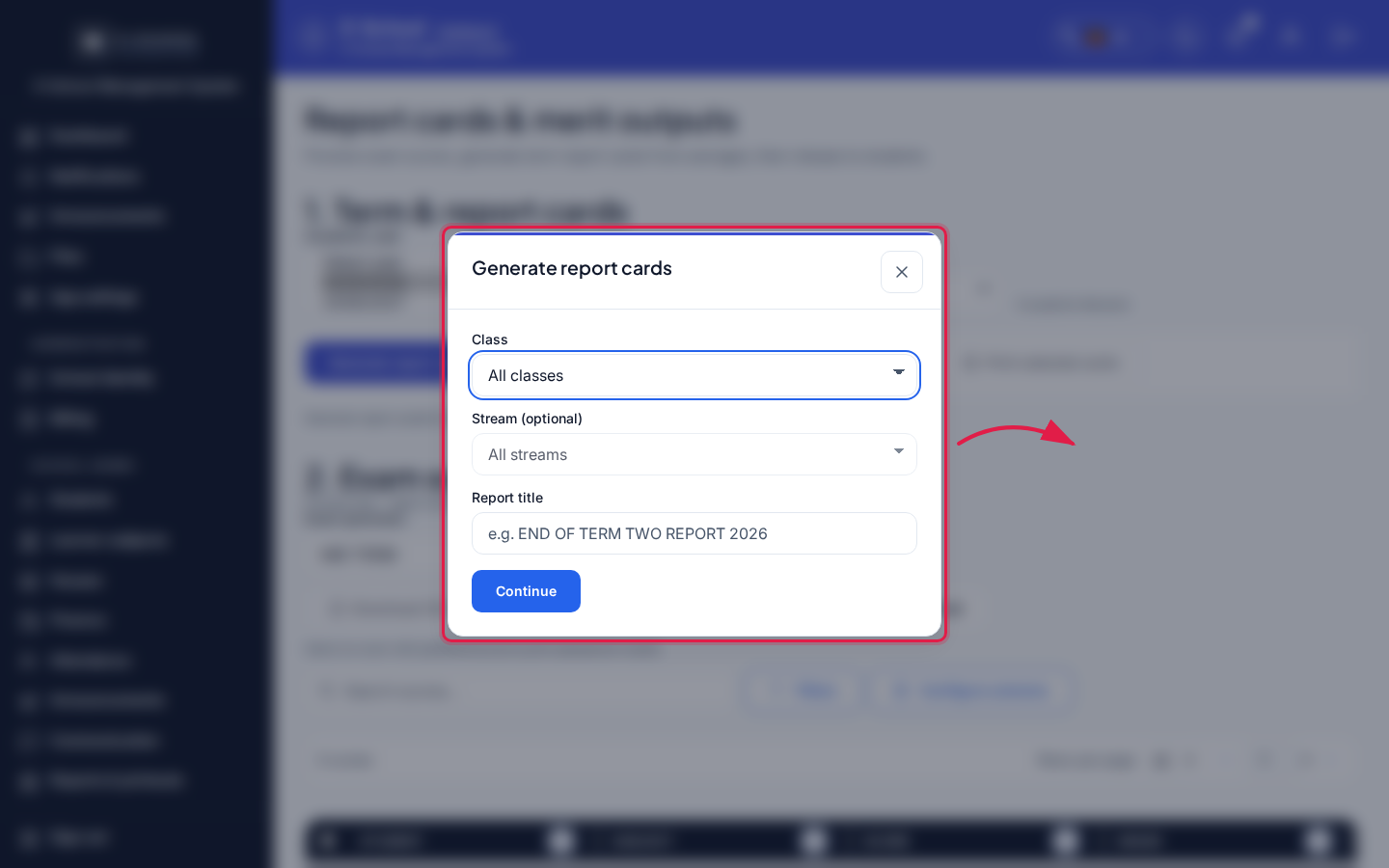 Desktop - generate wizard open
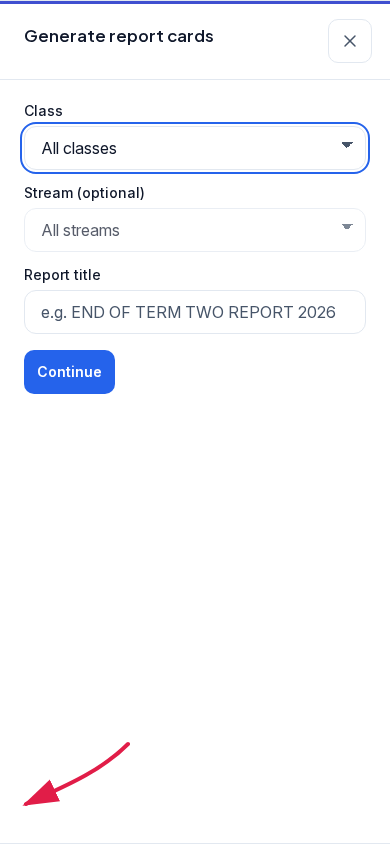 Mobile - generate wizard open
- Choose Generate all or Generate one by one (admission number). Toast shows created/updated counts.
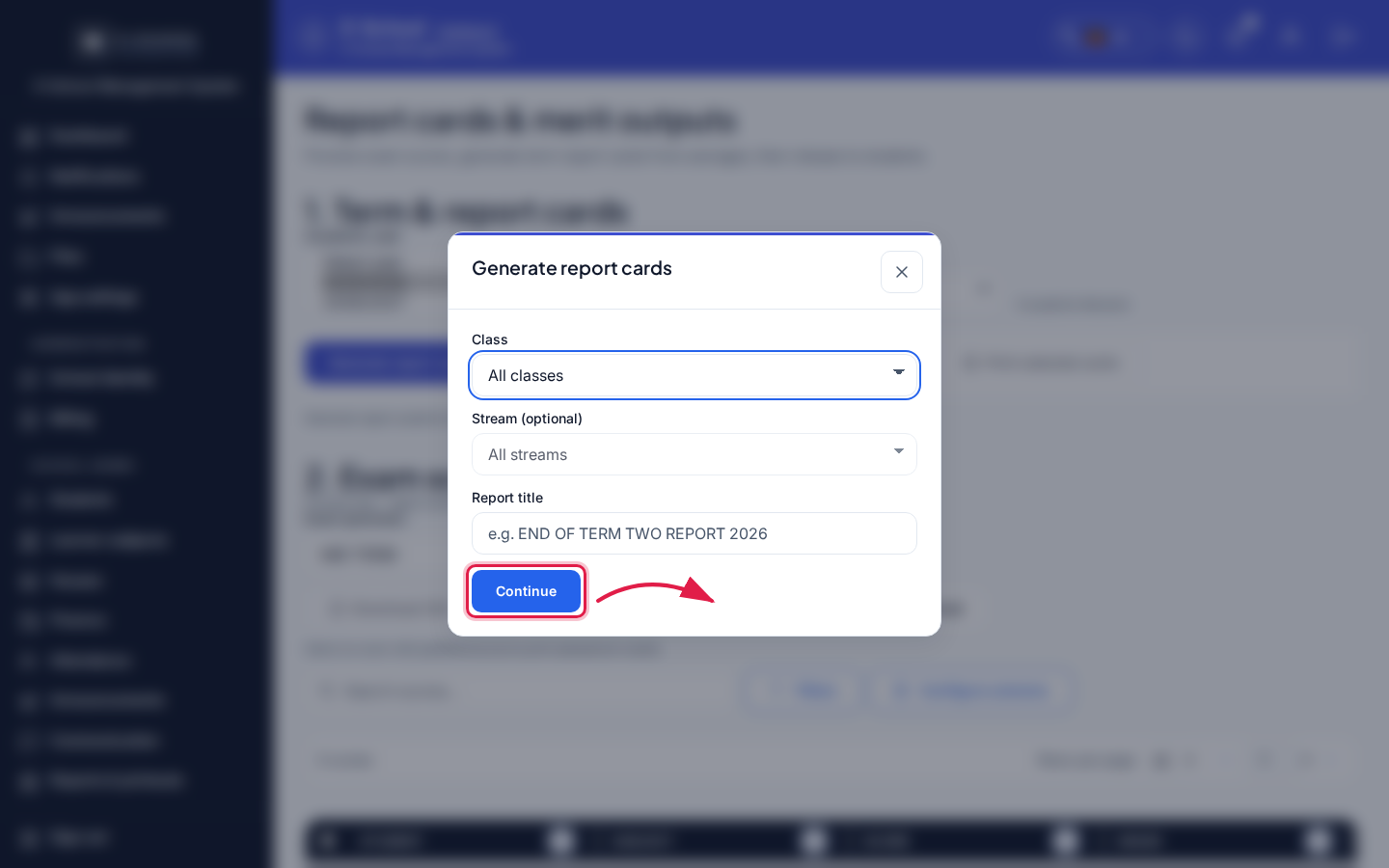 Desktop - wizard continue / generate mode
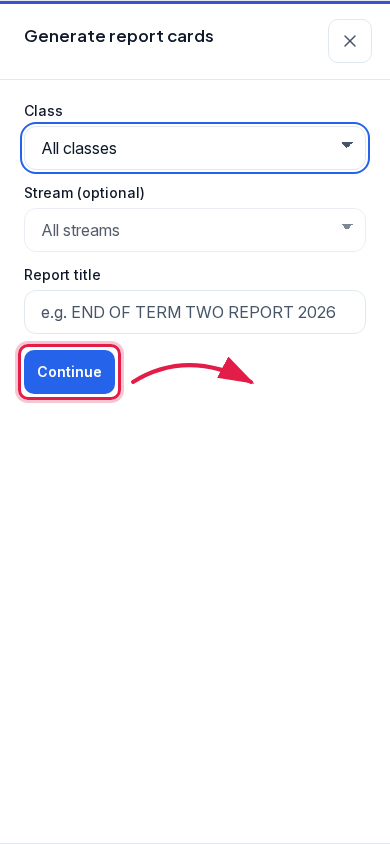 Mobile - wizard continue / generate mode
- After cards exist, use Release term to students and/or Print report cards / Print selected cards.
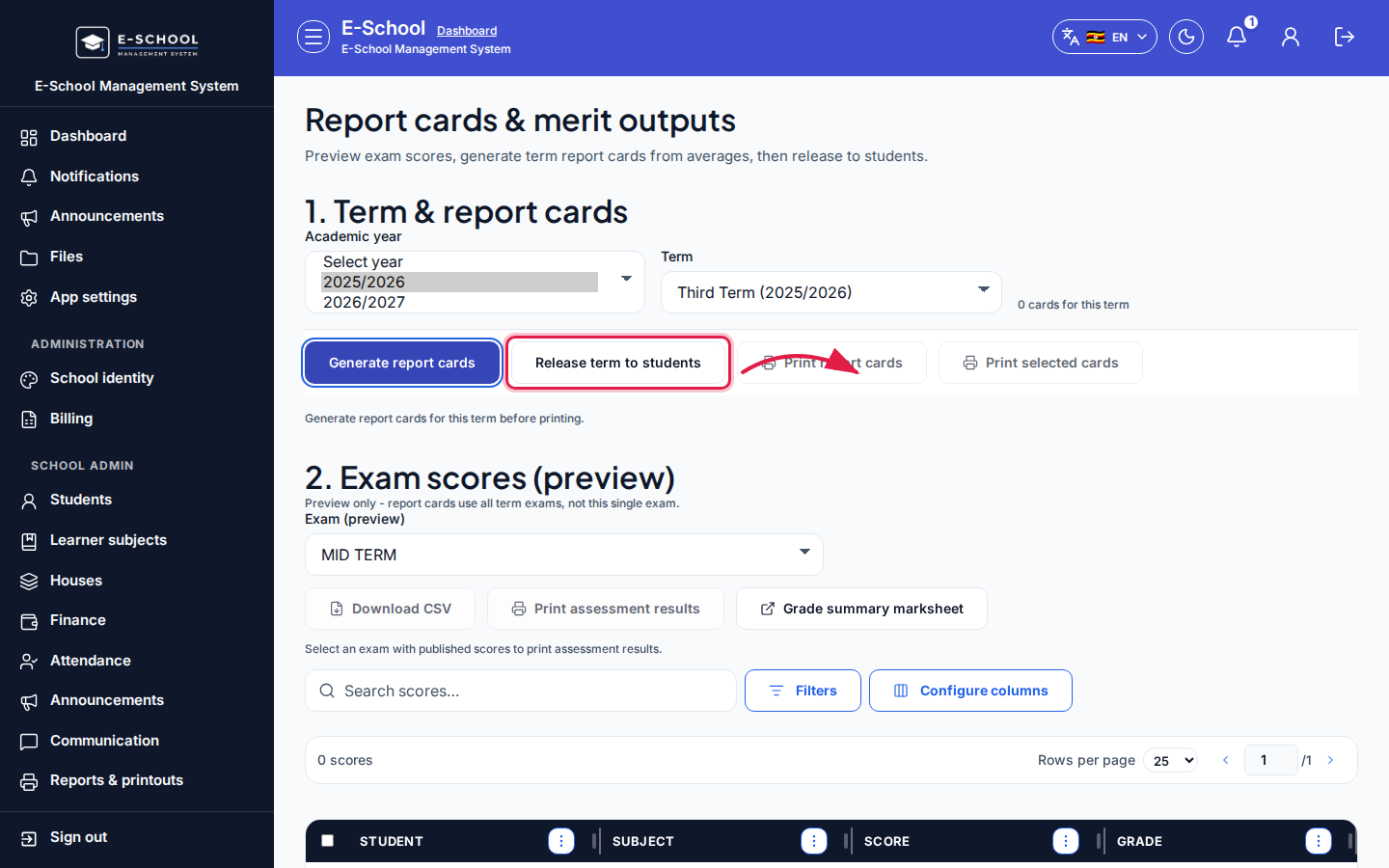 Desktop - Release / Print
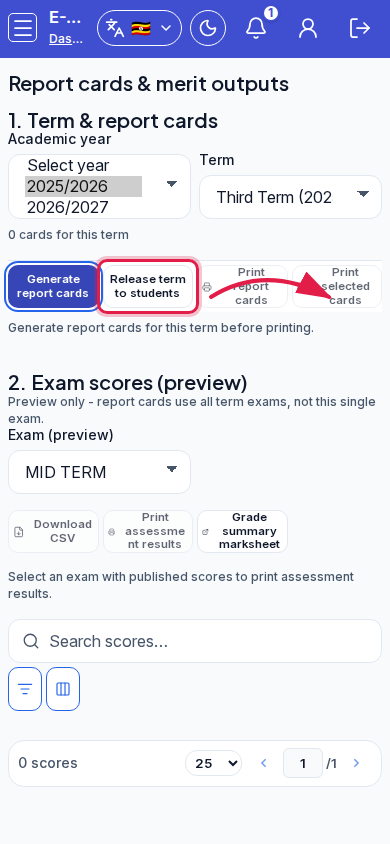 Mobile - Release / Print
- For the scores table, open Filters or Configure columns when you need a non-default column set (document the open menu, not only the closed button).
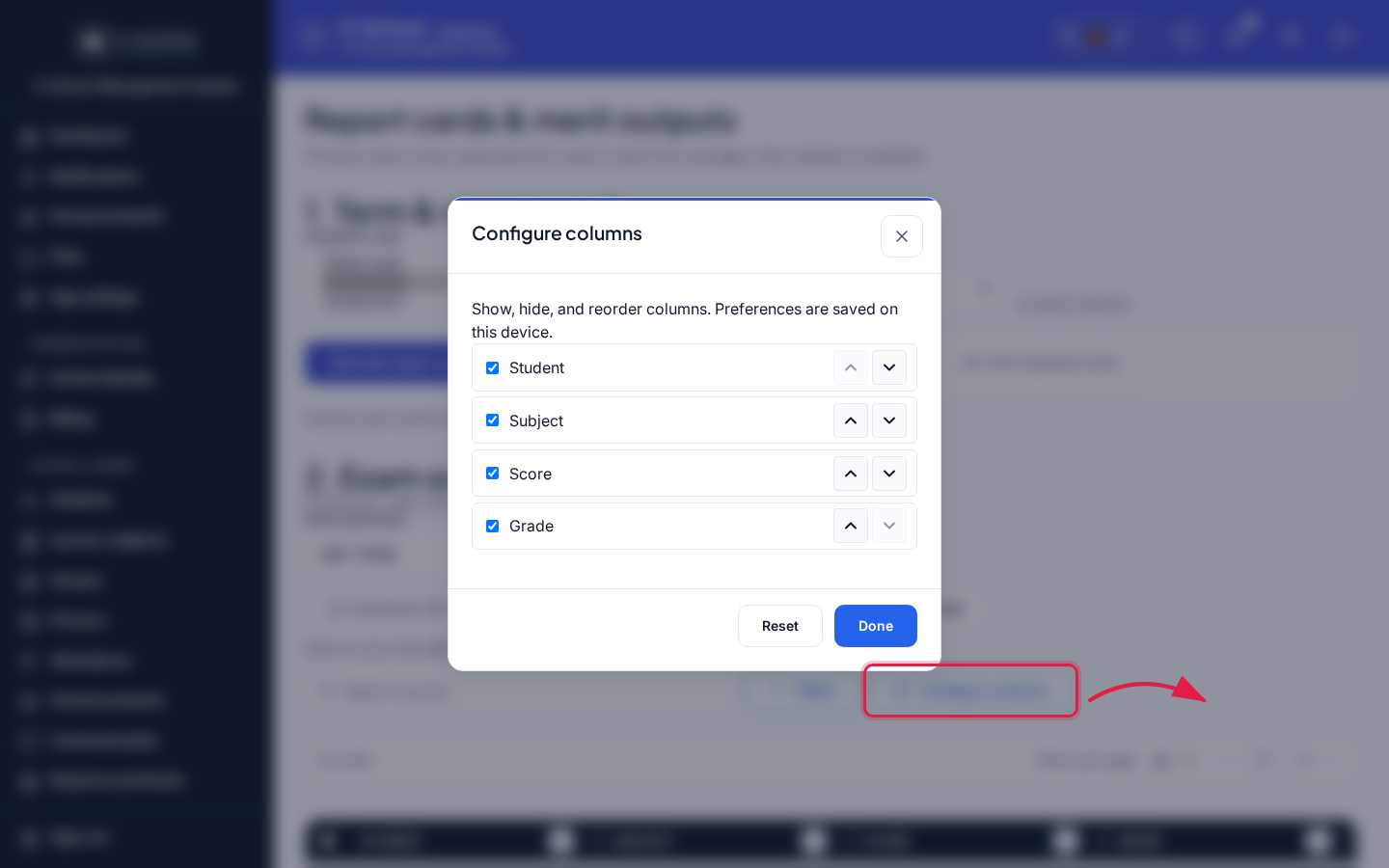 Desktop - Filters / Configure columns open
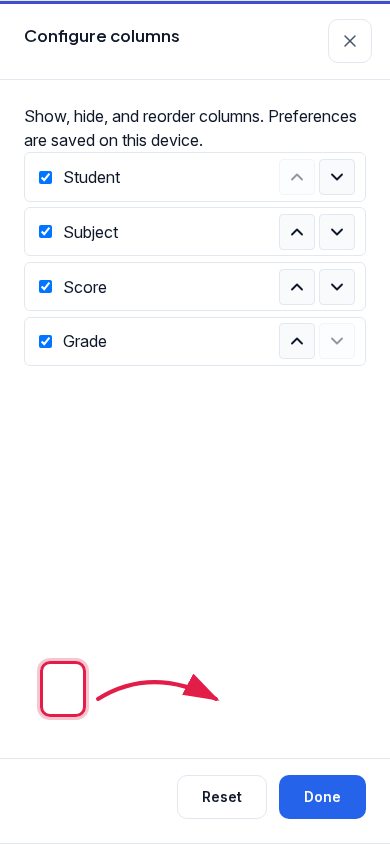 Mobile - Filters / Configure columns open
Options
Academic year (example local/DEV seed - yours may differ):
- 2025/2026
- 2026/2027
Term: terms defined for the selected year (for example First Term (2025/2026)).
Exam (preview): published exams for the term (preview only - cards average the whole term).
Generate wizard modes: Generate all · Generate one by one.
Steps
- Select academic year and term with the lists open (see Interaction path).
- Generate report cards via the wizard.
- Review preview scores and generated cards.
- Print, then release to student/parent portals.
Fields and actions
- Academic year / Term / Exam (preview)
- Generate report cards / Generate cards for selected
- Wizard: Class, Stream (optional), Report title, Generate all / one by one, admission number
- Print report cards / Print selected cards / Print assessment results / Print this card
- Release term to students / Release now
- Grade summary marksheet / Show-Hide preview
- Search cards… / Search scores…
Common mistakes
- Empty cards when learner subjects were never registered
- Generating while marks are still unpublished
- Relying on the exam preview as if it were the full term average
- Printing before Release term to students
- Surprised gender placeholder photos at print time