Generate report cards
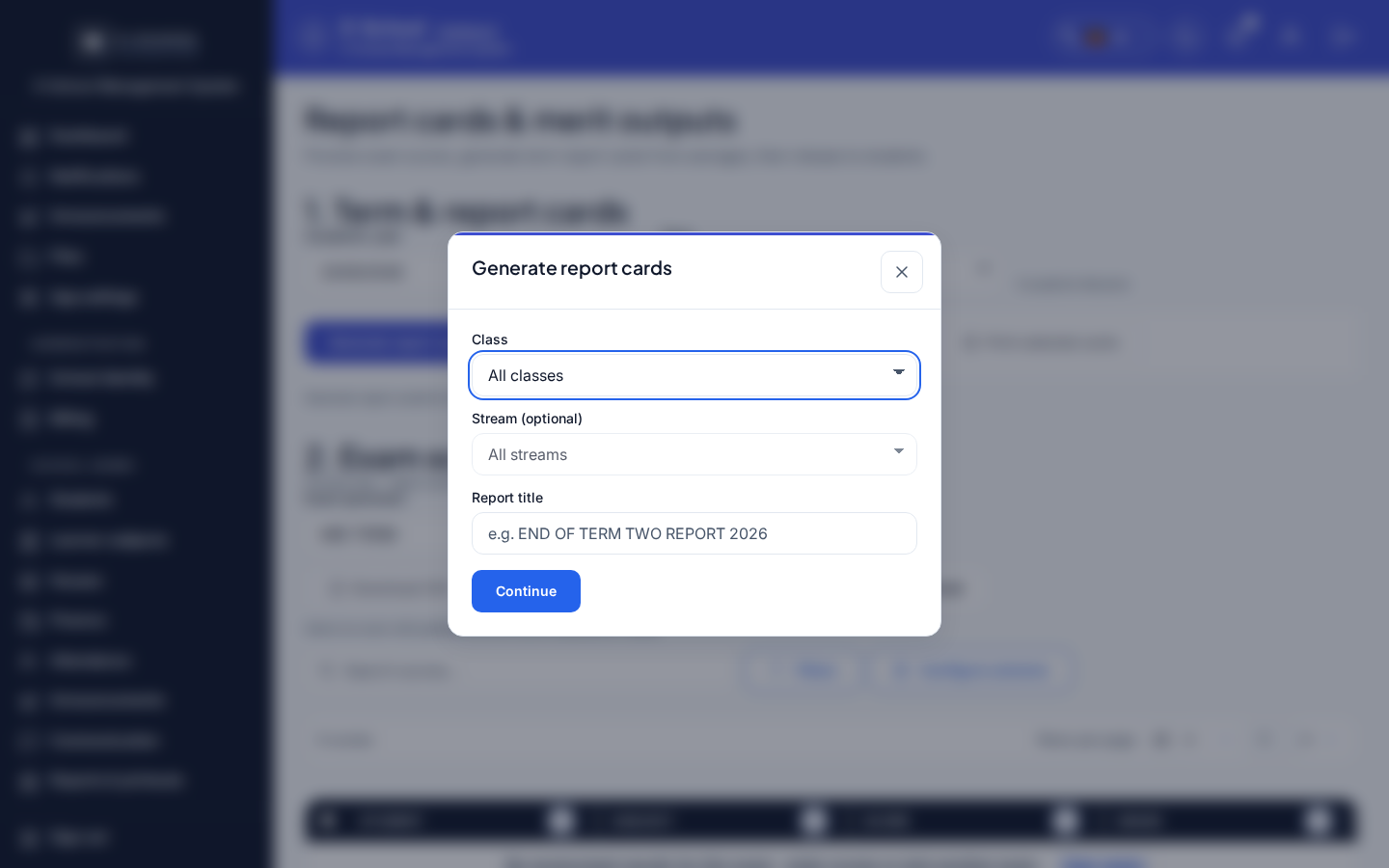
Modal wizard on Report cards (report-cards-generate-wizard): set scope (class / stream / title), then Generate all or generate one-by-one by admission number.
Who can use this
- ADMIN
Path
/admin/report-cards (modal report-cards-generate-wizard)
Dependencies
- Academic year and term selected on the Report cards page.
- Learner subjects registered for the class (Learner subjects) - without them, cards generate empty of subjects.
- Marks published for the term/exam - unpublished marks stay blank on the card.
- Missing learner photo or gender uses placeholders on the printed card (not a generate failure).
Screenshot
Dialog appears when
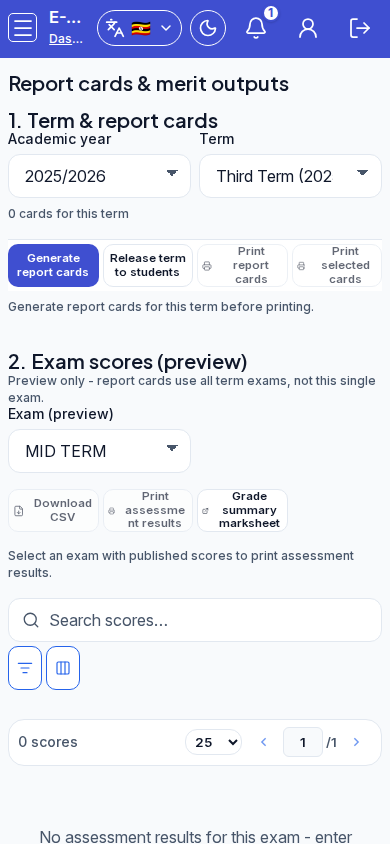
On Report cards, with year and term set, click Generate report cards. Wizard title: Generate report cards.
Steps
- Open
/admin/report-cardsand pick academic year + term. - Click Generate report cards.
- Optionally set Class, Stream (optional), and Report title, then Continue.
- Choose Generate all, or Generate one by one and enter Learner admission number, then generate.
- Use Back to return to scope or mode. Close when finished.
- After generation, use Release term to students before learners should see cards; print via Print selected or Print report cards.
Fields and actions
- Class (placeholder: All classes)
- Stream (optional) / All streams
- Report title
- Continue / Back
- Generate all
- Generate one by one
- Learner admission number
- Generate report cards (one-by-one submit)
- Close
Common mistakes
- Generating with no learner subjects - cards look empty
- Expecting unpublished marks to appear on the card
- Surprised by photo / gender placeholders when profile fields were skipped at admit
- Printing or releasing before marks and subjects are ready
- Generating the wrong class/stream filter