Marks & exams
Teacher workspace to enter exam and AOI marks for assigned classes, then leave publish to Admin.
Who can use this
- TEACHER
- ADMIN
Path
/teacher/marks-entry
Dependencies
- Admin must create the exam (and topics for AOI) on Exams & marks.
- Learners need Learner subjects for your subject or the sheet shows no rows.
- You only see classes/subjects you teach unless Admin overrides.
Screenshot
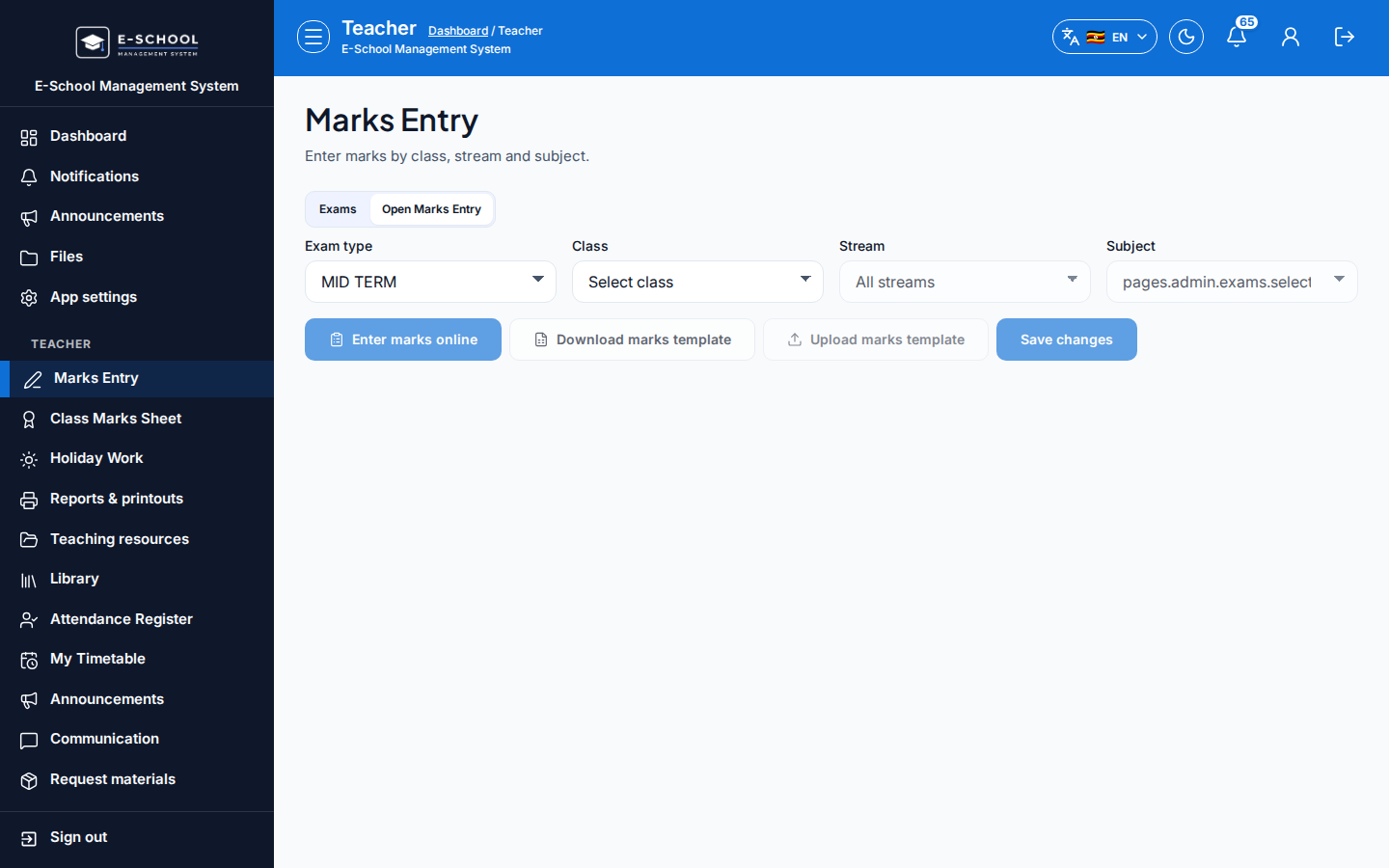
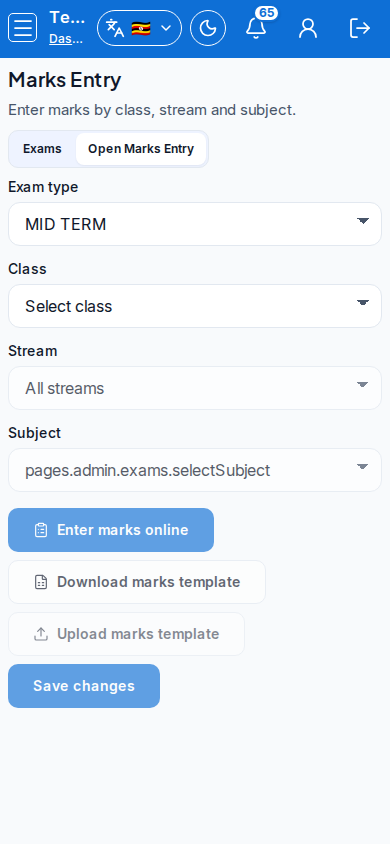
Steps
- Open Marks & exams at
/teacher/marks-entryas TEACHER.
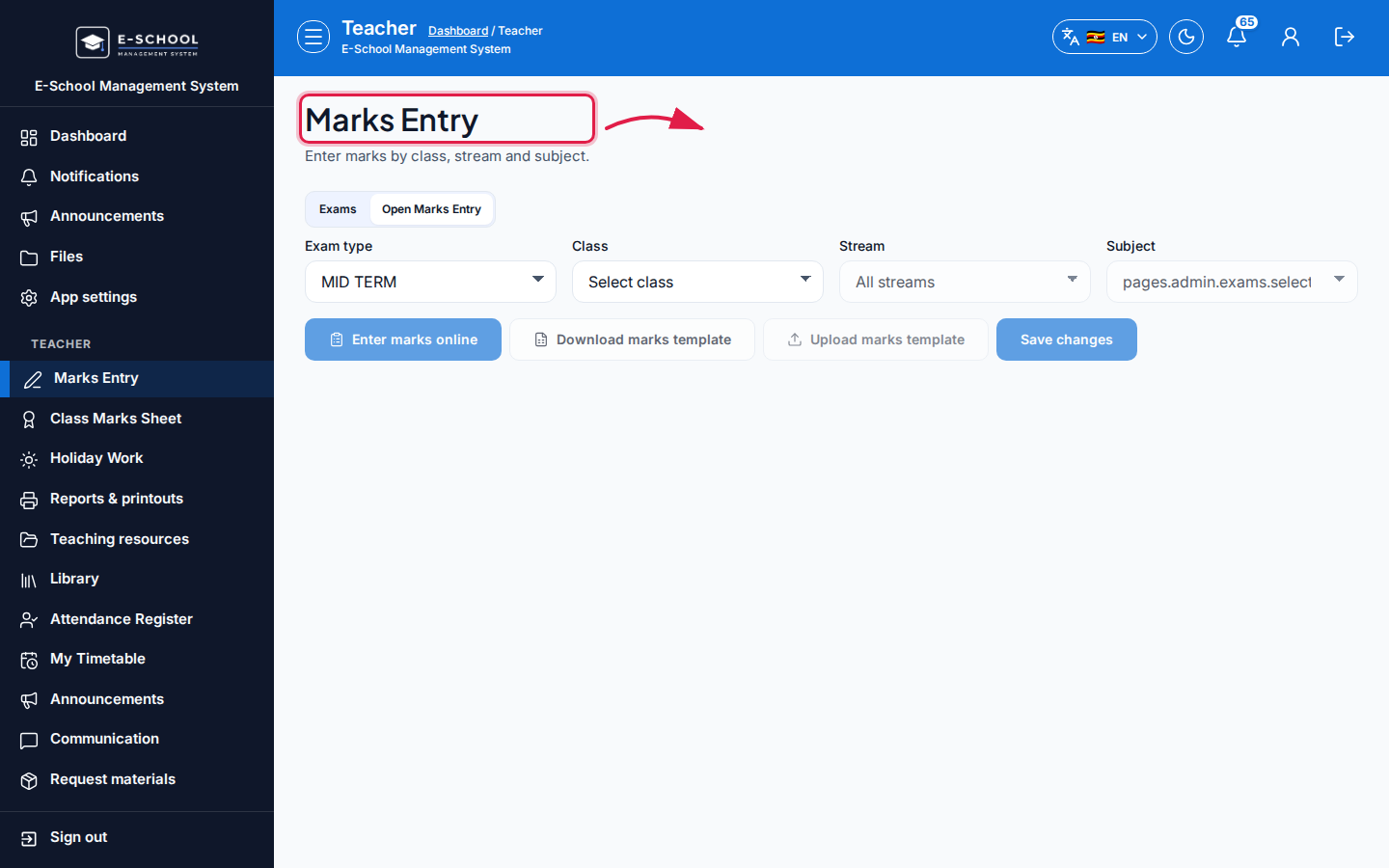 Desktop - focus for step 1
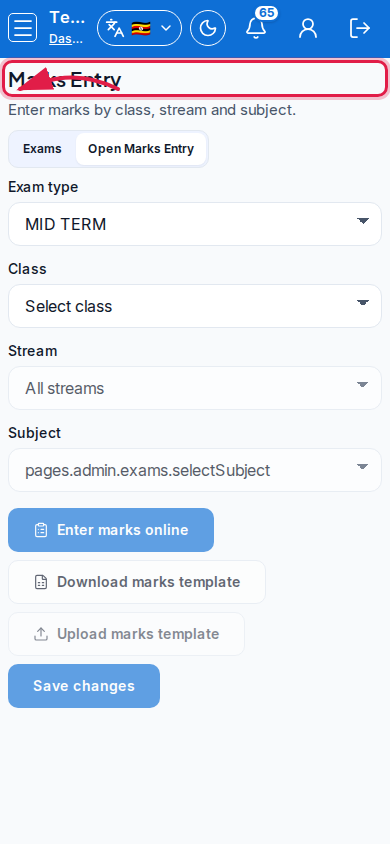 Mobile - focus for step 1
- Filter class, stream, subject, and exam. For AOI, select topic and title; scores are out of 20.
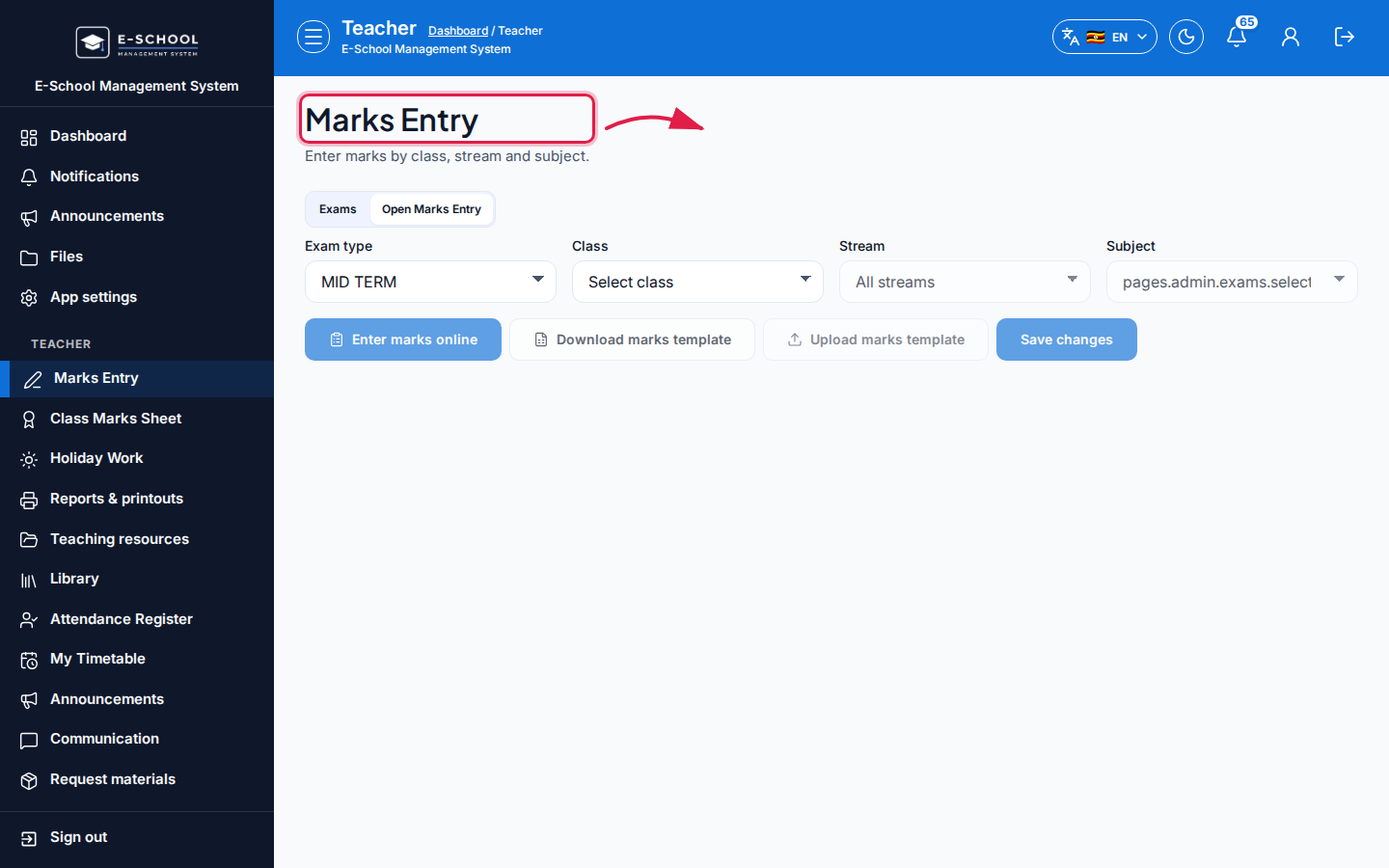 Desktop - focus for step 2
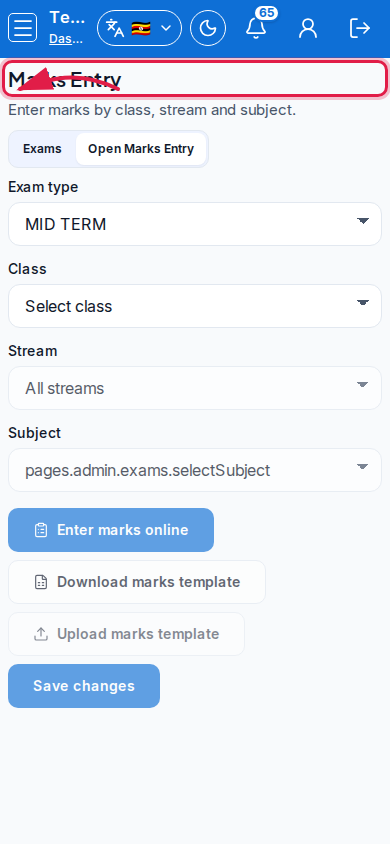 Mobile - focus for step 2
- Use Enter marks online for the live grid, or Download marks template then Upload marks template after filling Score columns.
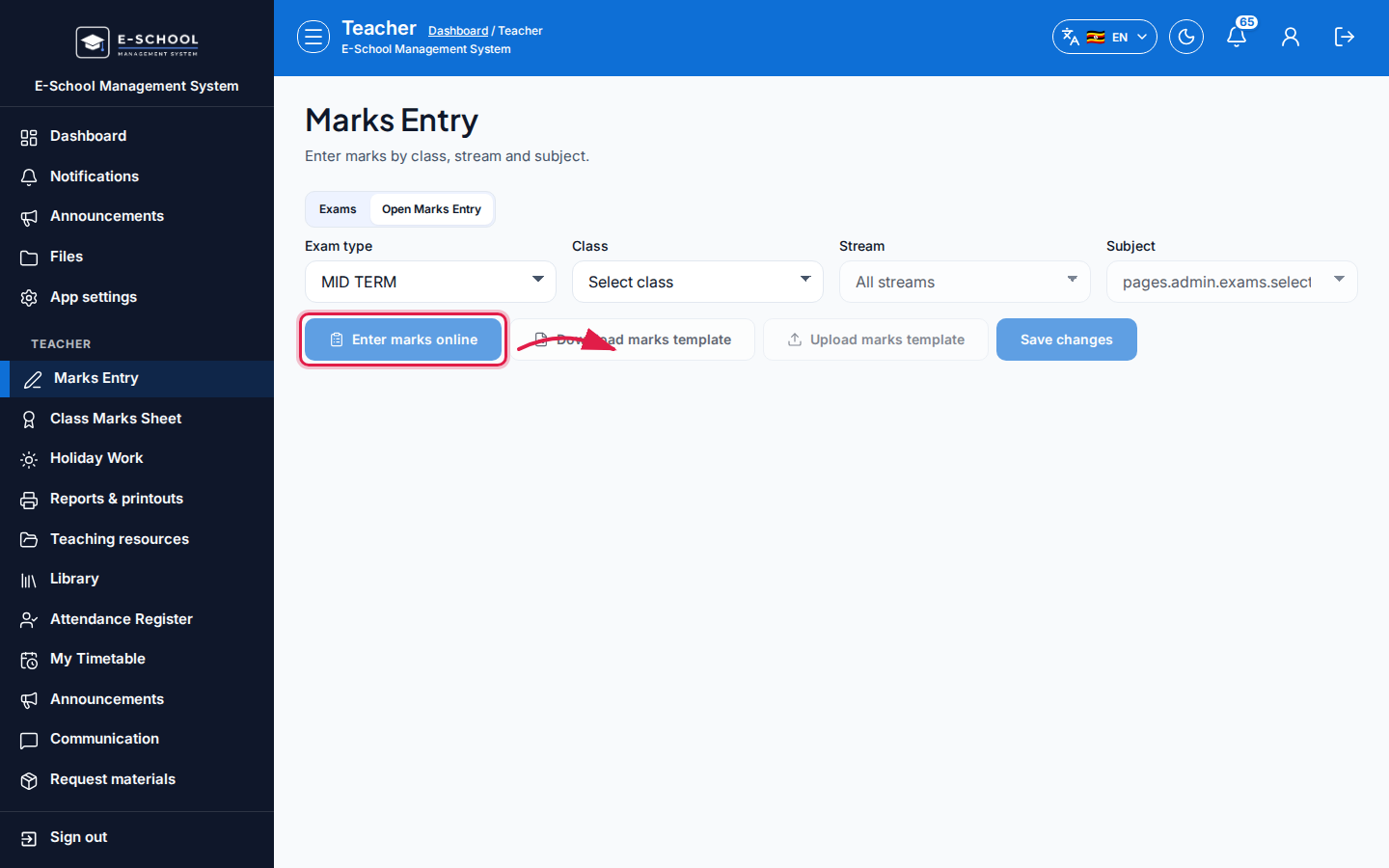 Desktop - focus for step 3
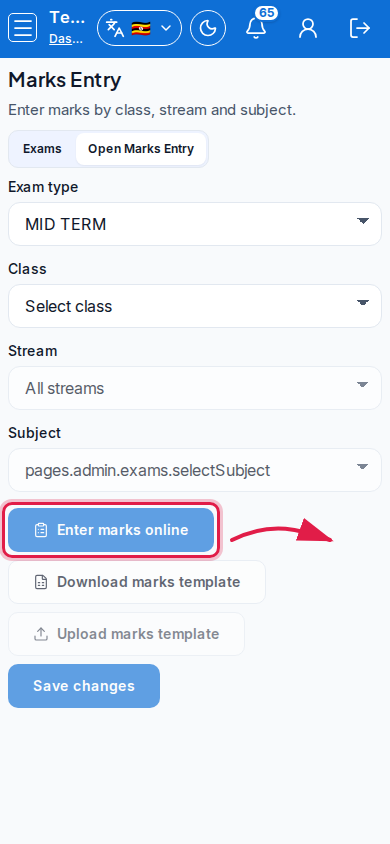 Mobile - focus for step 3
- Click Save changes and wait for the saved toast. Do not assume Admin has published yet.
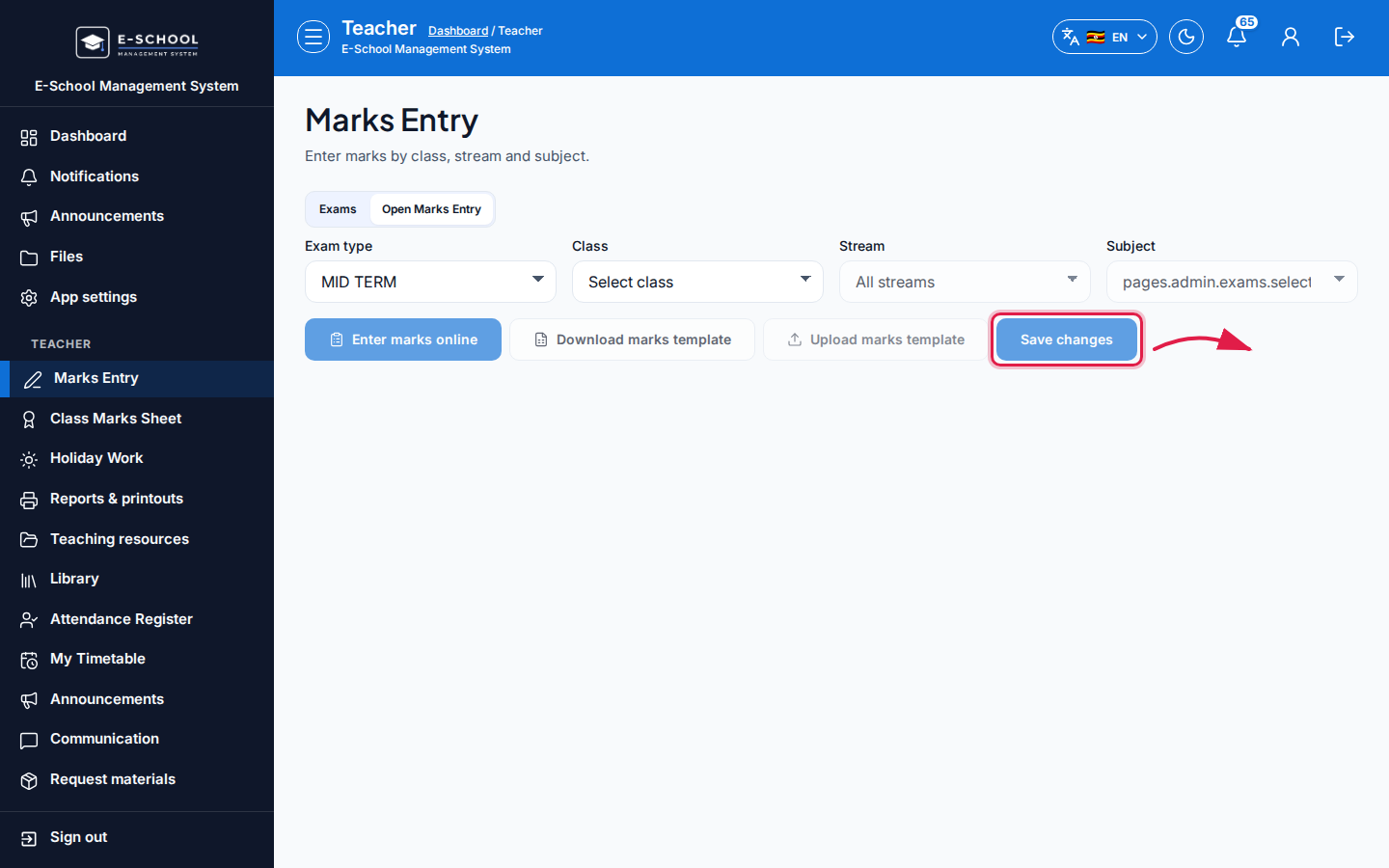 Desktop - focus for step 4
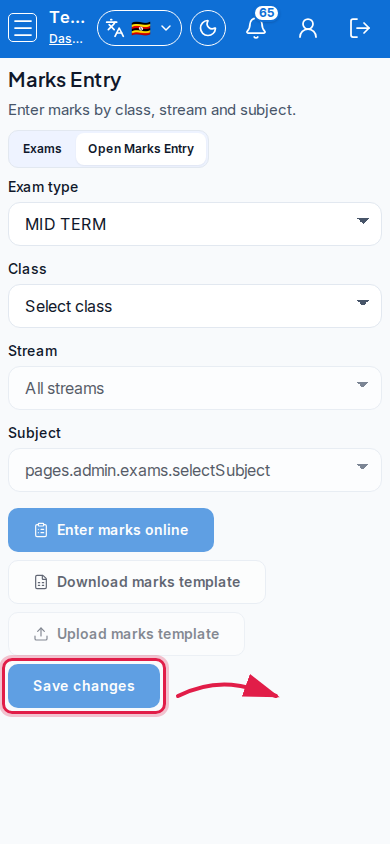 Mobile - focus for step 4
- Tell Admin when the class sheet is complete so they can publish and later generate Report cards.
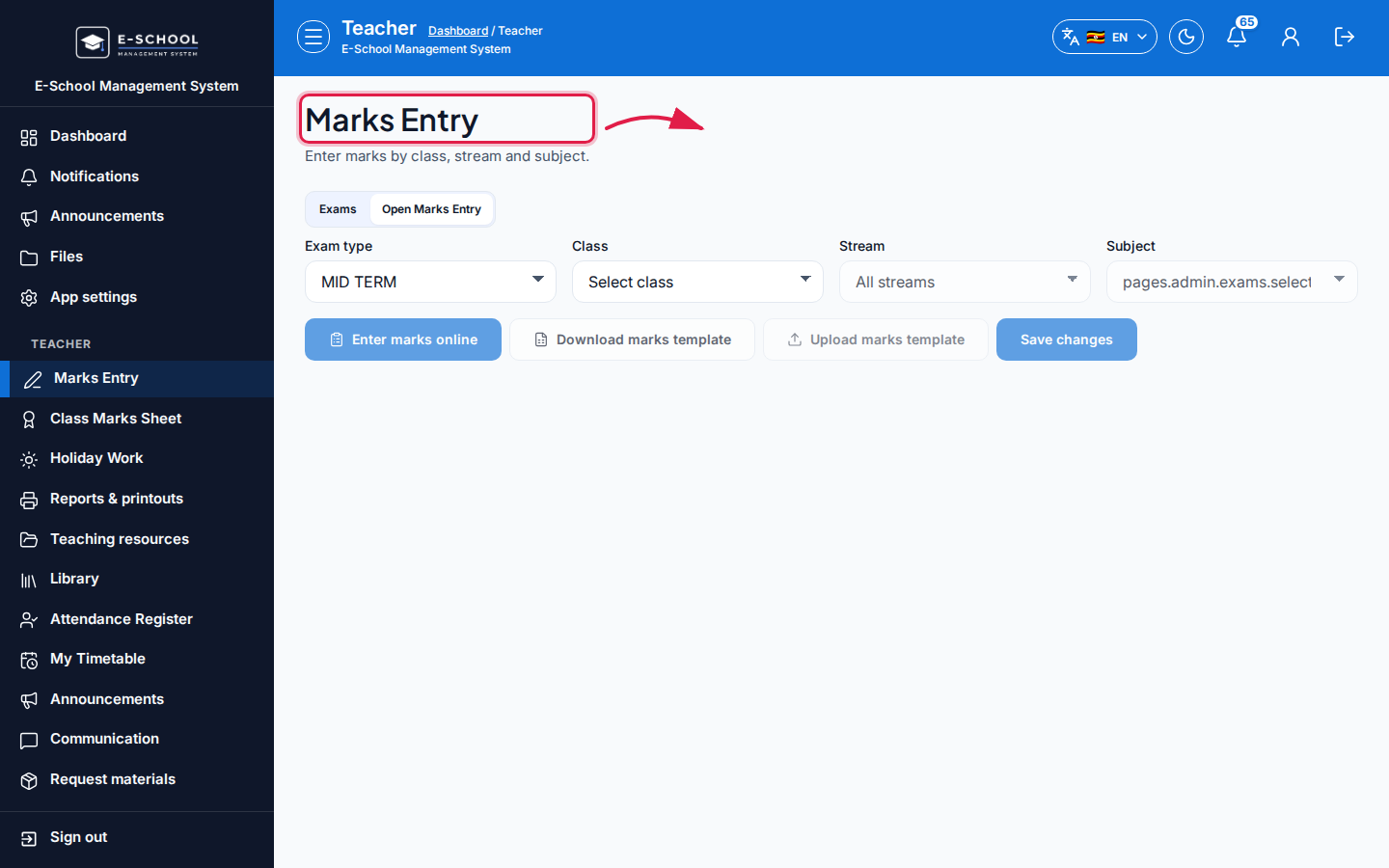 Desktop - focus for step 5
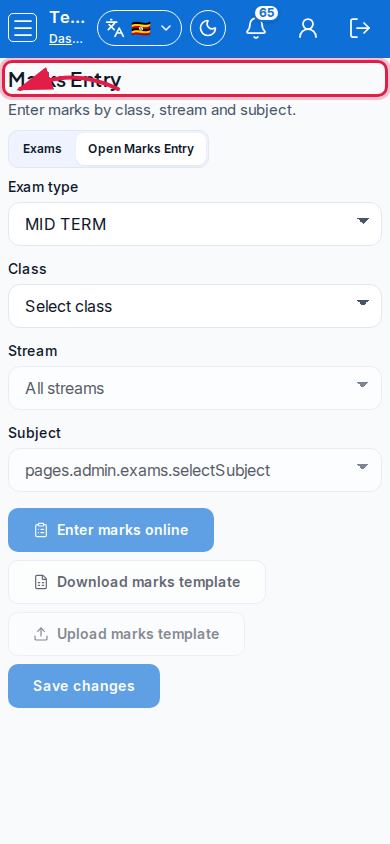 Mobile - focus for step 5
Fields and actions
- Class / Stream / Subject / Exam type / Topic (AOI)
- Enter marks online / Download marks template / Upload marks template / Save changes
- Search learners…; Registered / Not registered
- Tabs often mirror Marks Entry vs Exams navigation in the teacher portal
Common mistakes
- Saving the wrong subject column after switching filters
- Entering marks before Admin created/published the exam window
- Leaving blanks that Admin later treats as complete
- Expecting student/parent portals to show marks before publish and report-card release