Reports & printouts
Hub of academic printouts: class lists, teacher directory, scoresheets, report cards, merit, lesson monitoring, prayer register, alumni. Related tools below are operational pages, not paper printouts.
Who can use this
- ADMIN
Path
/admin/printouts
Dependencies
- Learners and staff exist for directories; marks published for scoresheets/report cards.
- Each card opens a dedicated printout screen.
Screenshot
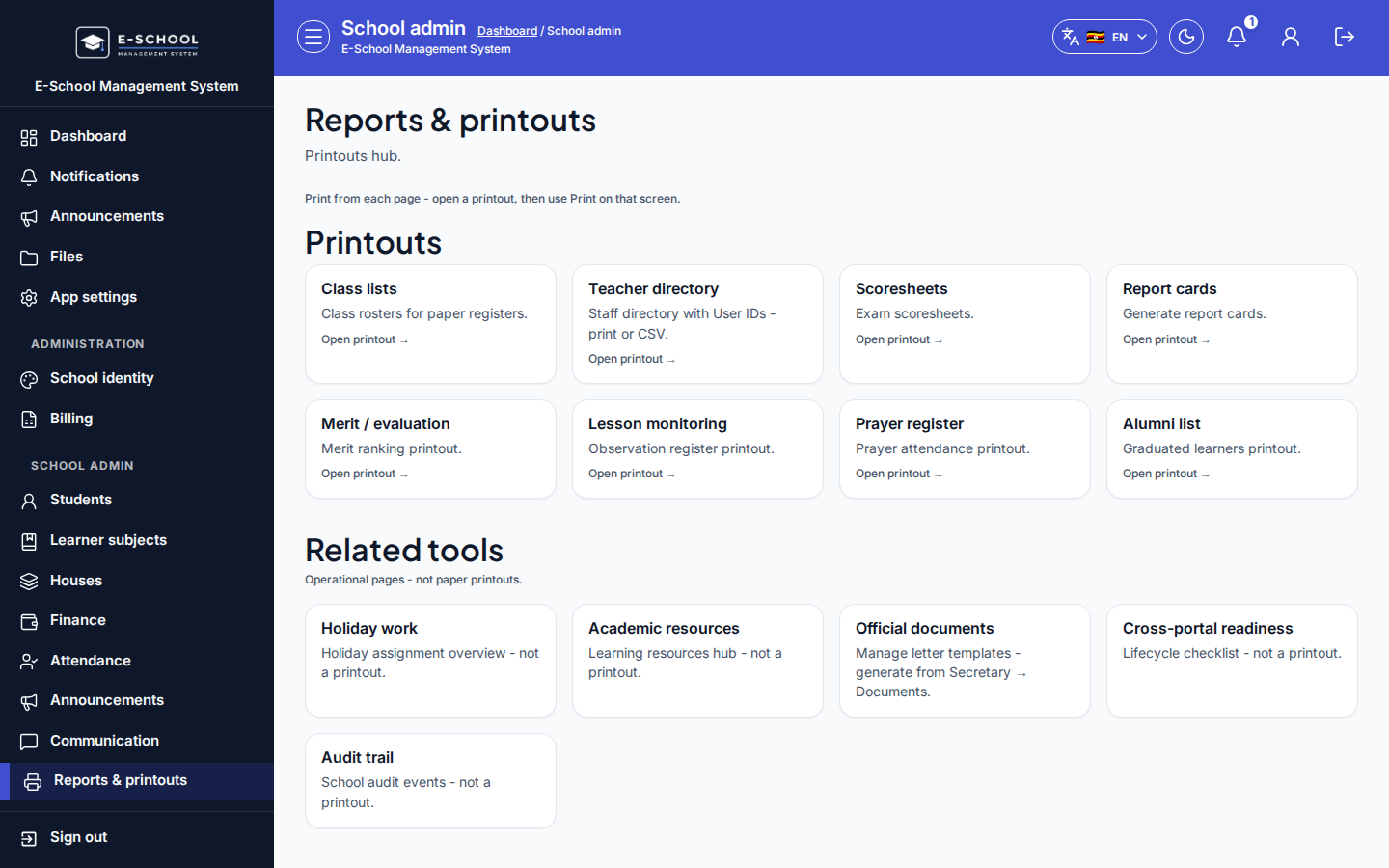
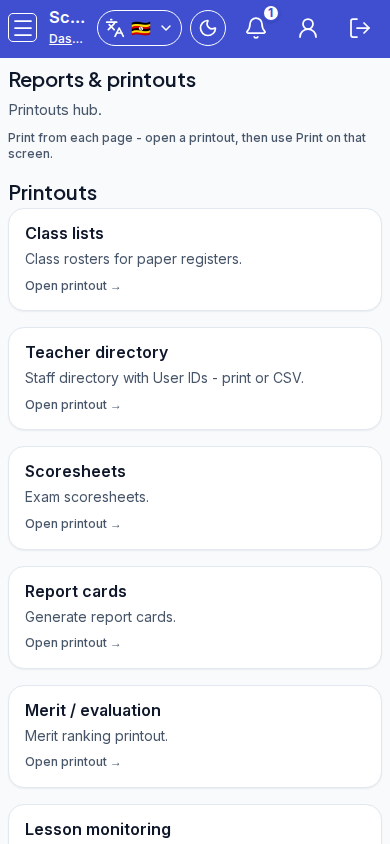
Controls inventory
| Control | Type |
|---|---|
| Reports & printouts (sidebar) | link |
| Class lists / Teacher directory / Scoresheets / Report cards / Merit / Lesson monitoring / Prayer register / Alumni list | link-card |
| Open printout (on each card) | link |
| Holiday work / Academic resources / Official documents / Cross-portal readiness / Audit trail | link-card |
Interaction path
- Open Reports & printouts from the School admin sidebar (or go to
/admin/printouts).
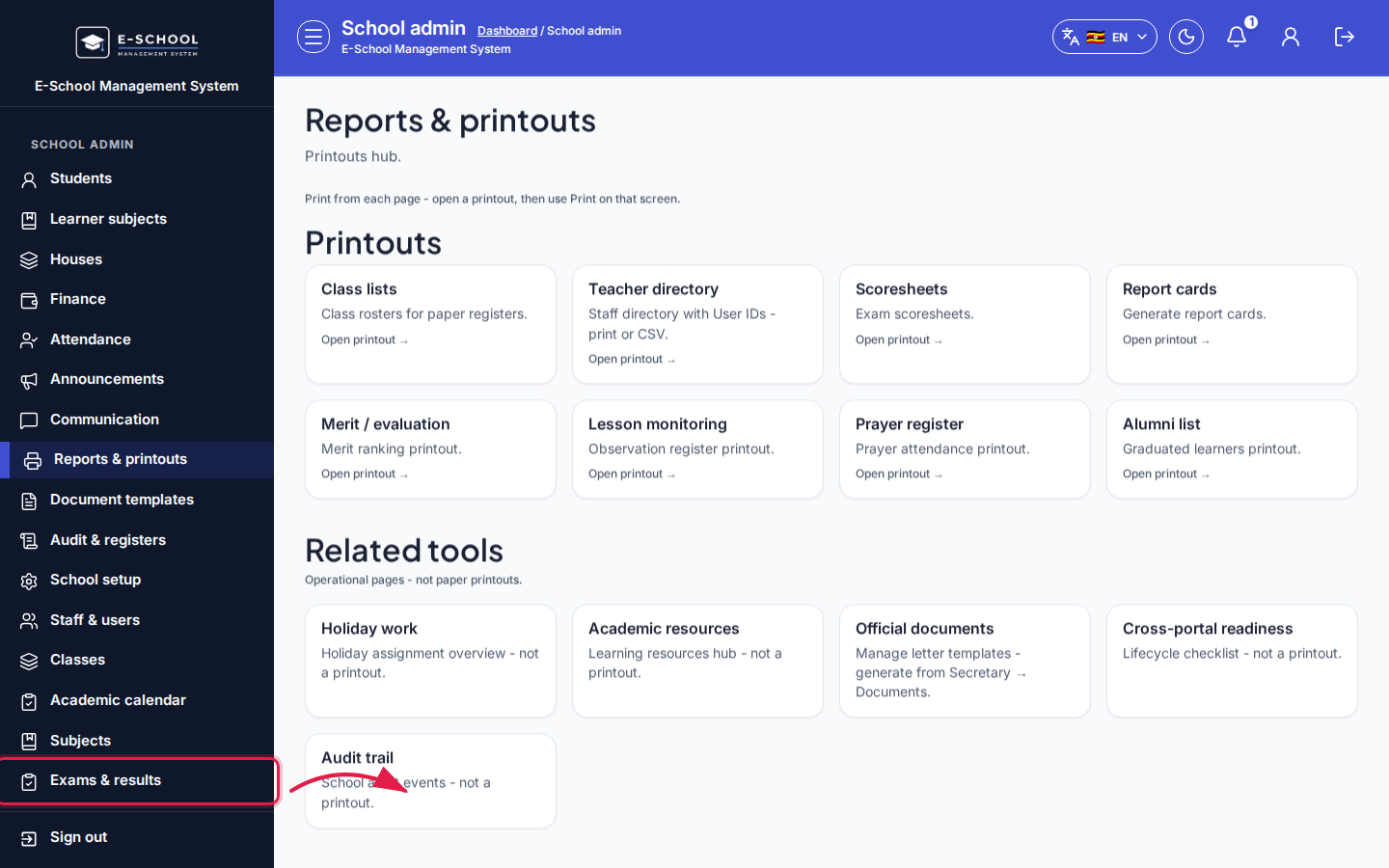 Desktop - sidebar / hub focus
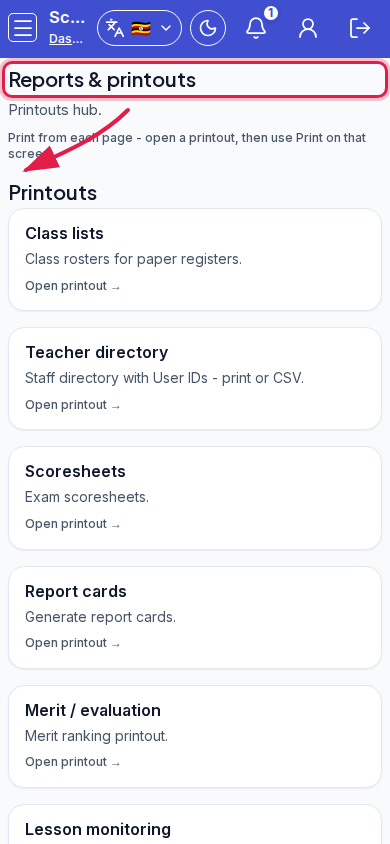 Mobile - hub focus
- In Printouts, find the Report cards card (description: generate report cards and merit sheets).
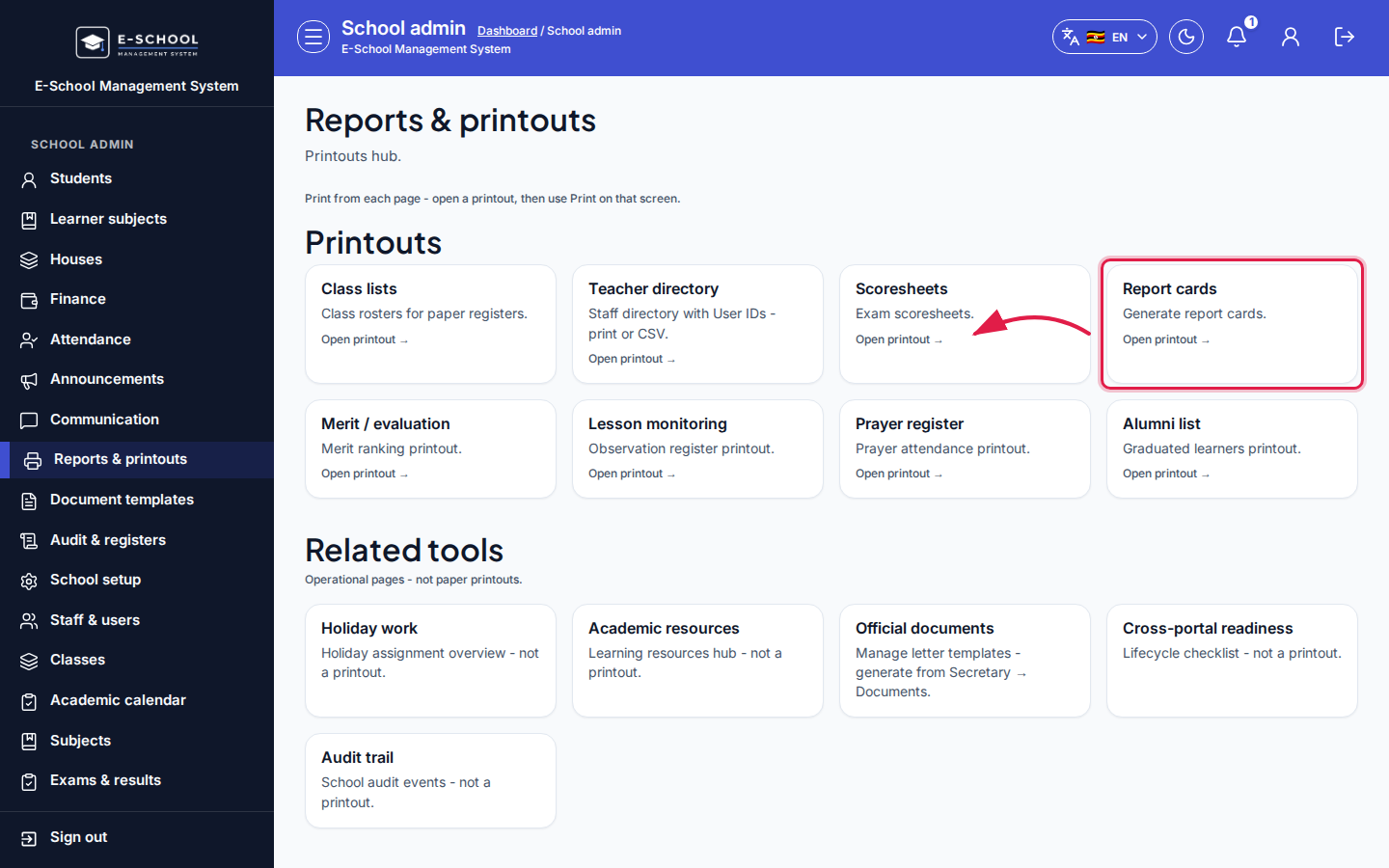 Desktop - arrow on Report cards card
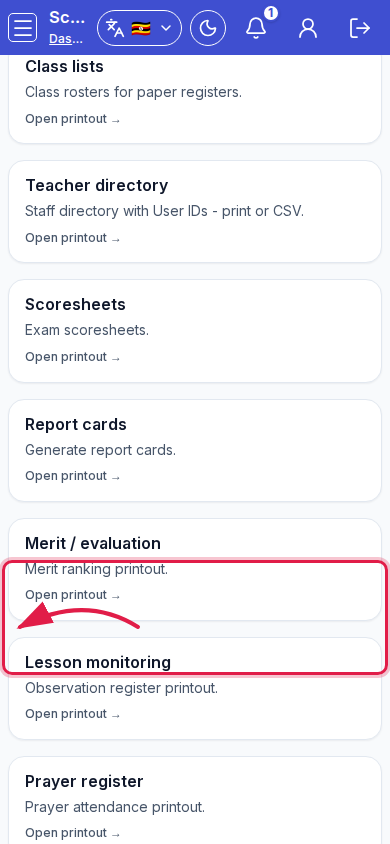 Mobile - Report cards card
- Click Open printout on Report cards (or the card itself) to open
/admin/report-cards.
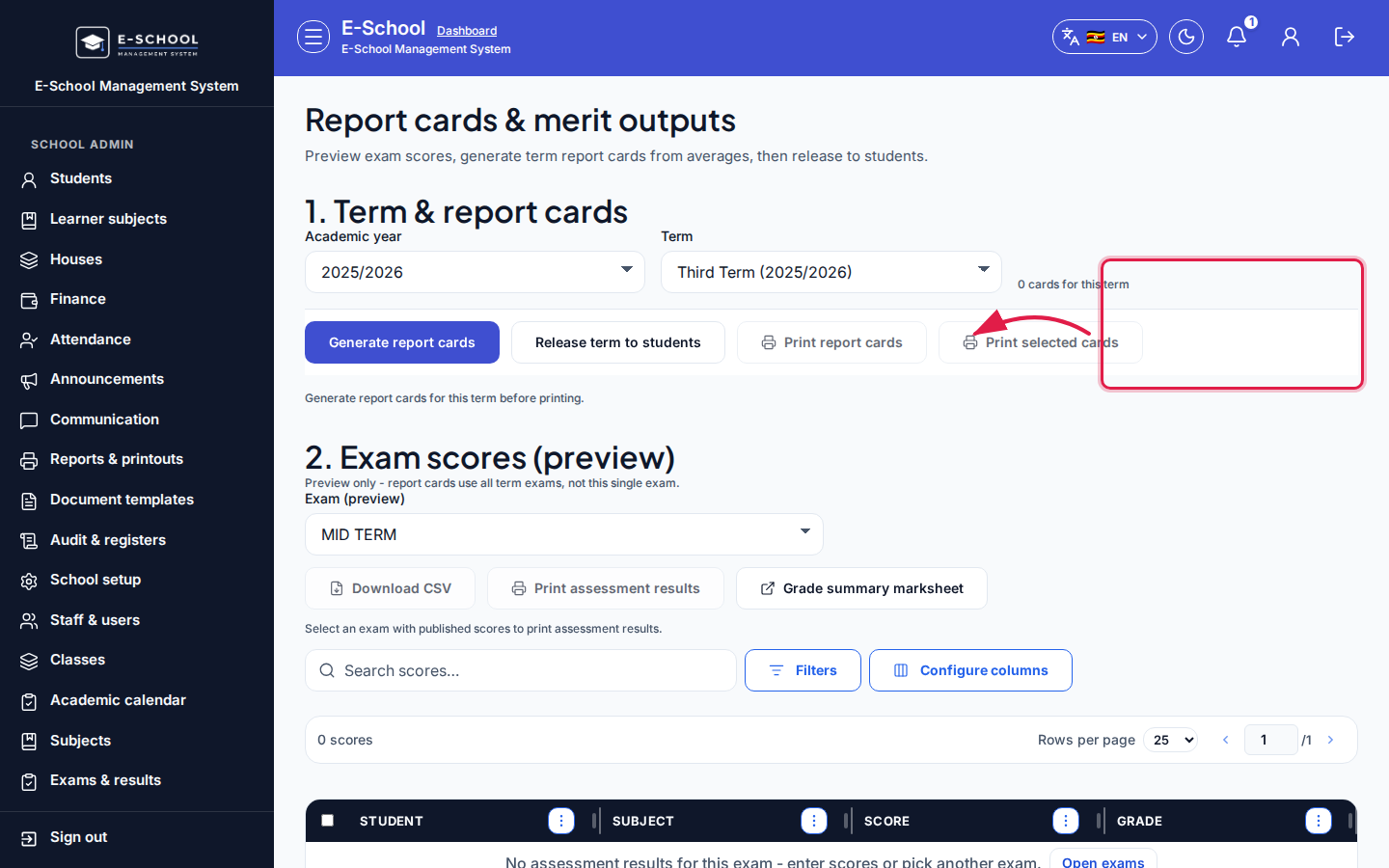 Desktop - after opening Report cards
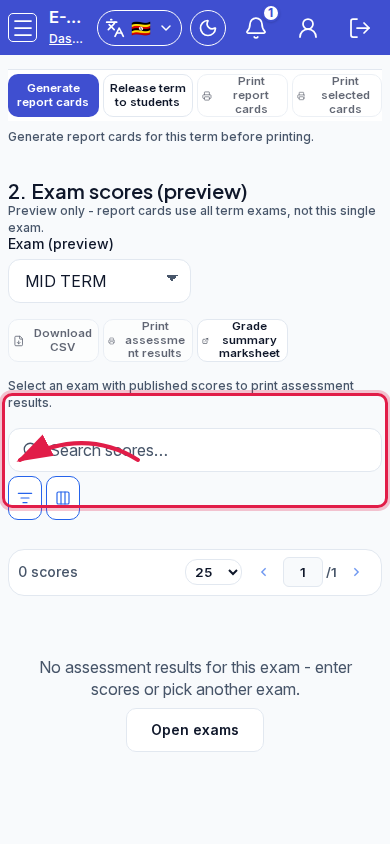 Mobile - after opening Report cards
Continue on Report cards for Academic year / Term / Generate.
Options
Hub cards (Printouts section):
- Class lists
- Teacher directory
- Scoresheets
- Report cards
- Merit / evaluation
- Lesson monitoring
- Prayer register
- Alumni list
Related tools (not printouts): Holiday work, Academic resources, Official documents, Cross-portal readiness, Audit trail.
Steps
- Open the hub as ADMIN.
- Choose the printout card you need and open it.
- Prefer the Report cards flow for term cards instead of offline templates.
Fields and actions
- Printout cards with Open printout
- Related tools shortcuts
Common mistakes
- Printing scoresheets before marks are published
- Using Alumni list for active fee work
- Skipping filters on the target printout page