Notifications
Admin shortcut into the shared Notifications inbox (/admin/notifications redirects to /notifications).
Who can use this
- ADMIN
Path
/admin/notifications
Dependencies
- Signed-in user receives in-app notifications from school events.
- Browser push is controlled under App settings.
Screenshot
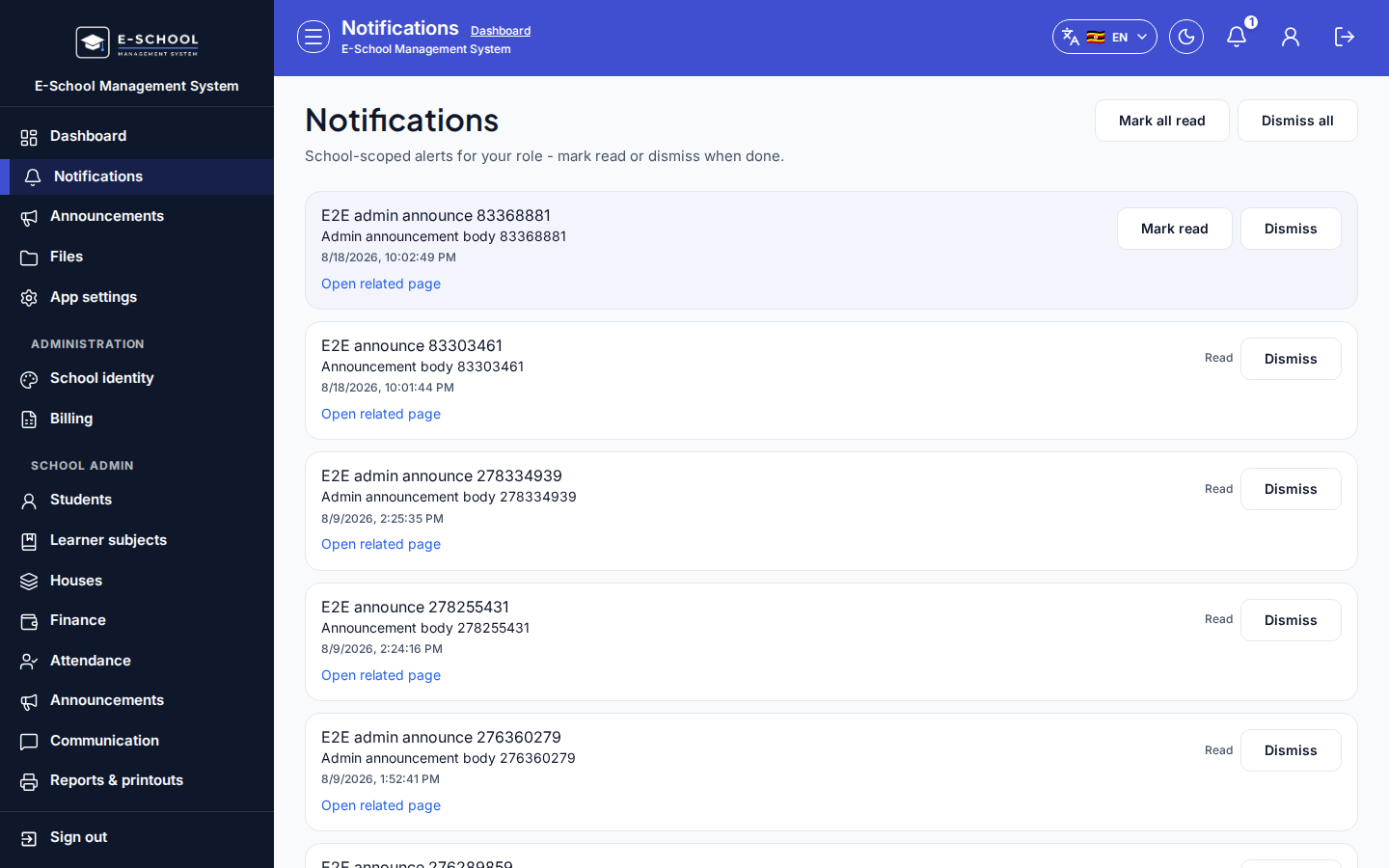
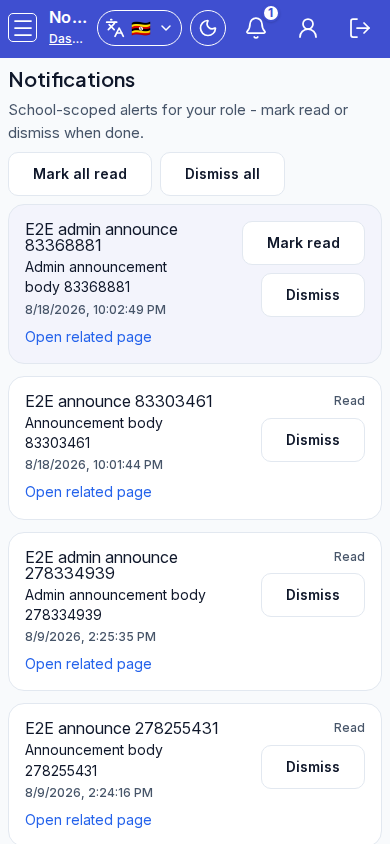
Steps
- Open Notifications via
/admin/notificationsor/notifications.
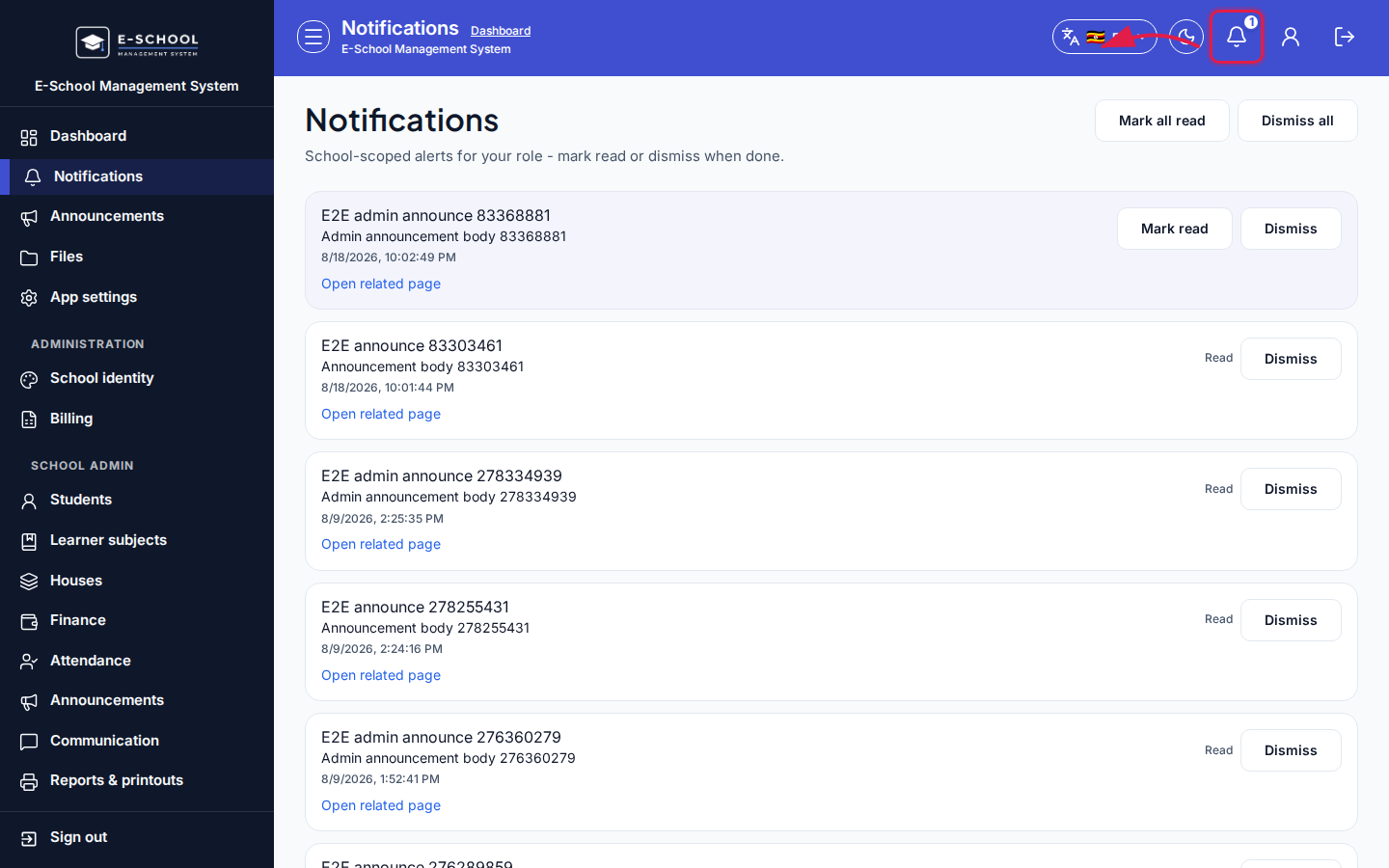 Desktop - focus for step 1
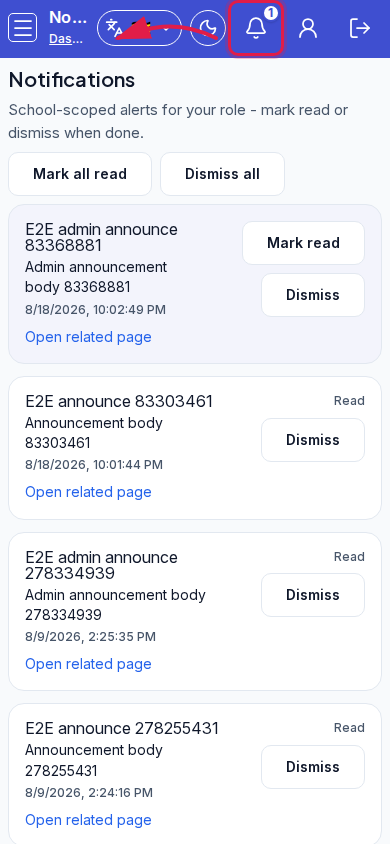 Mobile - focus for step 1
- Review unread items. Use Mark read or Mark all read.
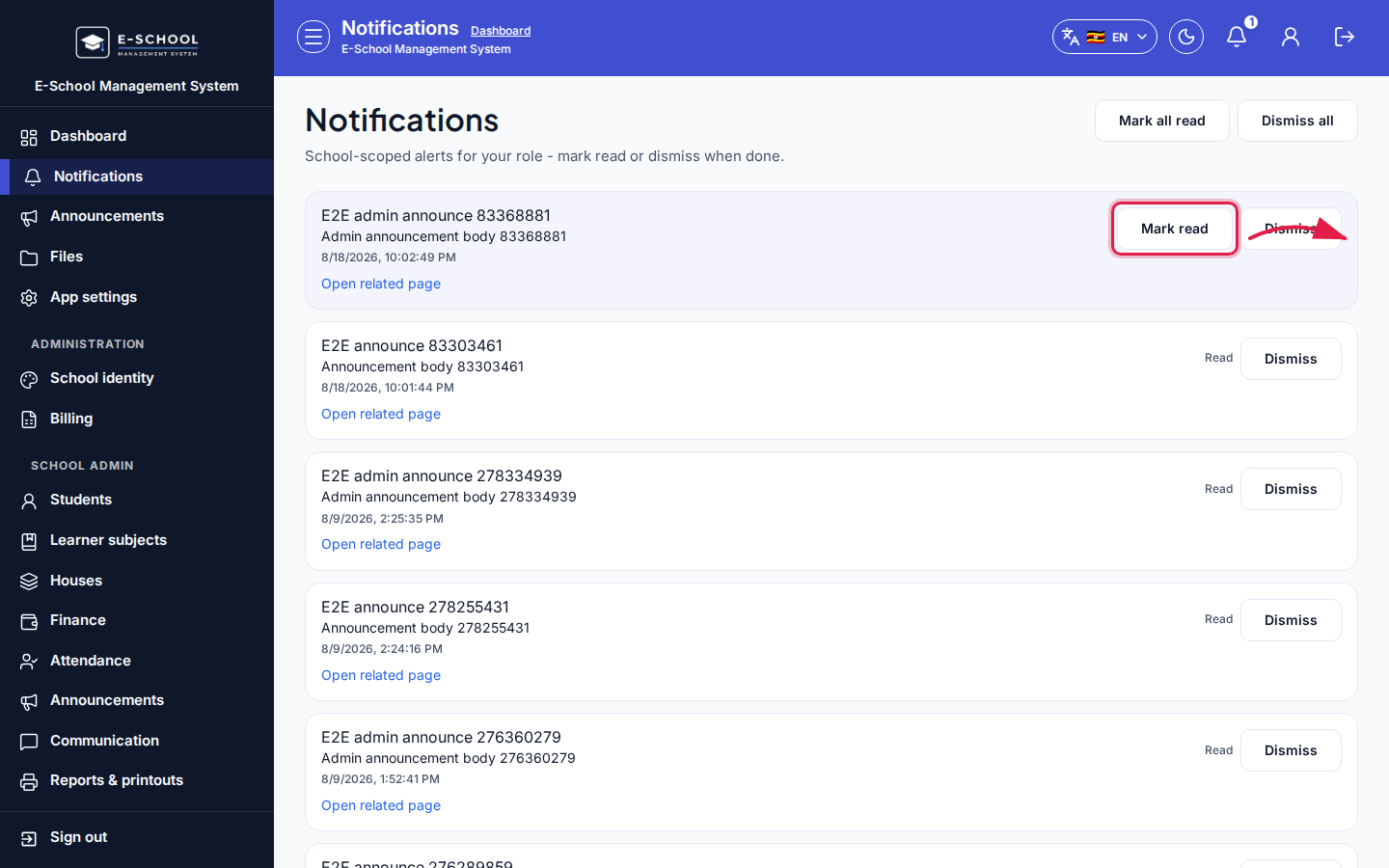 Desktop - focus for step 2
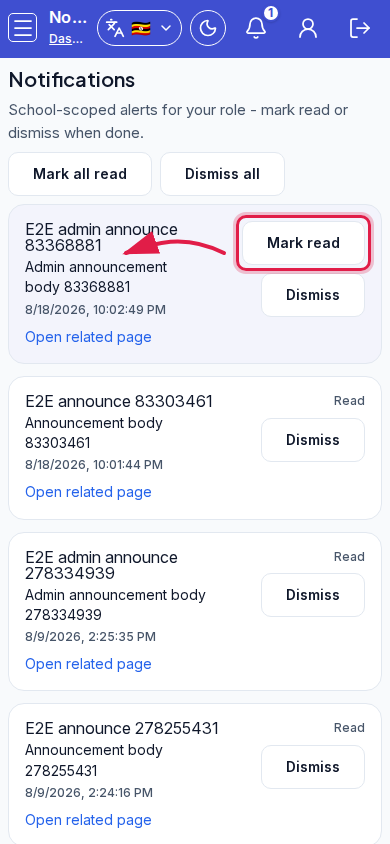 Mobile - focus for step 2
- Dismiss or Dismiss all when done. Open related page to jump to the source screen.
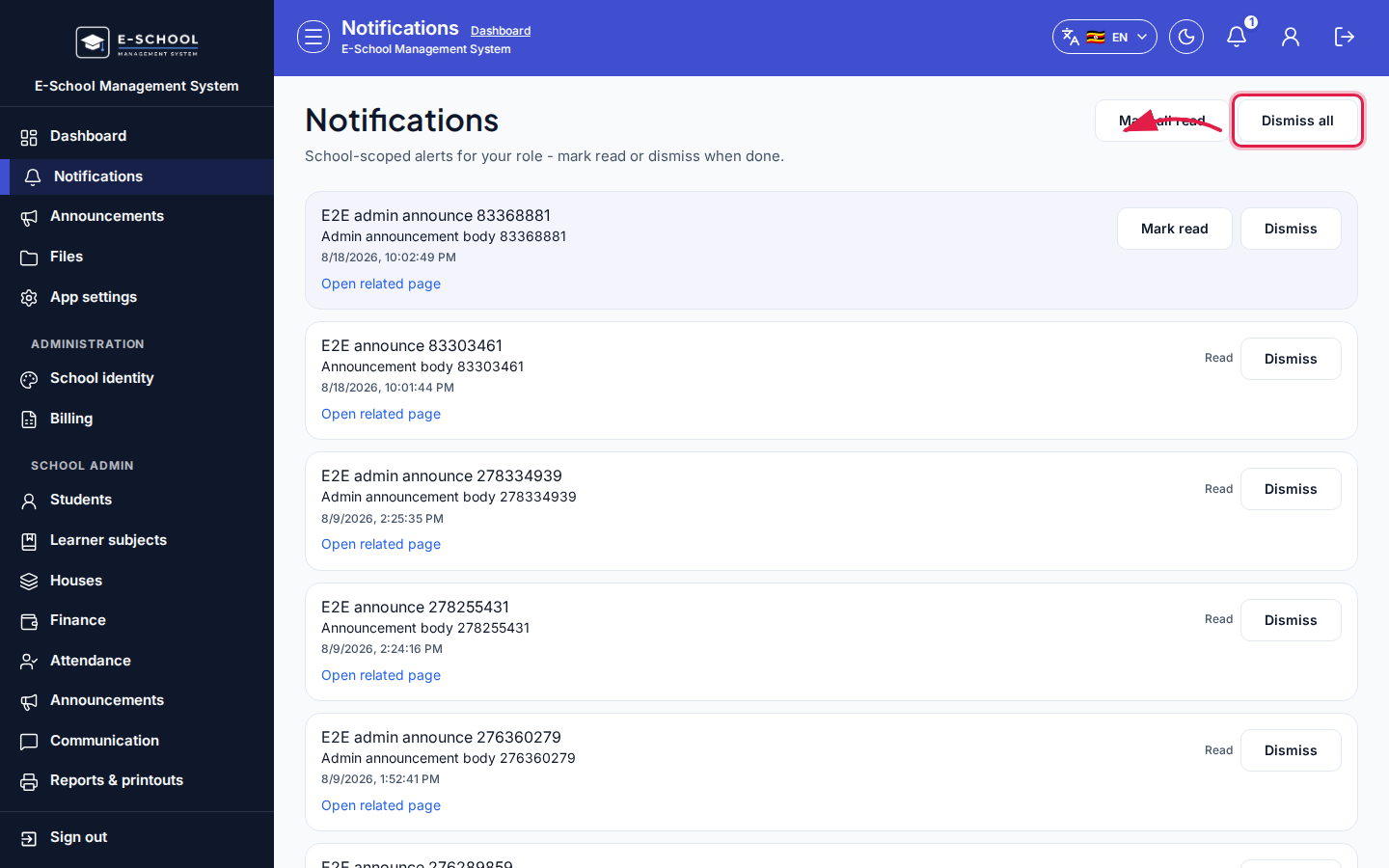 Desktop - focus for step 3
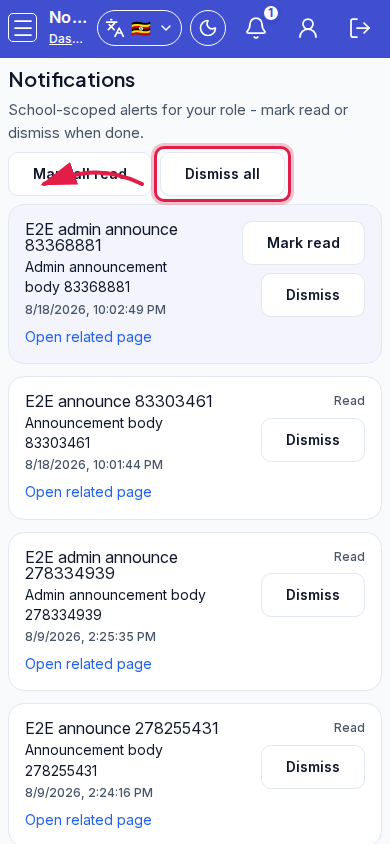 Mobile - focus for step 3
- Empty inbox: Go to dashboard.
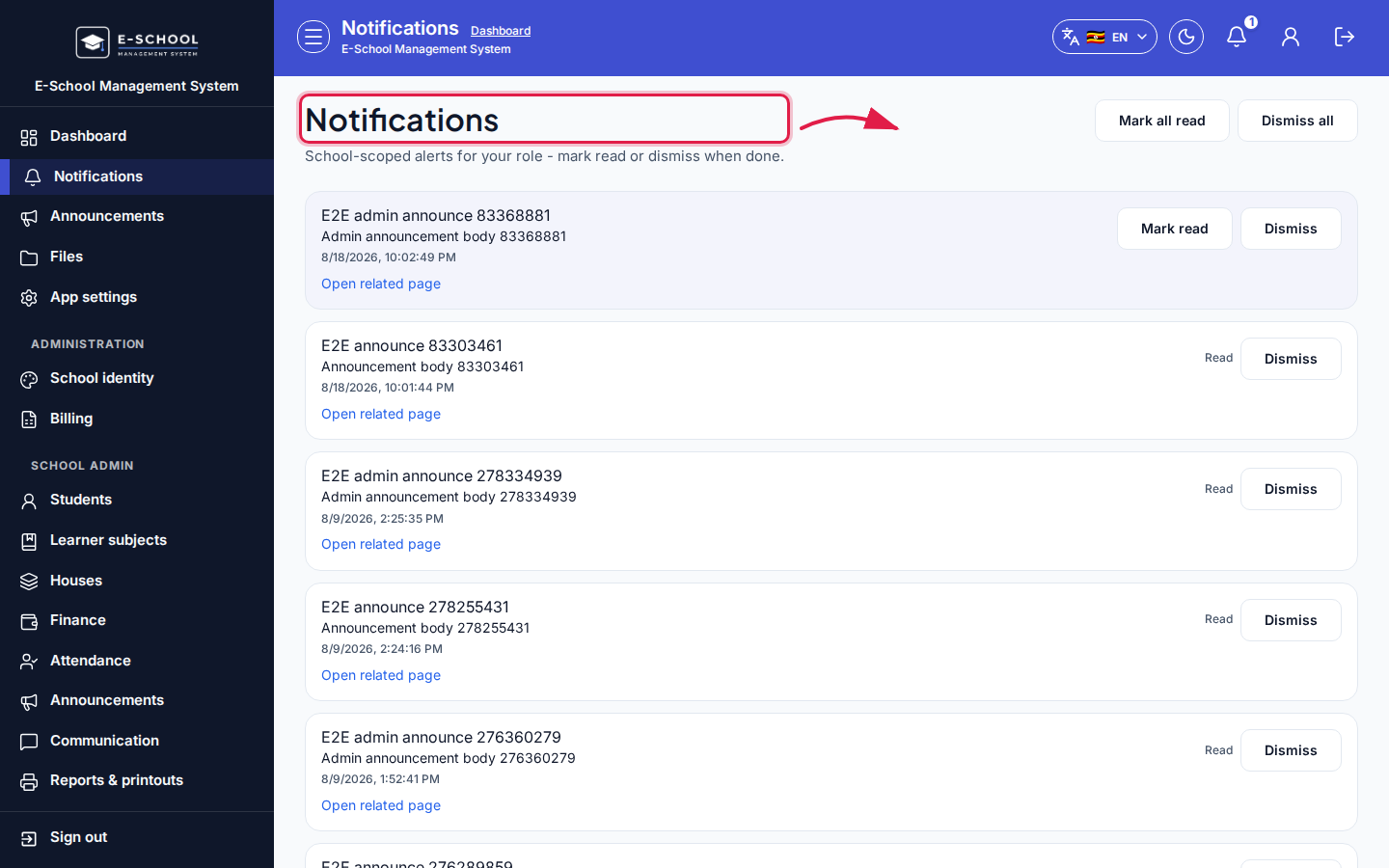 Desktop - focus for step 4
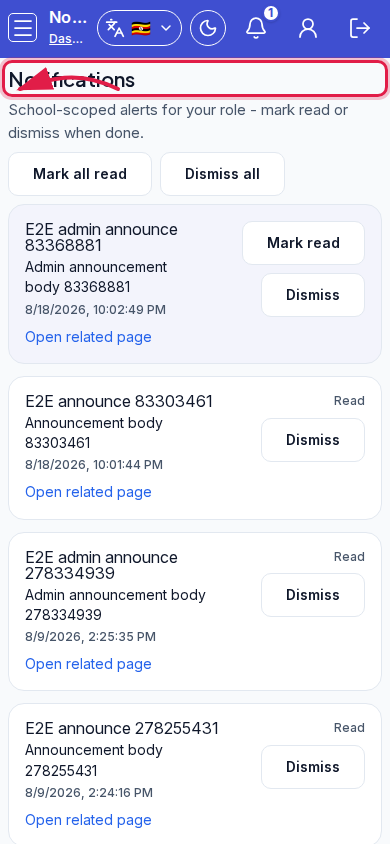 Mobile - focus for step 4
- Enable browser notifications in App settings if desktop alerts are required.
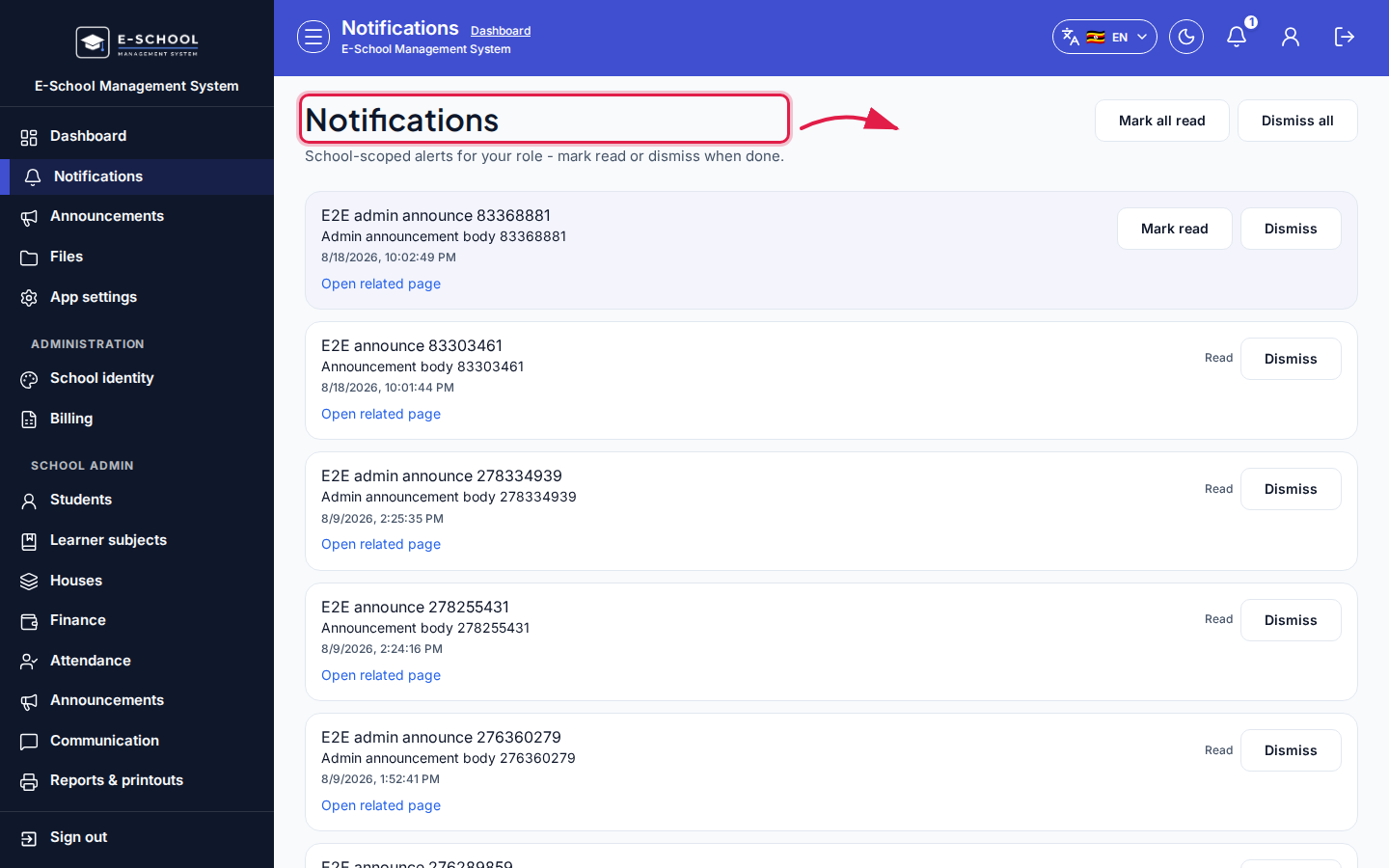 Desktop - focus for step 5
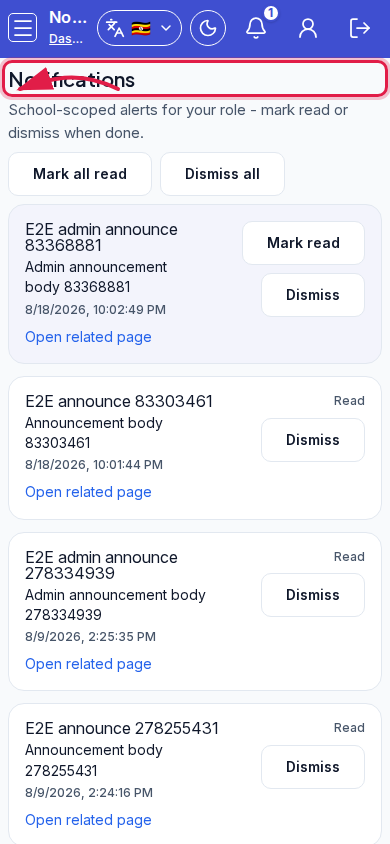 Mobile - focus for step 5
Fields and actions
- Mark all read / Dismiss all / Mark read / Dismiss
- Open related page
- Status: Read
Common mistakes
- Dismissing all before acting on fee or admission alerts
- Expecting email delivery from this inbox alone