Users
Portal accounts and roles. /admin/users redirects to Staff & users on the Accounts tab - prefer that hub for new work.
Who can use this
- ADMIN
Path
/admin/users
Dependencies
- Prefer Staff & users for combined staff + login workflow.
- Copy School ID + User ID + temporary password once from the credentials dialog.
Screenshot
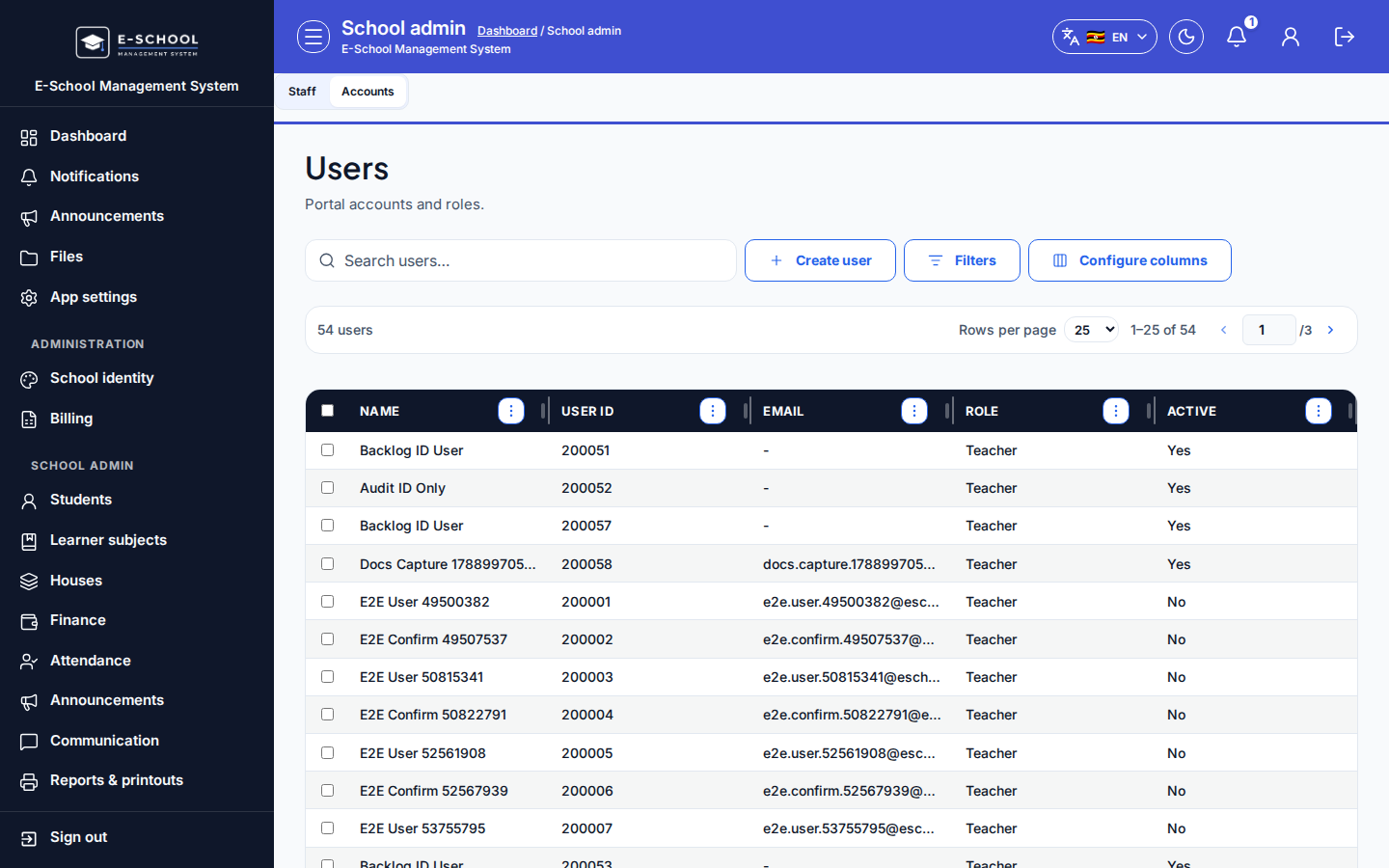
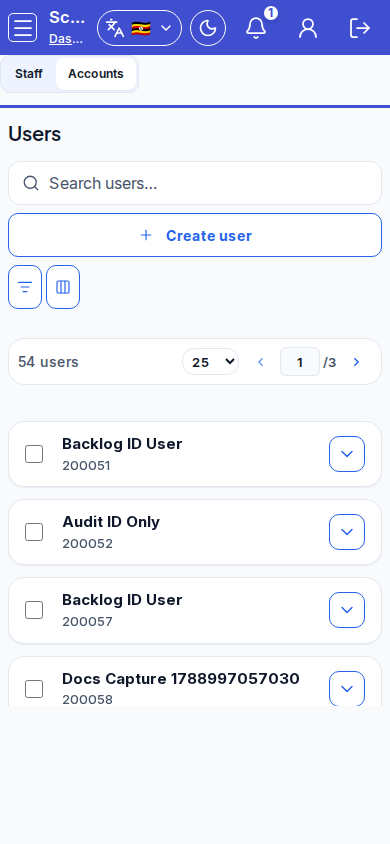
Steps
- Open Users at
/admin/users(lands on/admin/staff-users?tab=accounts) as ADMIN.
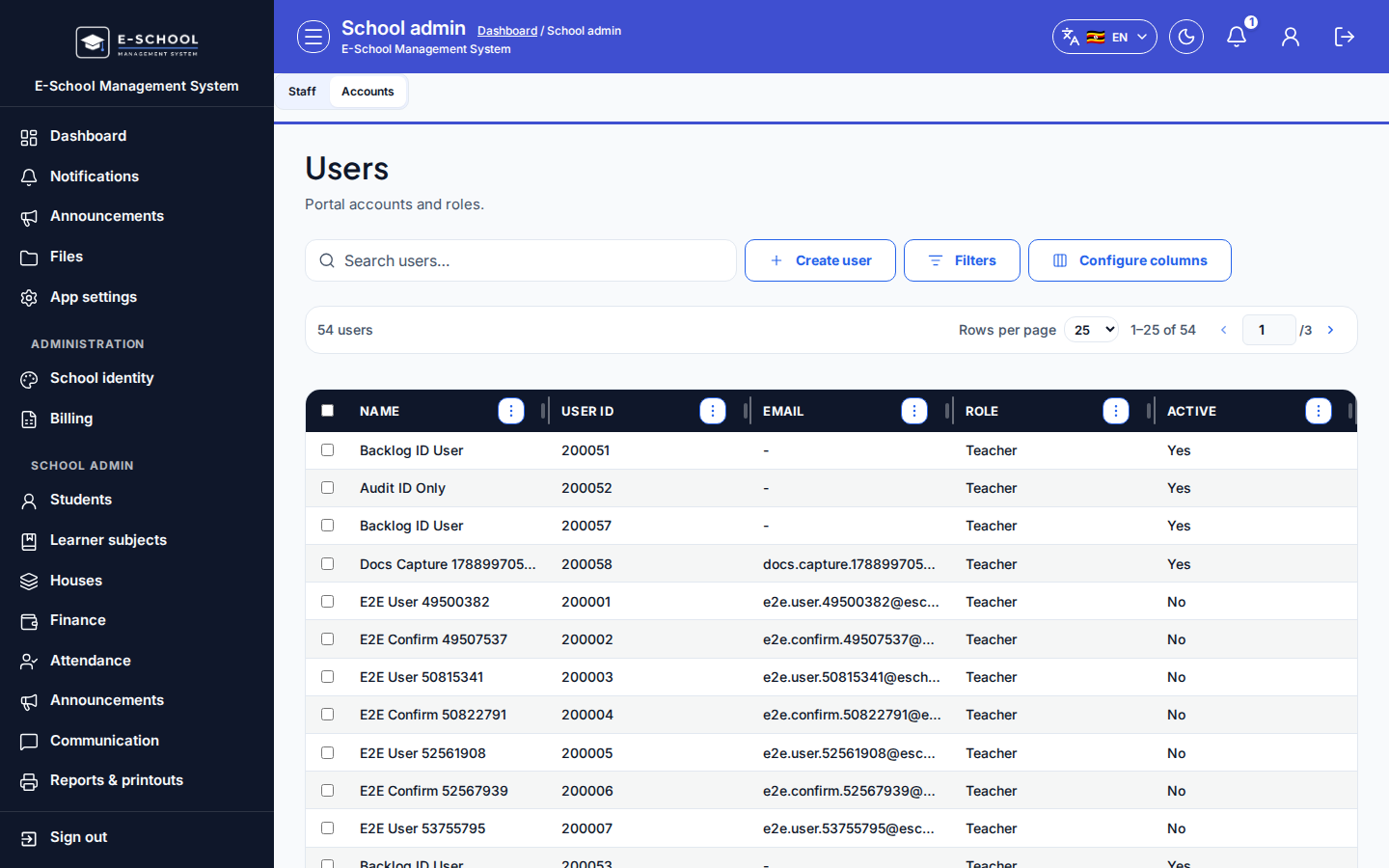 Desktop - focus for step 1
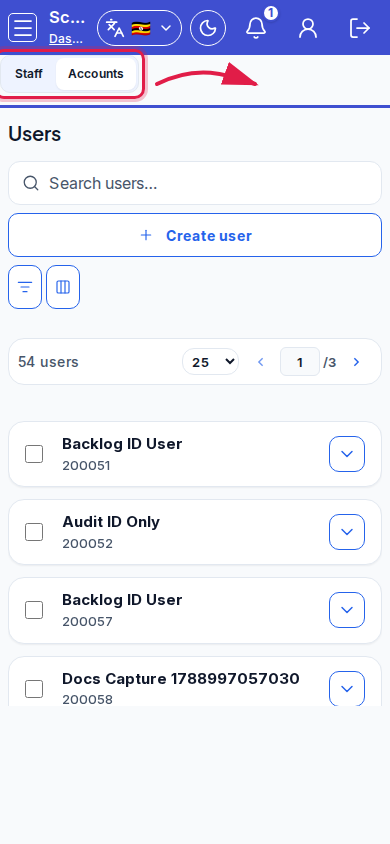 Mobile - focus for step 1
- On the Accounts tab, click Create user. Fill full name, optional email, photo, role, and temporary password, then create.
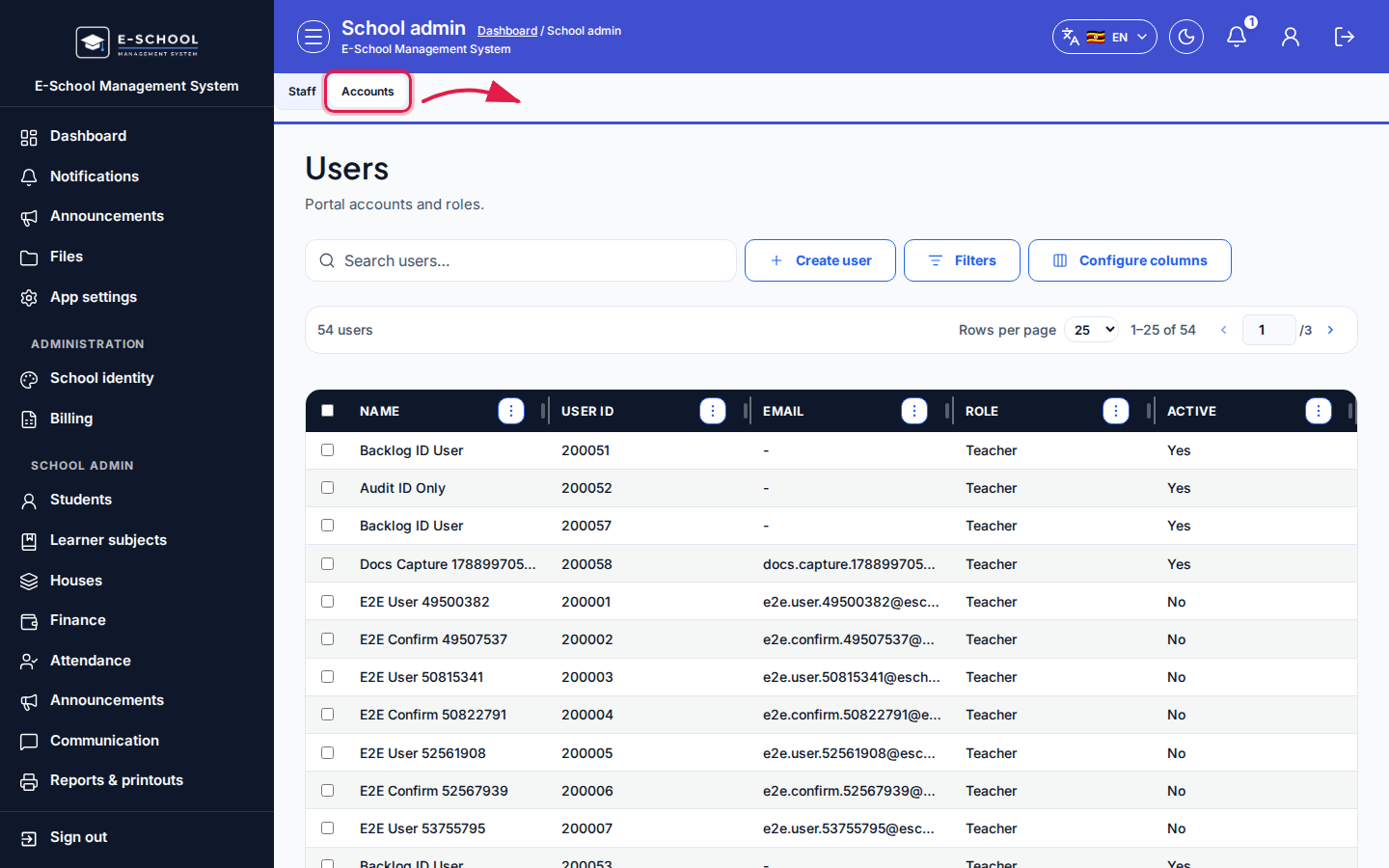 Desktop - focus for step 2
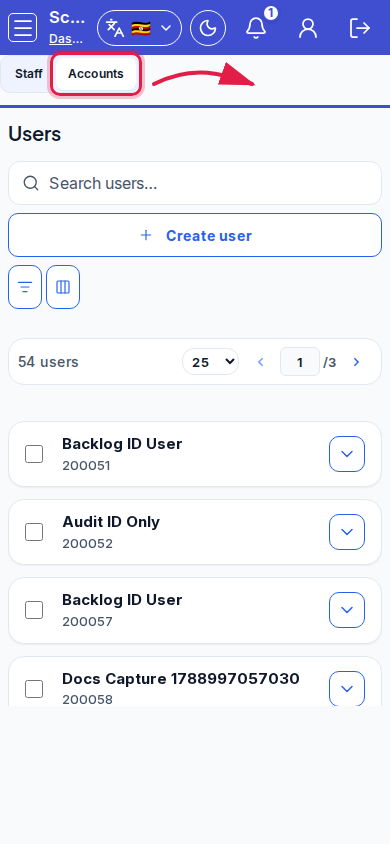 Mobile - focus for step 2
- When Account credentials (copy now) appears, copy School ID, User ID, and password immediately.
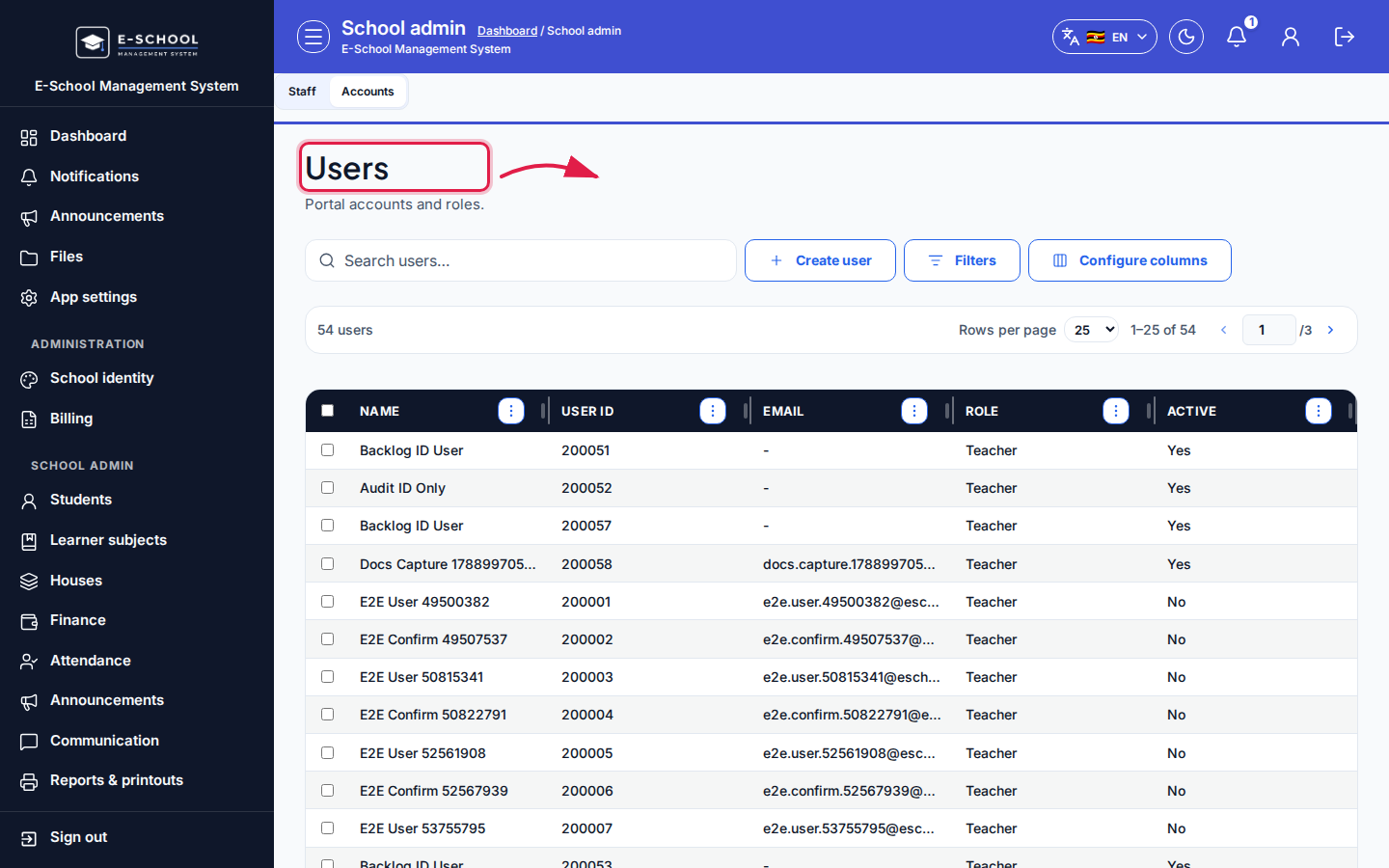 Desktop - focus for step 3
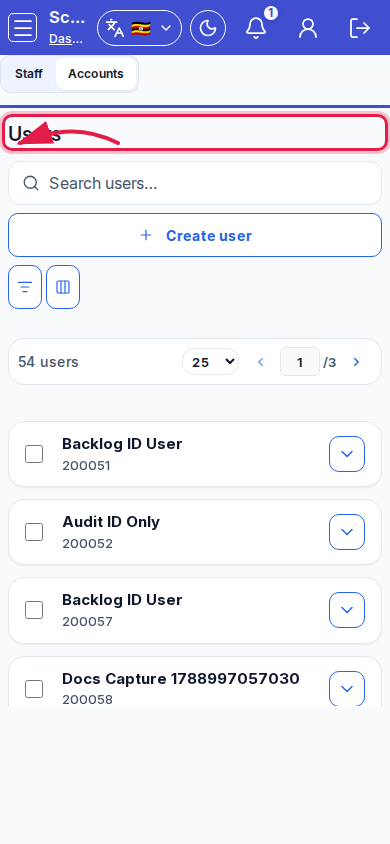 Mobile - focus for step 3
- Select a row for Edit, Permissions, or Deny access.
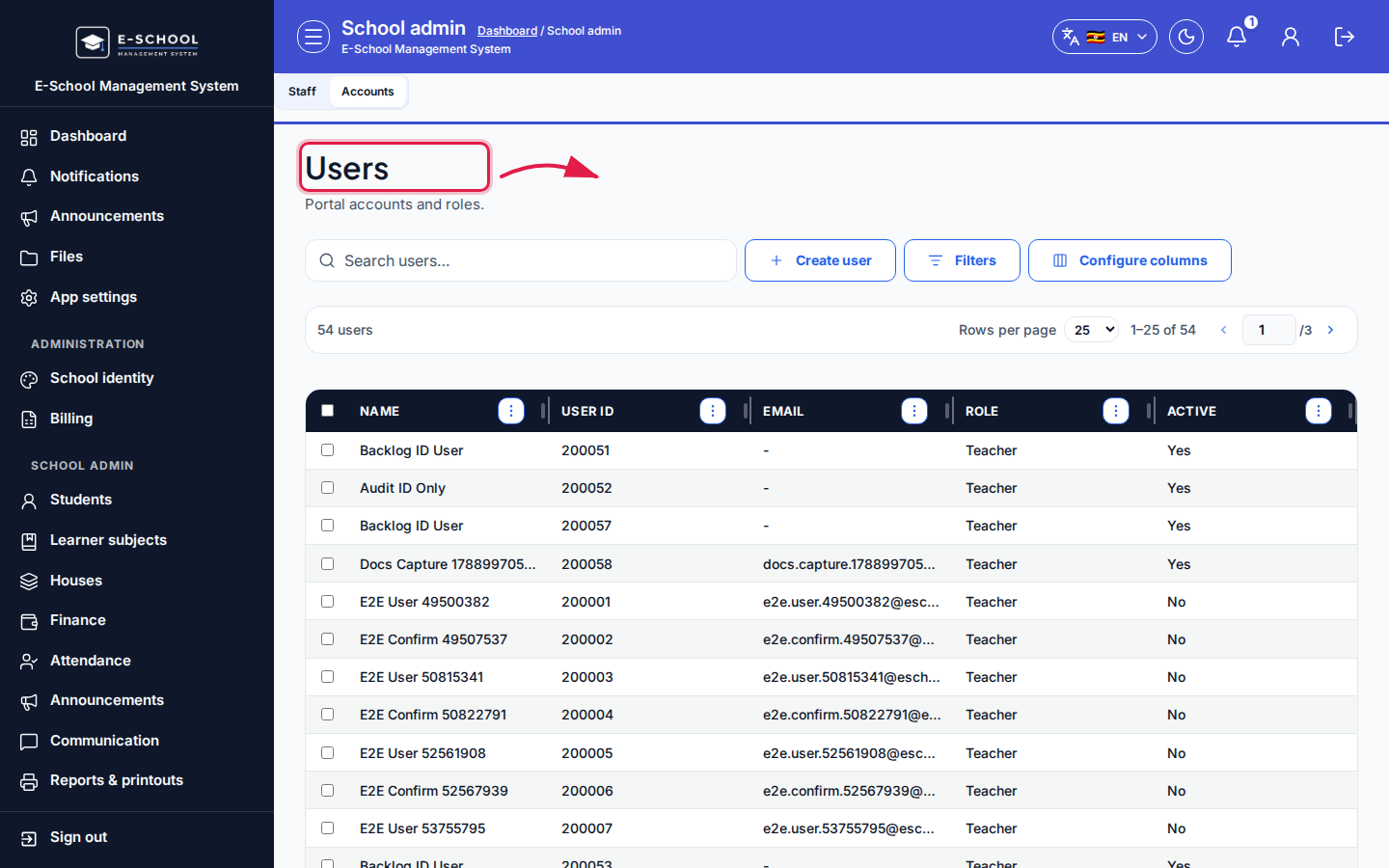 Desktop - focus for step 4
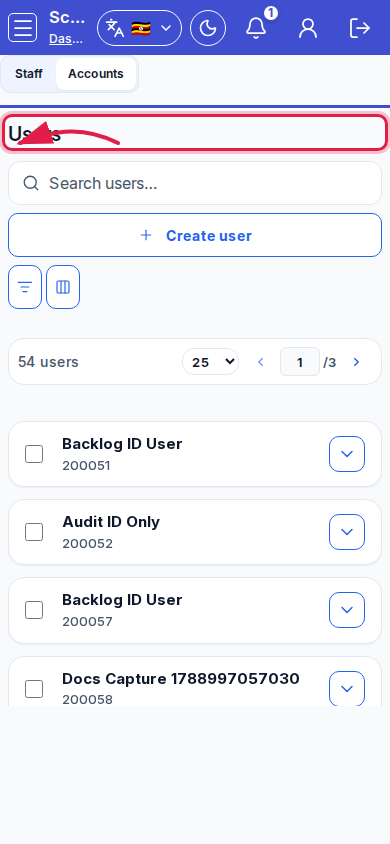 Mobile - focus for step 4
- Filter Active Yes/No and search before creating a duplicate login.
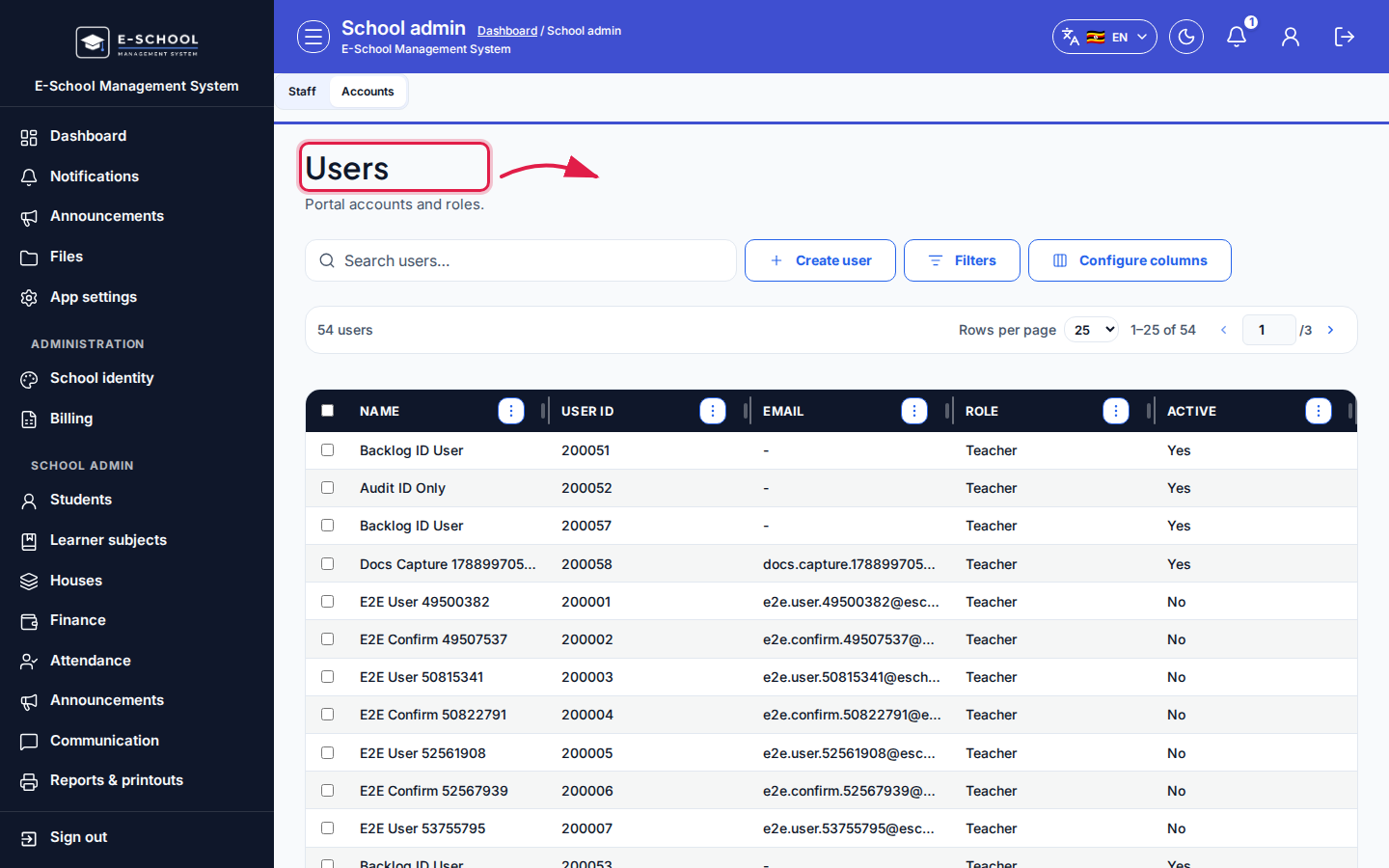 Desktop - focus for step 5
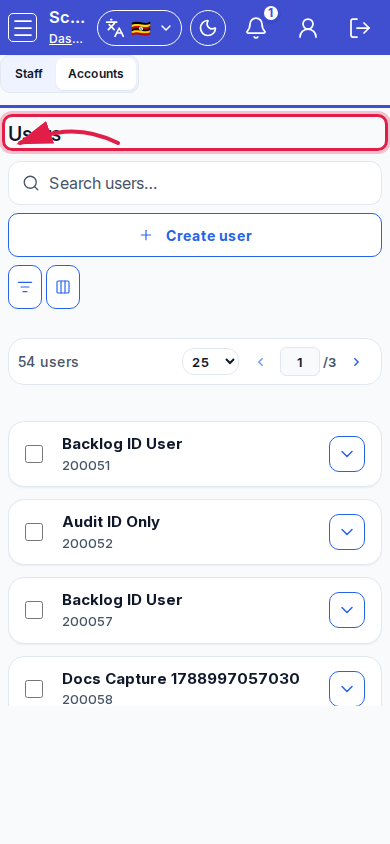 Mobile - focus for step 5
Fields and actions
- Parent tabs: Staff | Accounts
- Create user / Edit / Permissions / Deny access
- Columns: Name, User ID, Email, Role, Active
- Credentials dialog (copy once)
Common mistakes
- Closing the one-time password dialog without copying IDs
- Using admission number instead of User ID at login
- Creating Accounts without a Staff row when the person teaches