Class Lists
Print or export a class list filtered by class and gender.
Who can use this
- ADMIN
- SECRETARY
Path
/admin/printouts/class-list
Dependencies
- Class has admitted learners.
- Gender filter is optional.
Screenshot
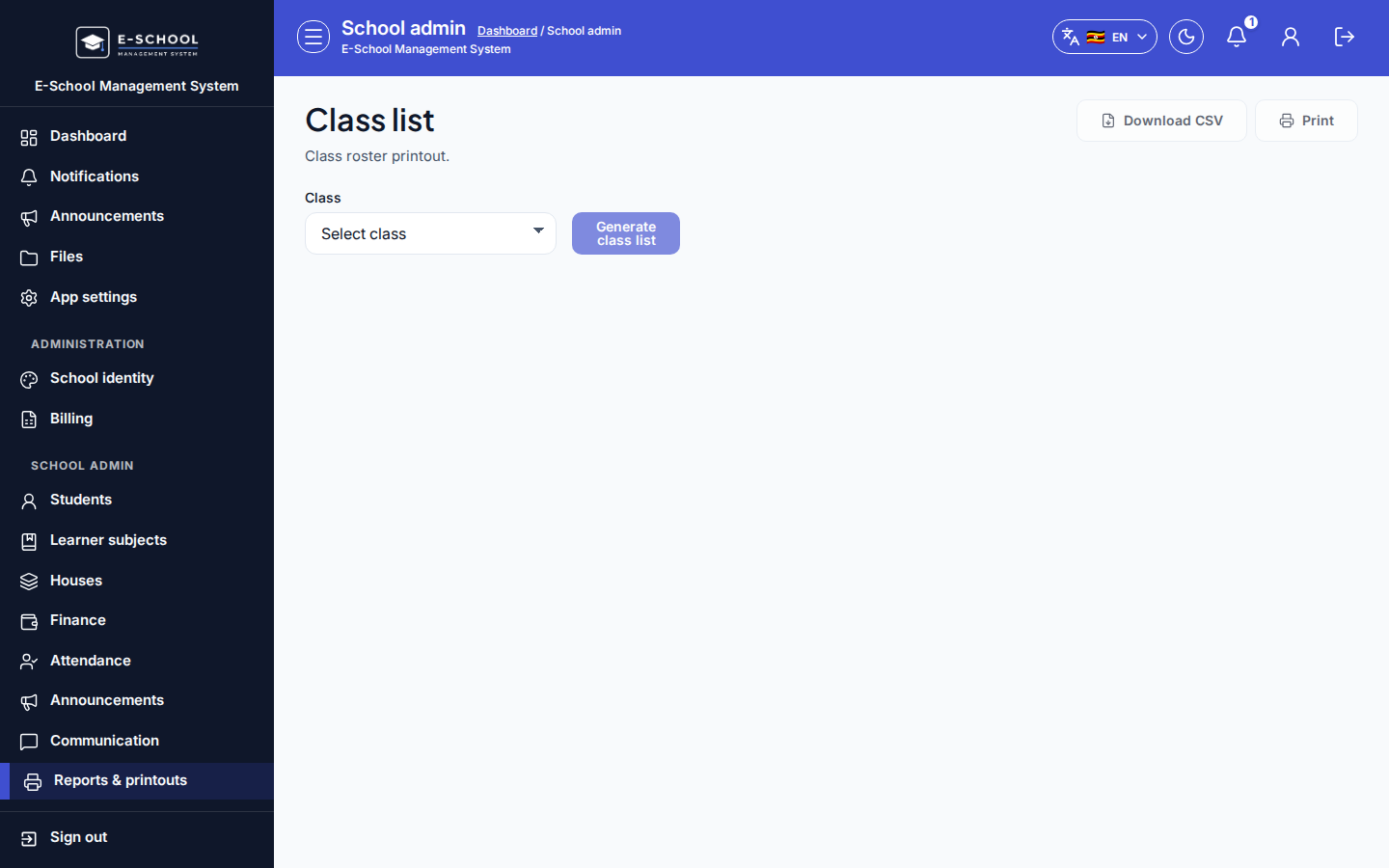
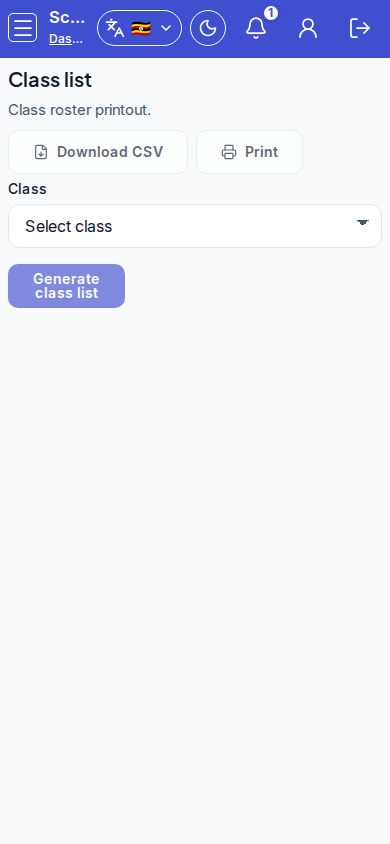
Steps
- Open Class list at
/admin/printouts/class-listas ADMIN.
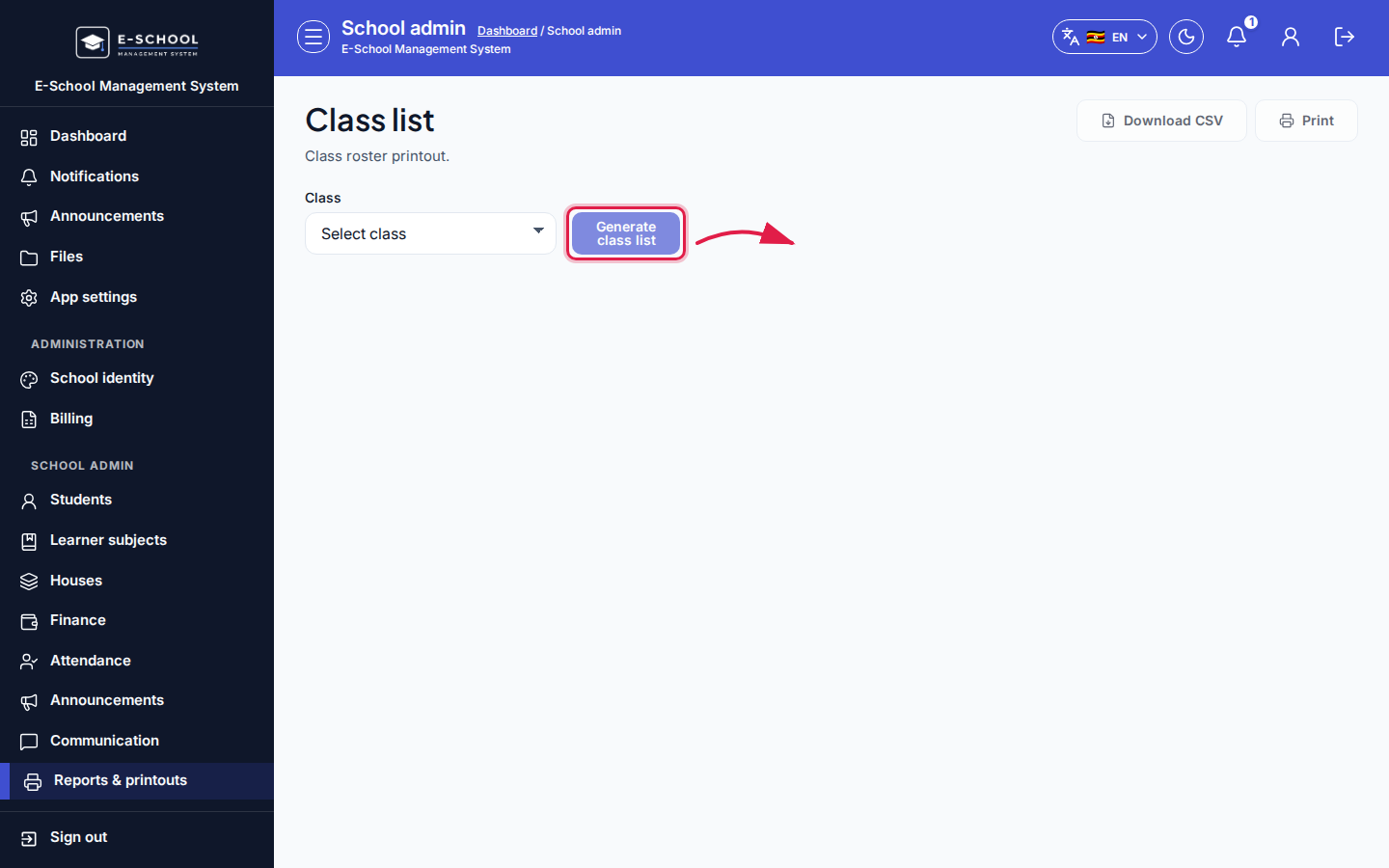 Desktop - focus for step 1
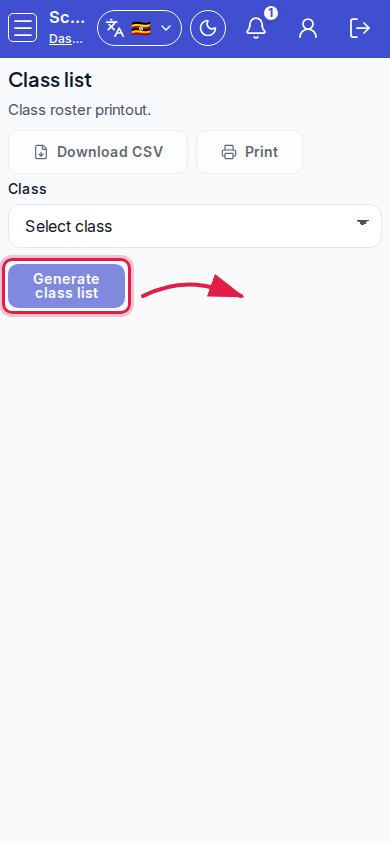 Mobile - focus for step 1
- Select Class. Choose All students in class / Male only / Female only.
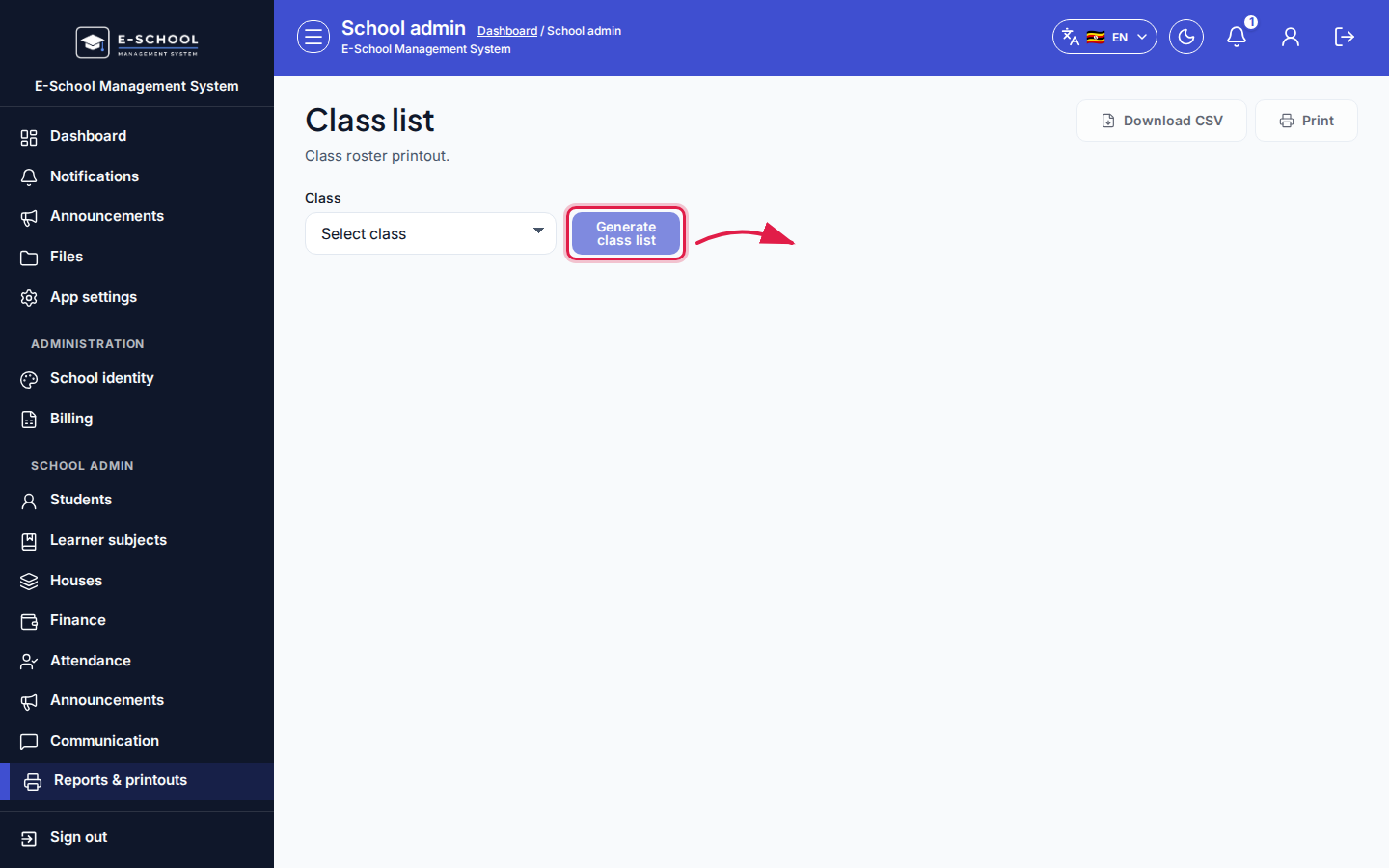 Desktop - focus for step 2
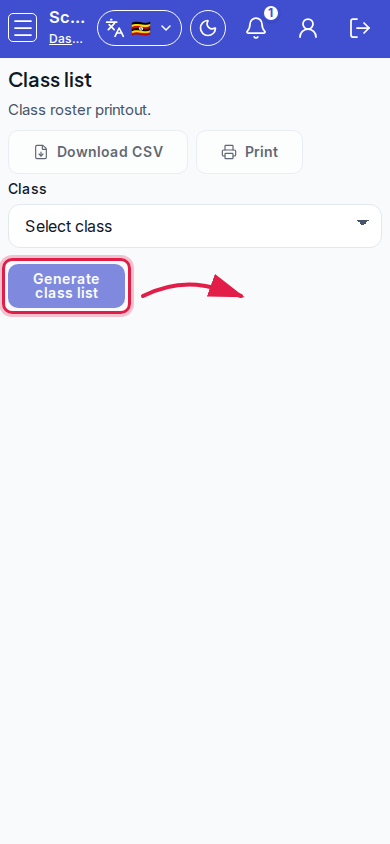 Mobile - focus for step 2
- Review Admission, Name, Gender.
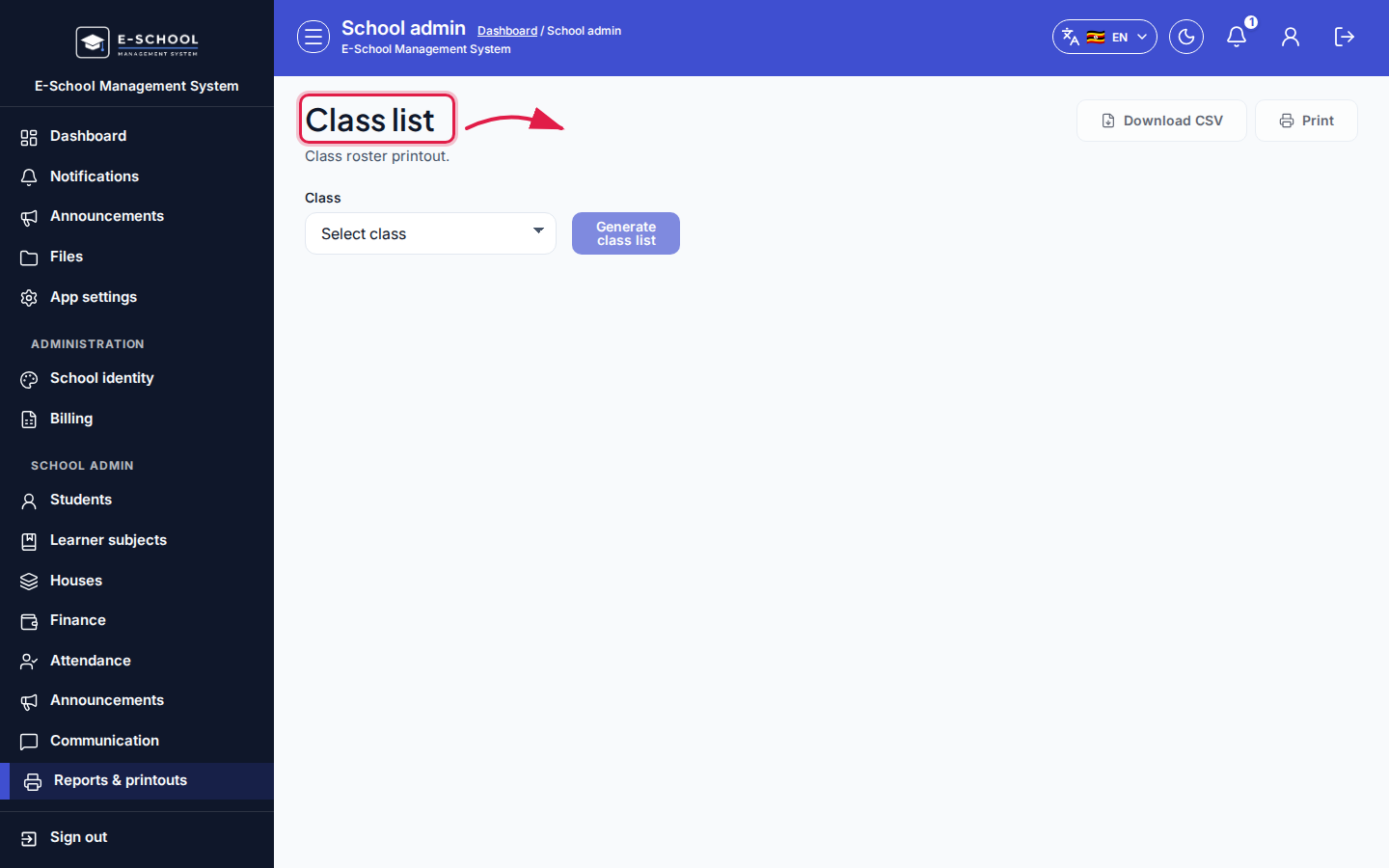 Desktop - focus for step 3
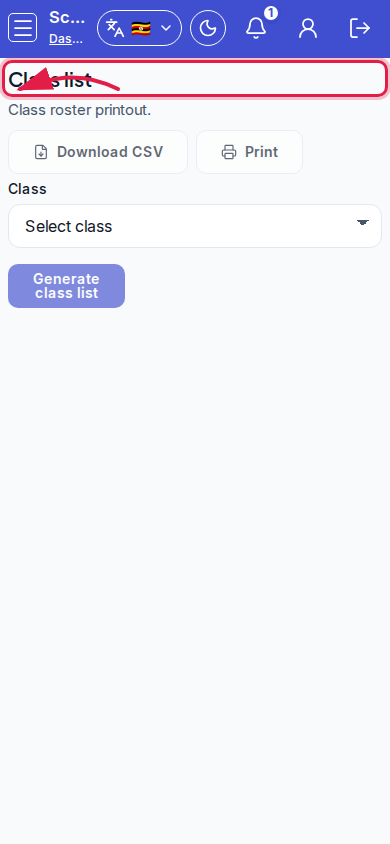 Mobile - focus for step 3
- Download CSV or Print.
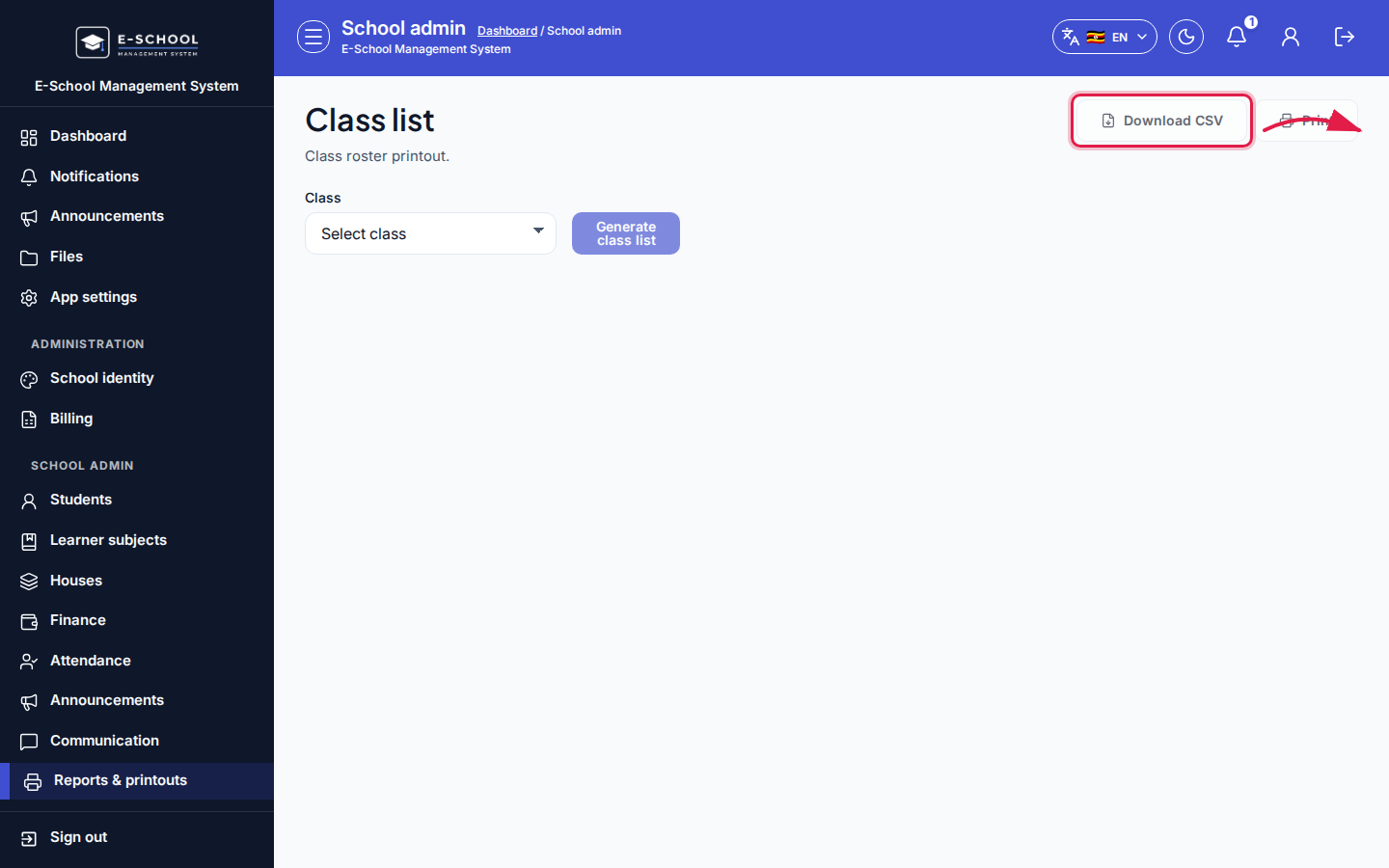 Desktop - focus for step 4
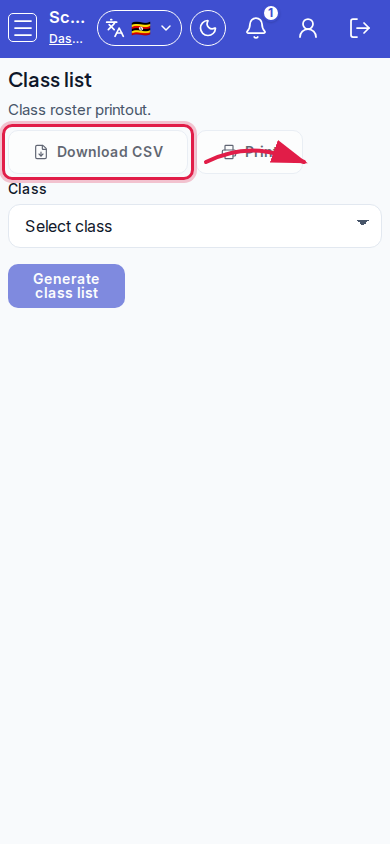 Mobile - focus for step 4
- Return to Printouts hub for other packs.
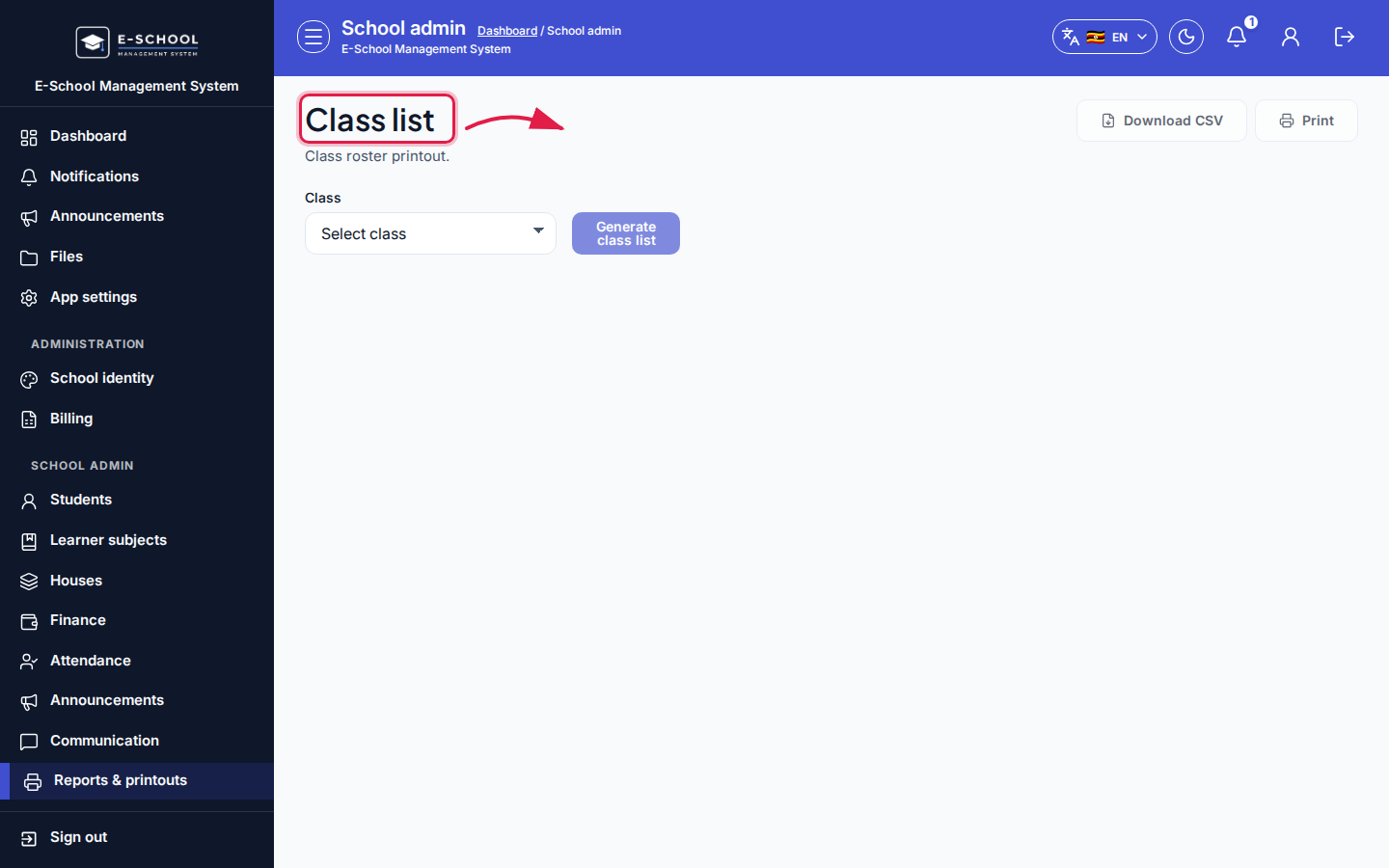 Desktop - focus for step 5
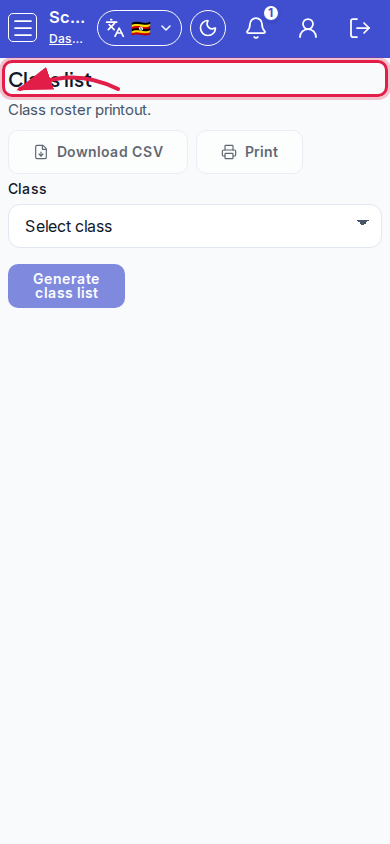 Mobile - focus for step 5
Fields and actions
- Filters: Class; All / Male only / Female only
- Download CSV / Print
- Columns: Admission, Name, Gender
Common mistakes
- Printing without selecting a class
- Using Male/Female filter accidentally for a full register