Students
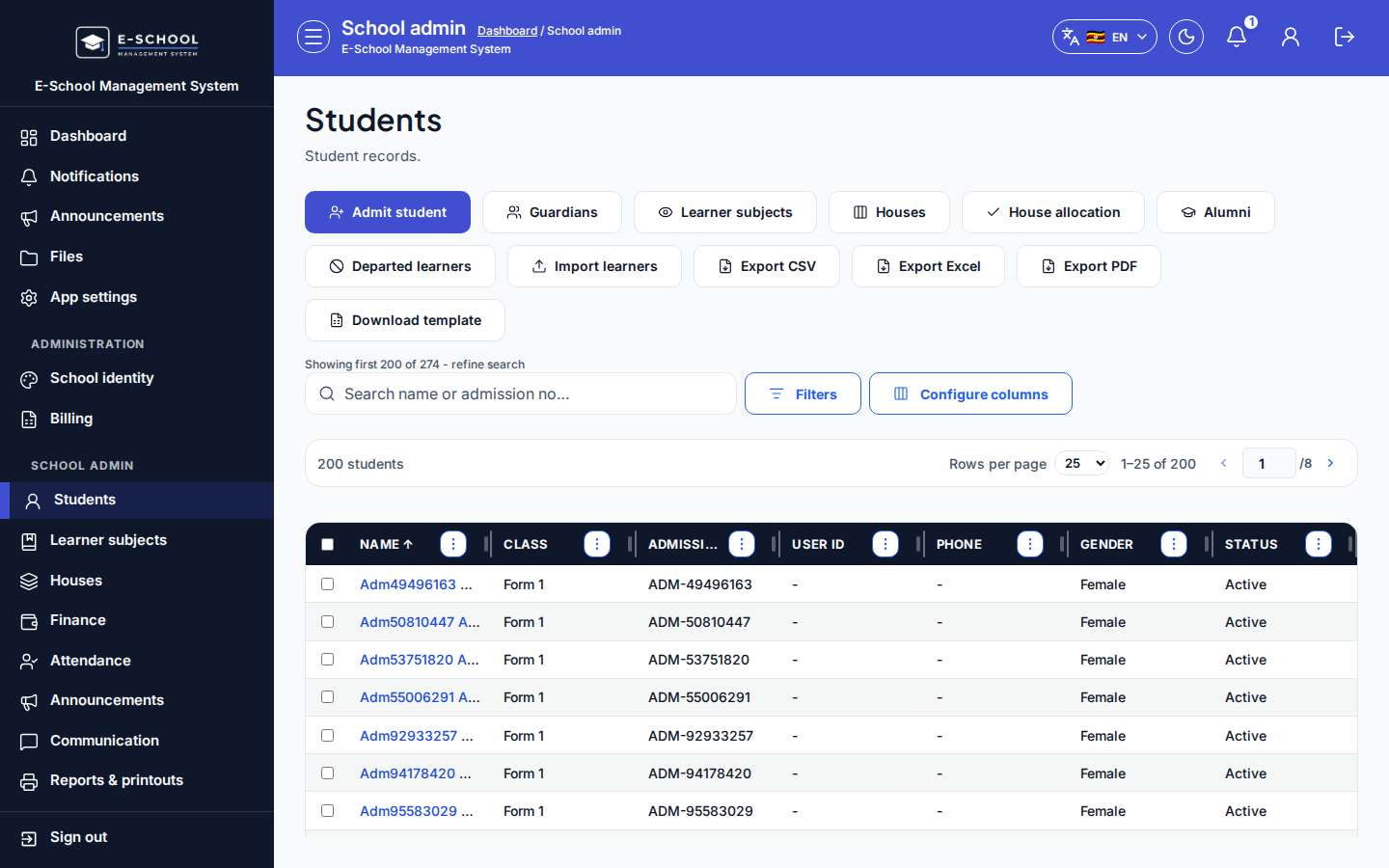
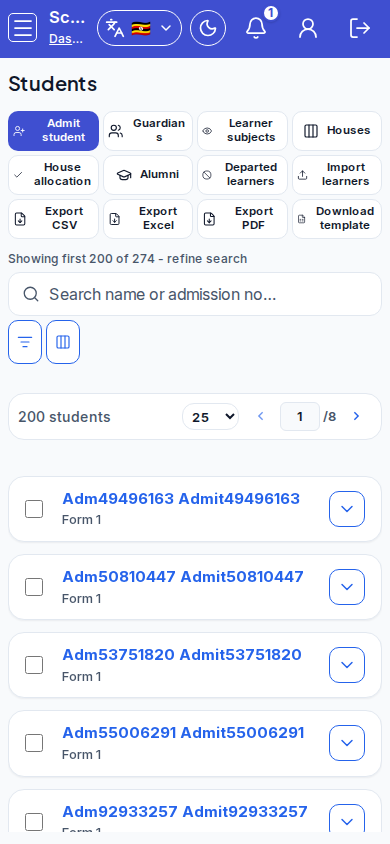
Maintain the active learner register: admit, filter, import/export, guardians, alumni, and departed learners.
Who can use this
- ADMIN
Path
/admin/students
Dependencies
- Classes and streams exist (Classes).
- Prefer Admit student over inventing admission numbers offline.
- After admit, register learner subjects before expecting report cards.
Screenshot
Steps
- Open Students at
/admin/studentsas ADMIN.
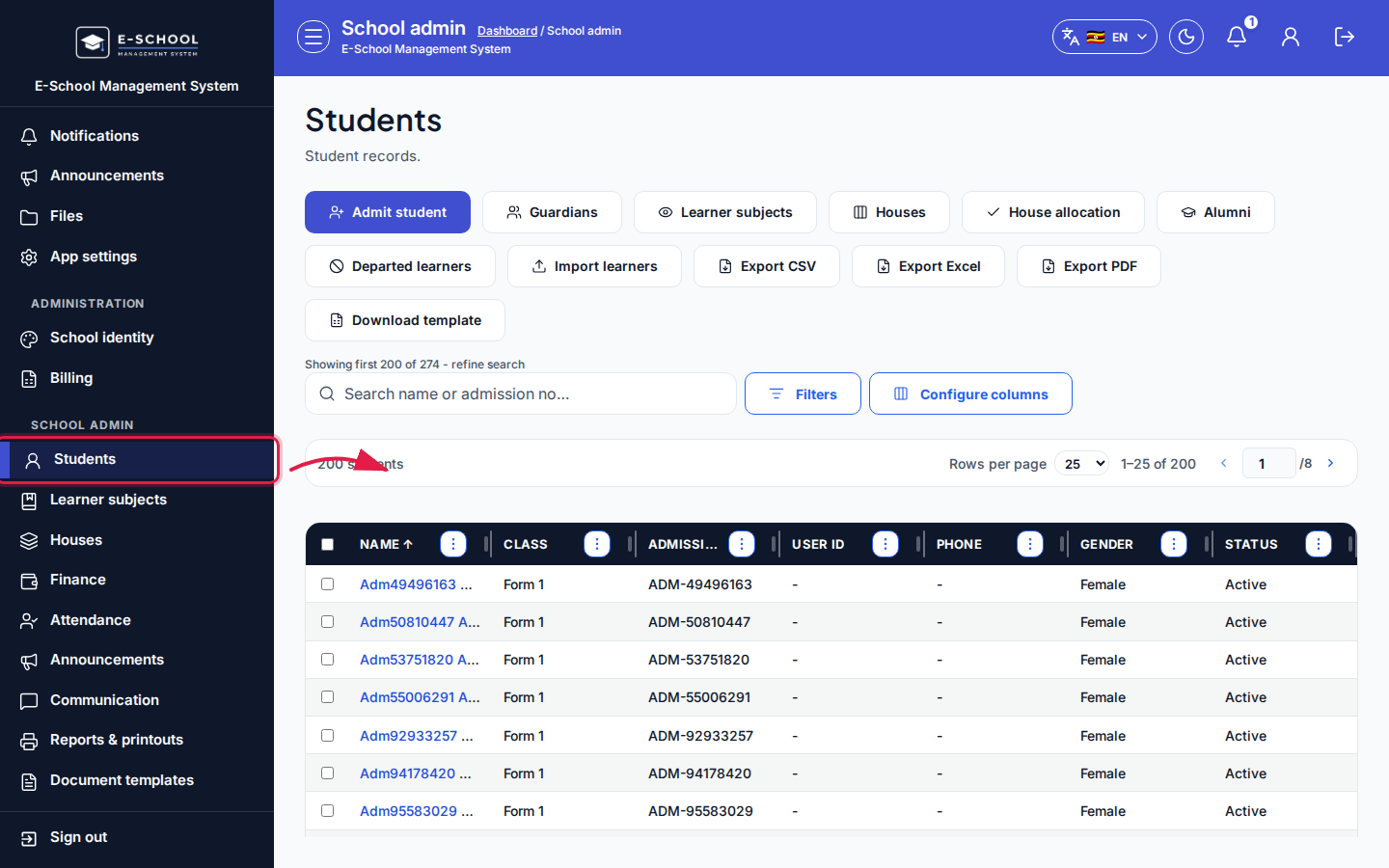 Desktop - focus for step 1
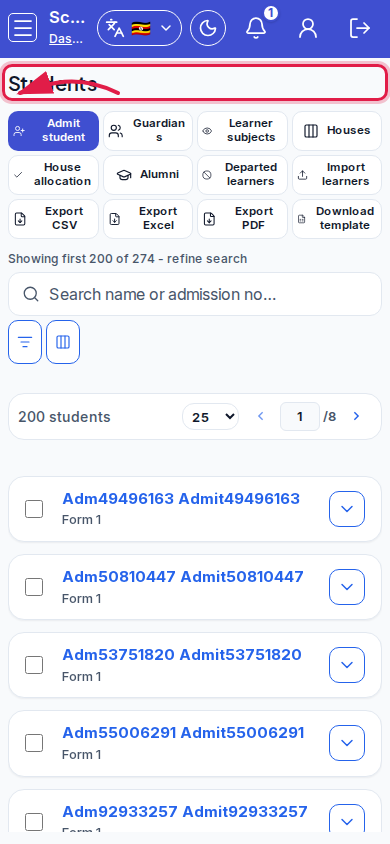 Mobile - focus for step 1
- Use class, stream, and status filters plus Configure columns so the list matches office work.
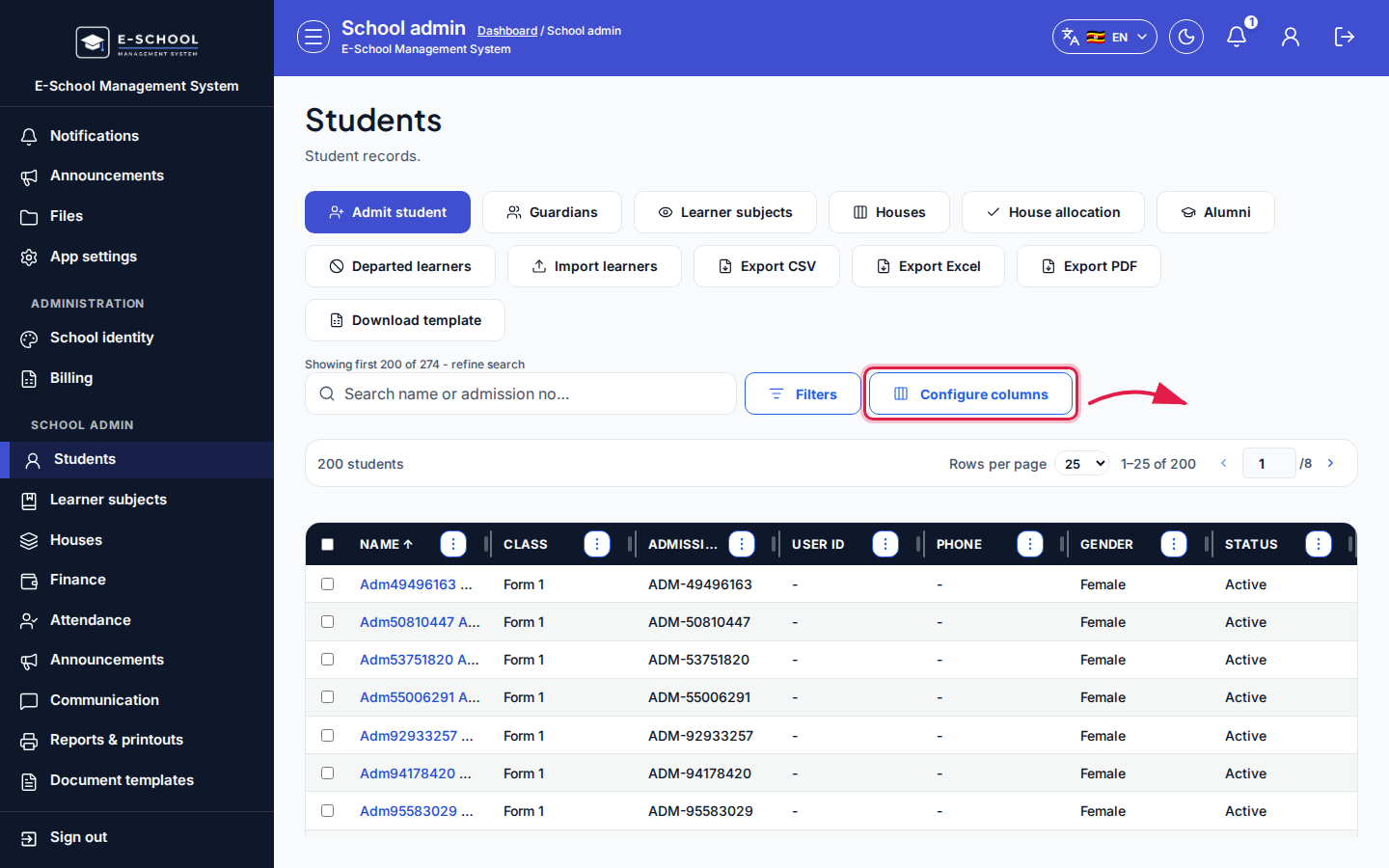 Desktop - focus for step 2
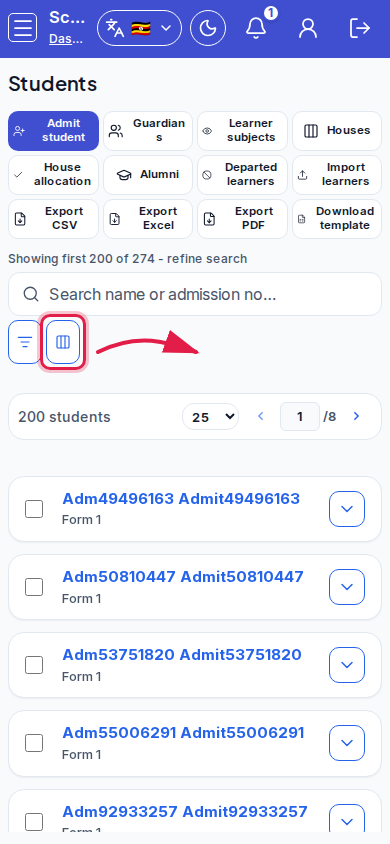 Mobile - focus for step 2
- Click Admit student to open the admit wizard (or go to Secretary New admission).
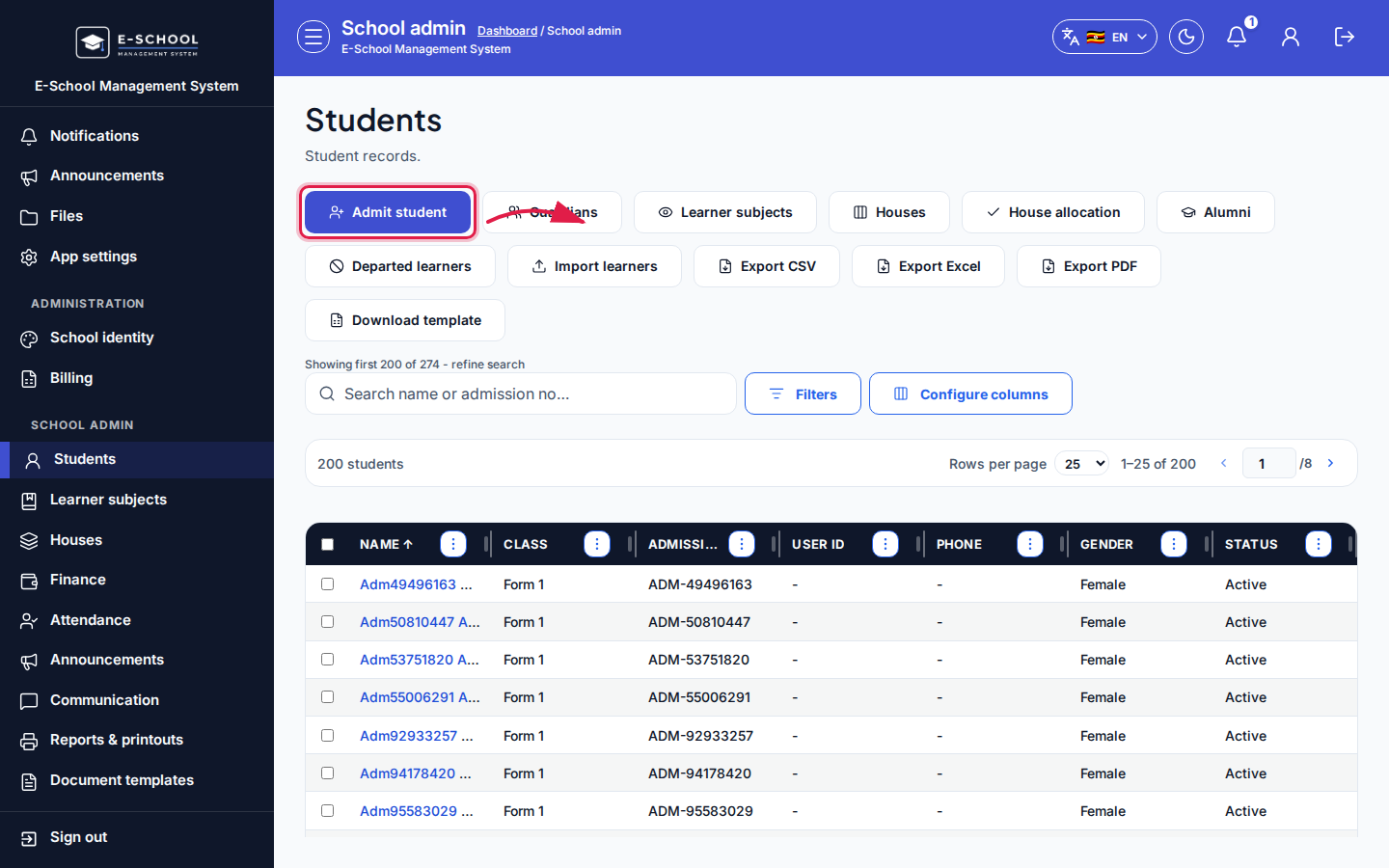 Desktop - focus for step 3
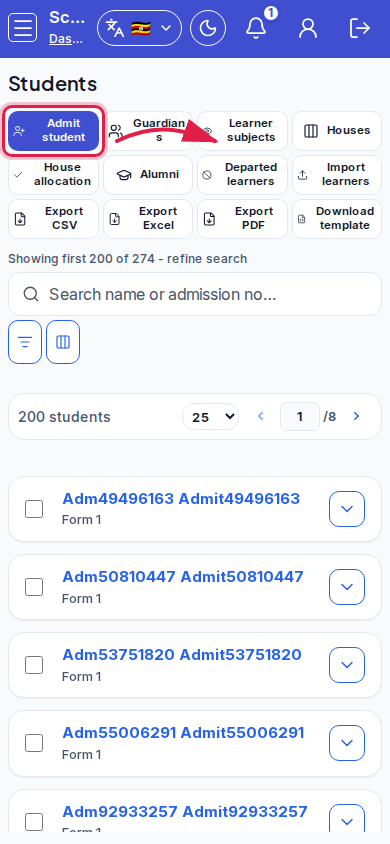 Mobile - focus for step 3
- Open a learner row for guardians, subjects, house, move, or portal credentials.
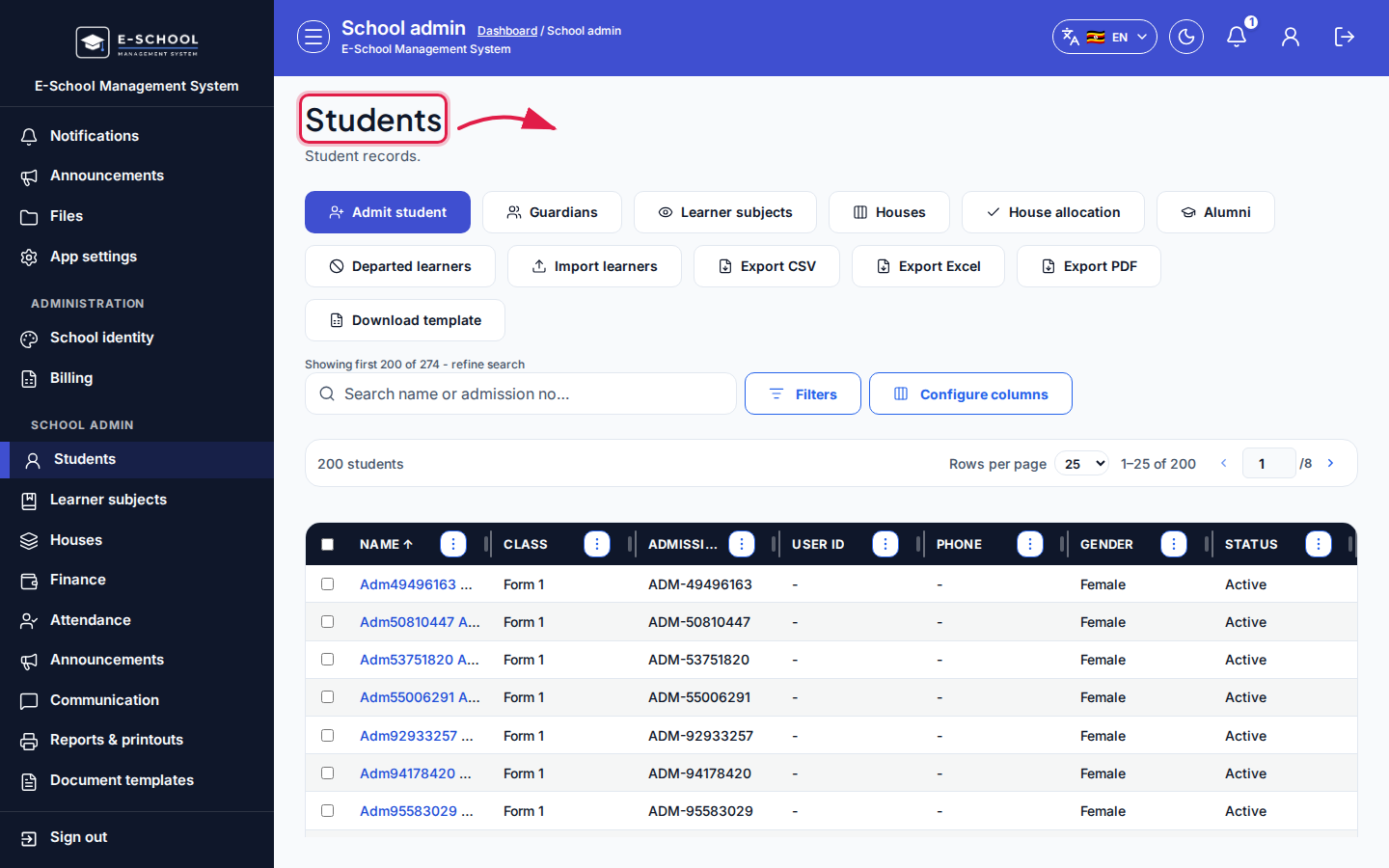 Desktop - focus for step 4
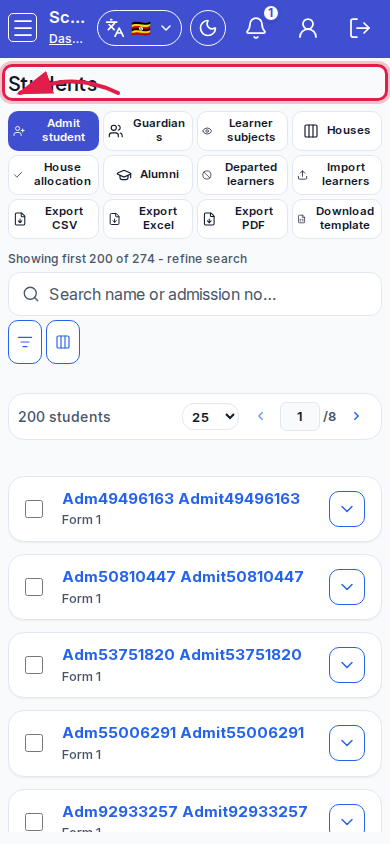 Mobile - focus for step 4
- Use toolbar links Guardians, Learner subjects, Houses, and House allocation for bulk follow-up.
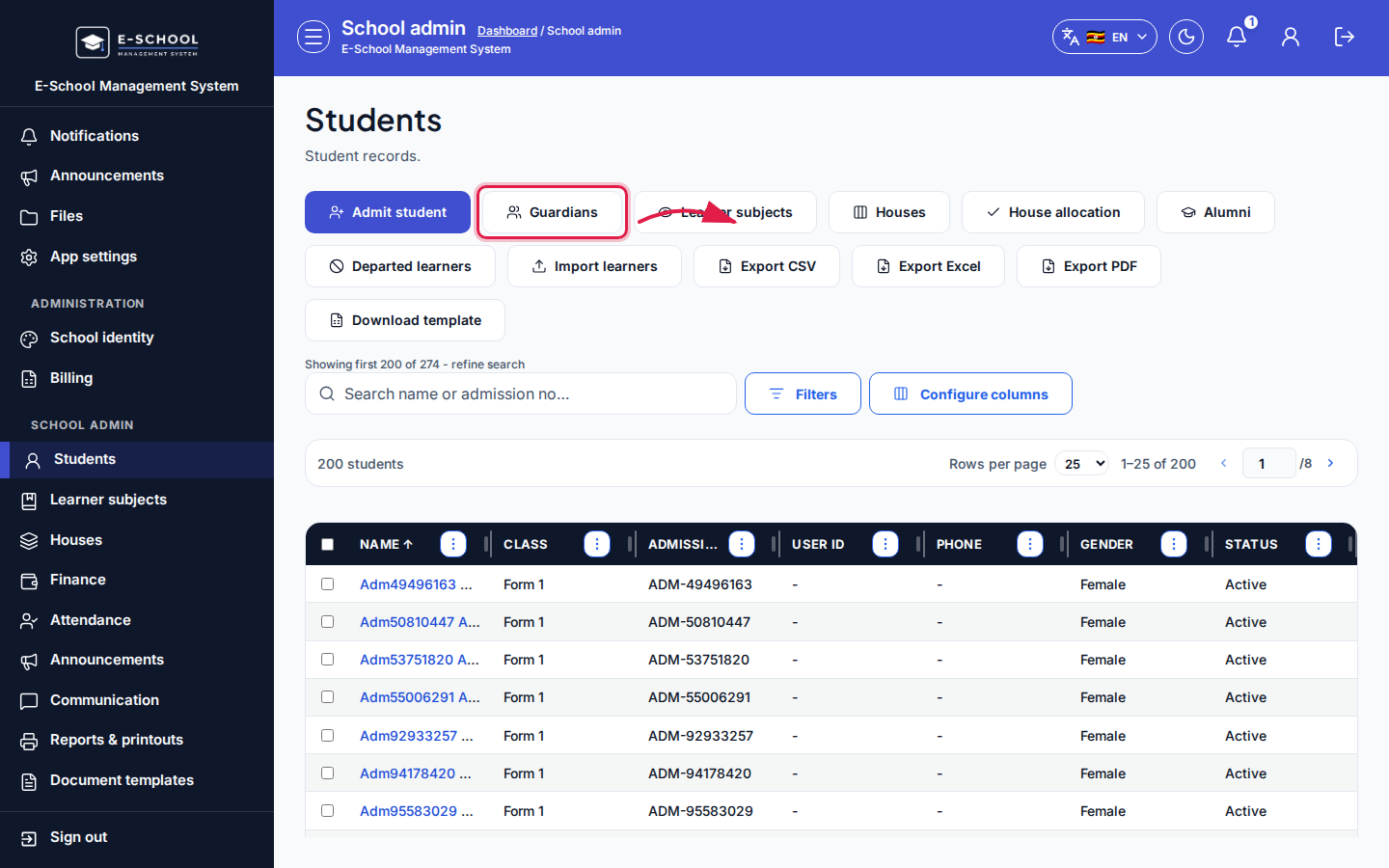 Desktop - focus for step 5
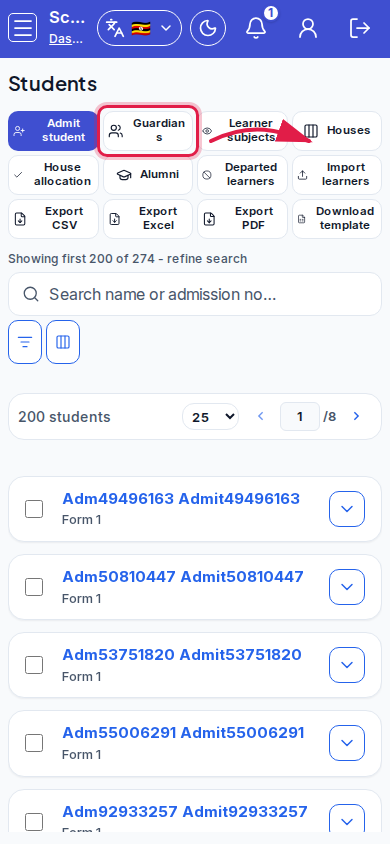 Mobile - focus for step 5
- Use Import learners only after Download template; export with Export CSV, Export Excel, or Export PDF.
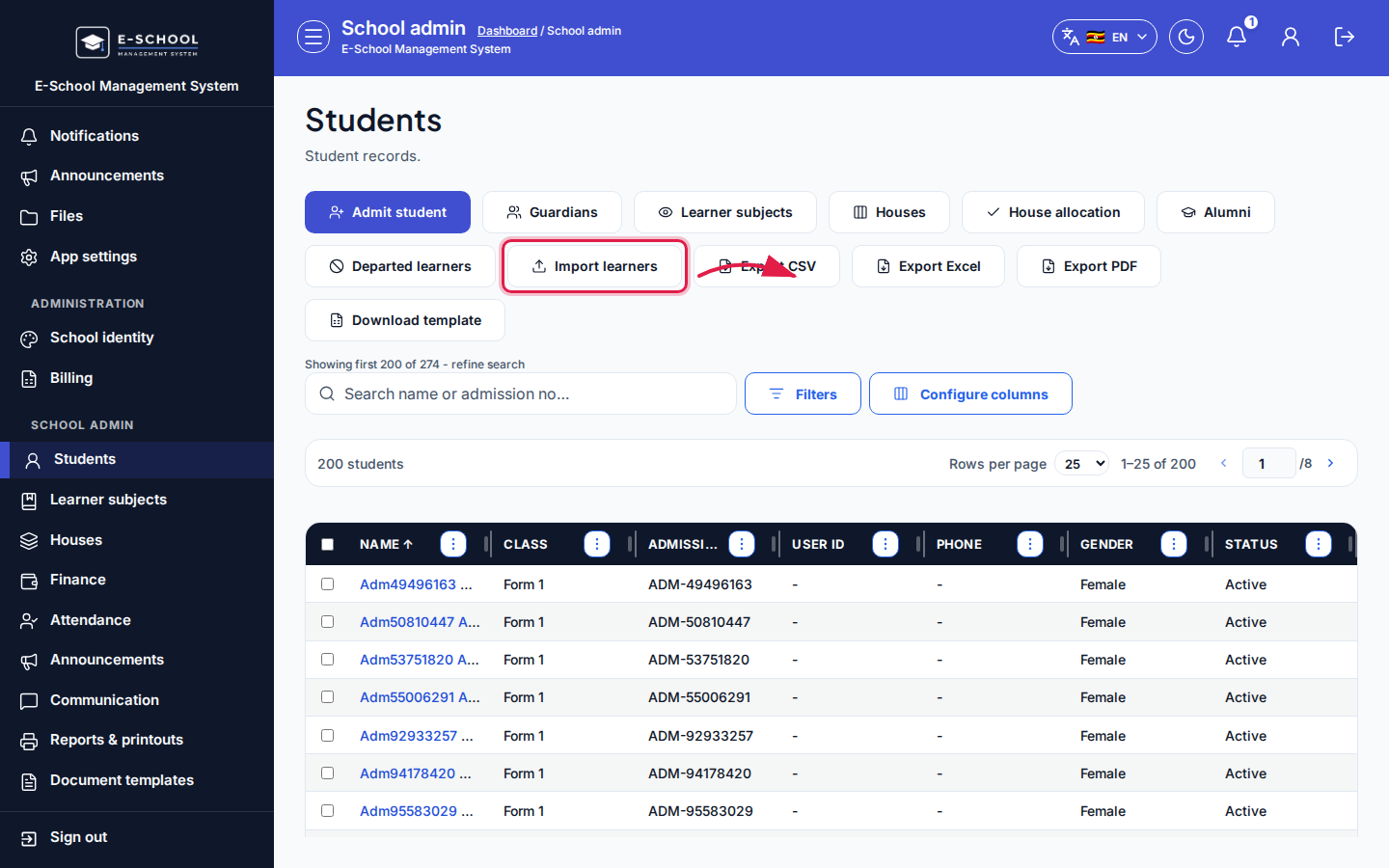 Desktop - focus for step 6
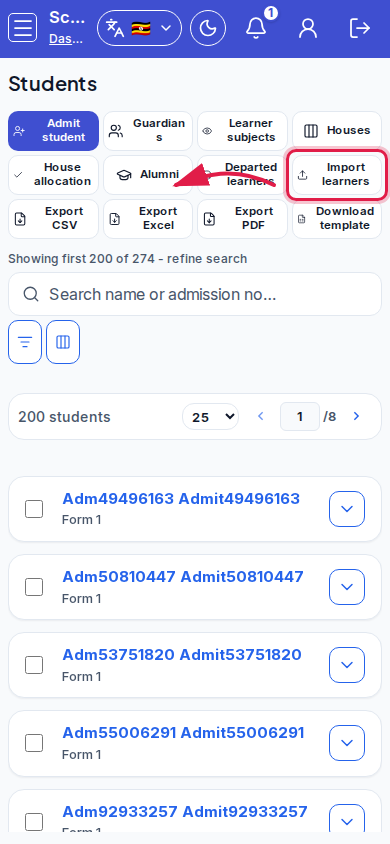 Mobile - focus for step 6
- Switch to Alumni or Departed learners when following leavers - do not delete active rows casually.
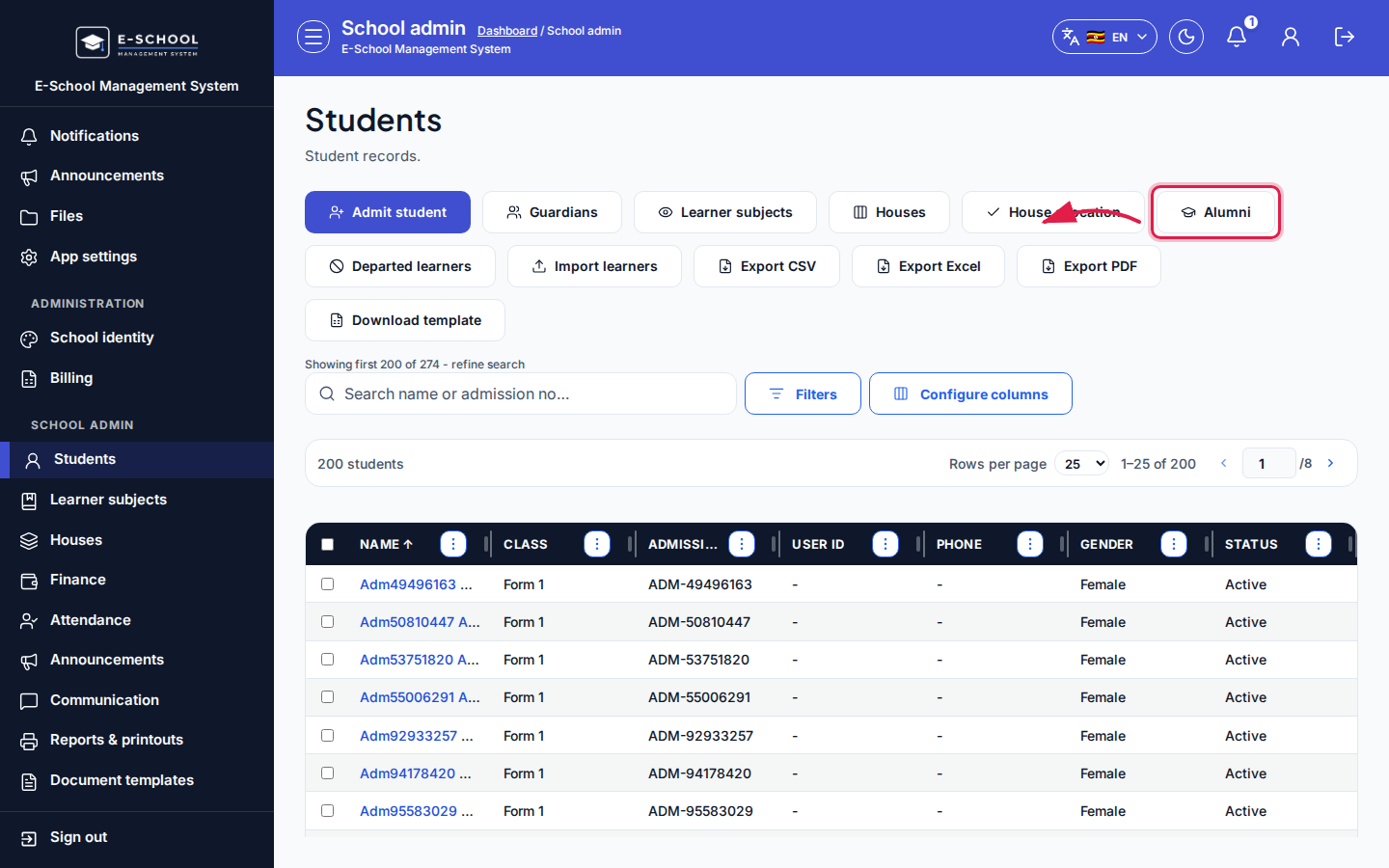 Desktop - focus for step 7
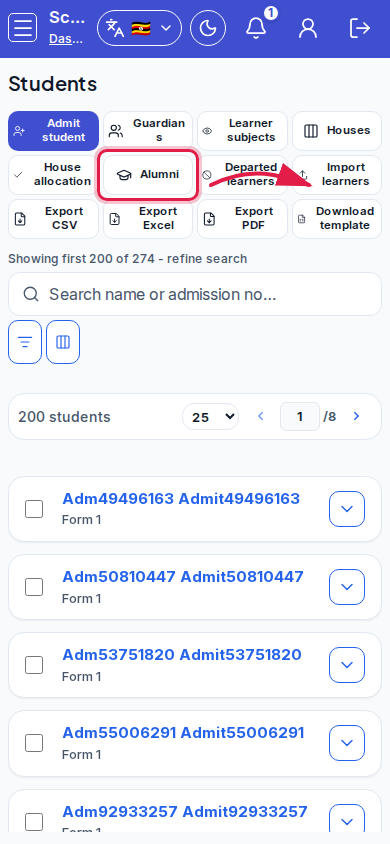 Mobile - focus for step 7
Fields and actions
- Search; class / stream / status filters
- Configure columns
- Admit student
- Guardians / Learner subjects / Houses / House allocation
- Alumni / Departed learners
- Import learners / Download template
- Export CSV / Export Excel / Export PDF
- Row: view, edit, move, credentials
Common mistakes
- Empty report cards when learner subjects were never registered
- Moving a learner without updating class filters afterward
- Import without downloading the template first
- Treating Alumni as active for fees or attendance
- Confusing admission number with portal User ID