Subjects
School subject catalogue and A-level combinations used for learner registration, timetable, and exams.
Who can use this
- ADMIN
Path
/admin/subjects
Dependencies
- Prefer completing Classes so compulsory-level checkboxes match real forms.
- UNEB imports seed common O/A-level subjects; edit after import if your school names differ.
Screenshot
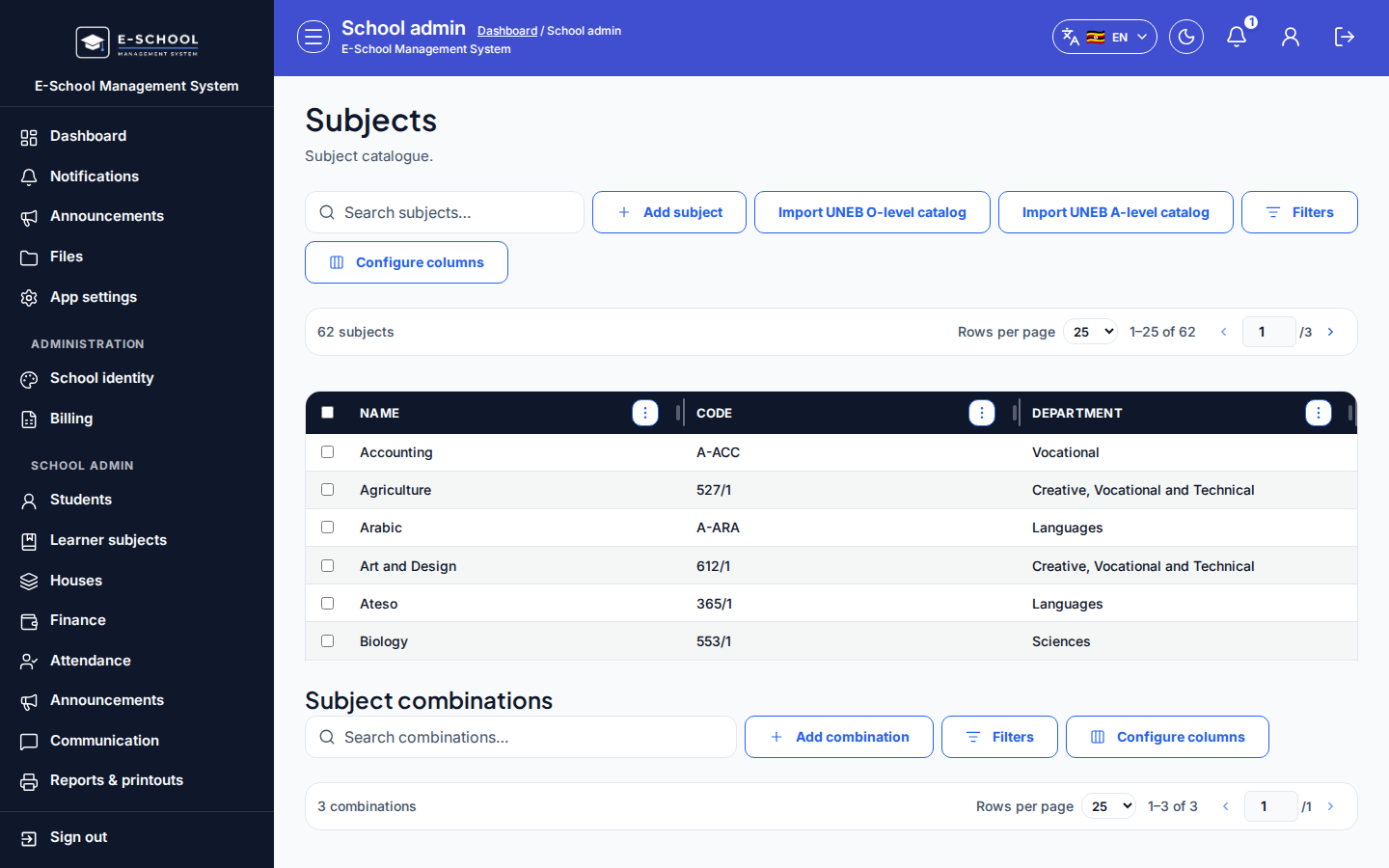
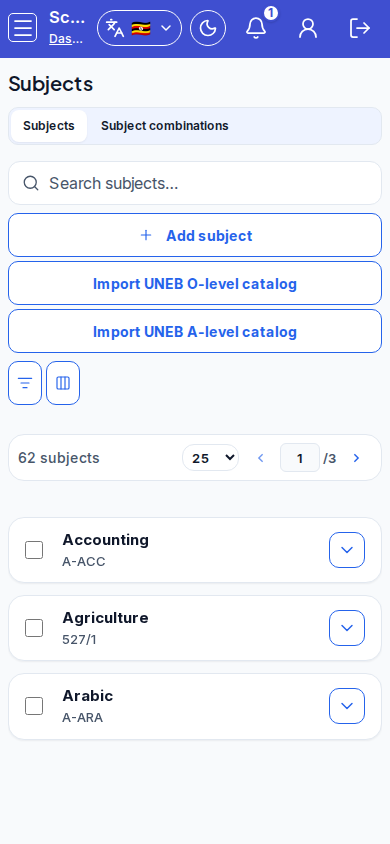
Steps
- Open Subjects at
/admin/subjectsas ADMIN.
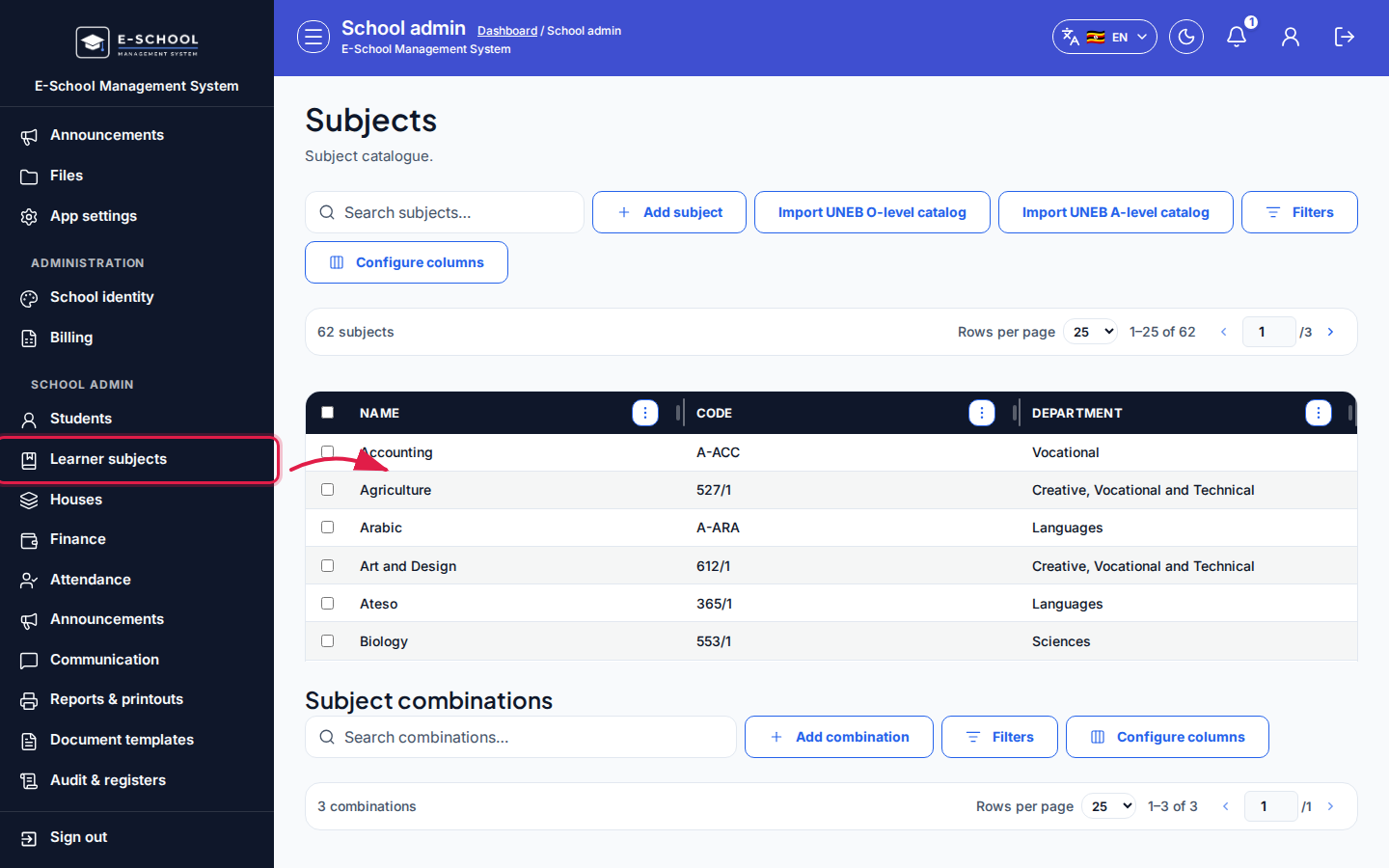 Desktop - focus for step 1
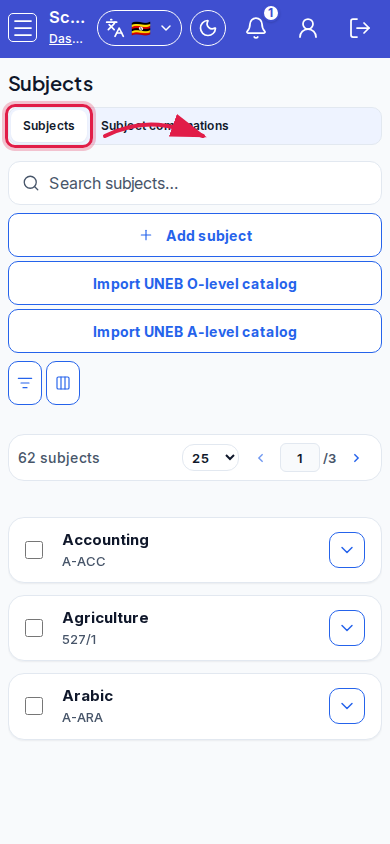 Mobile - focus for step 1
- Click Add subject, or Import UNEB O-level catalog / Import UNEB A-level catalog and confirm the selected catalog subjects.
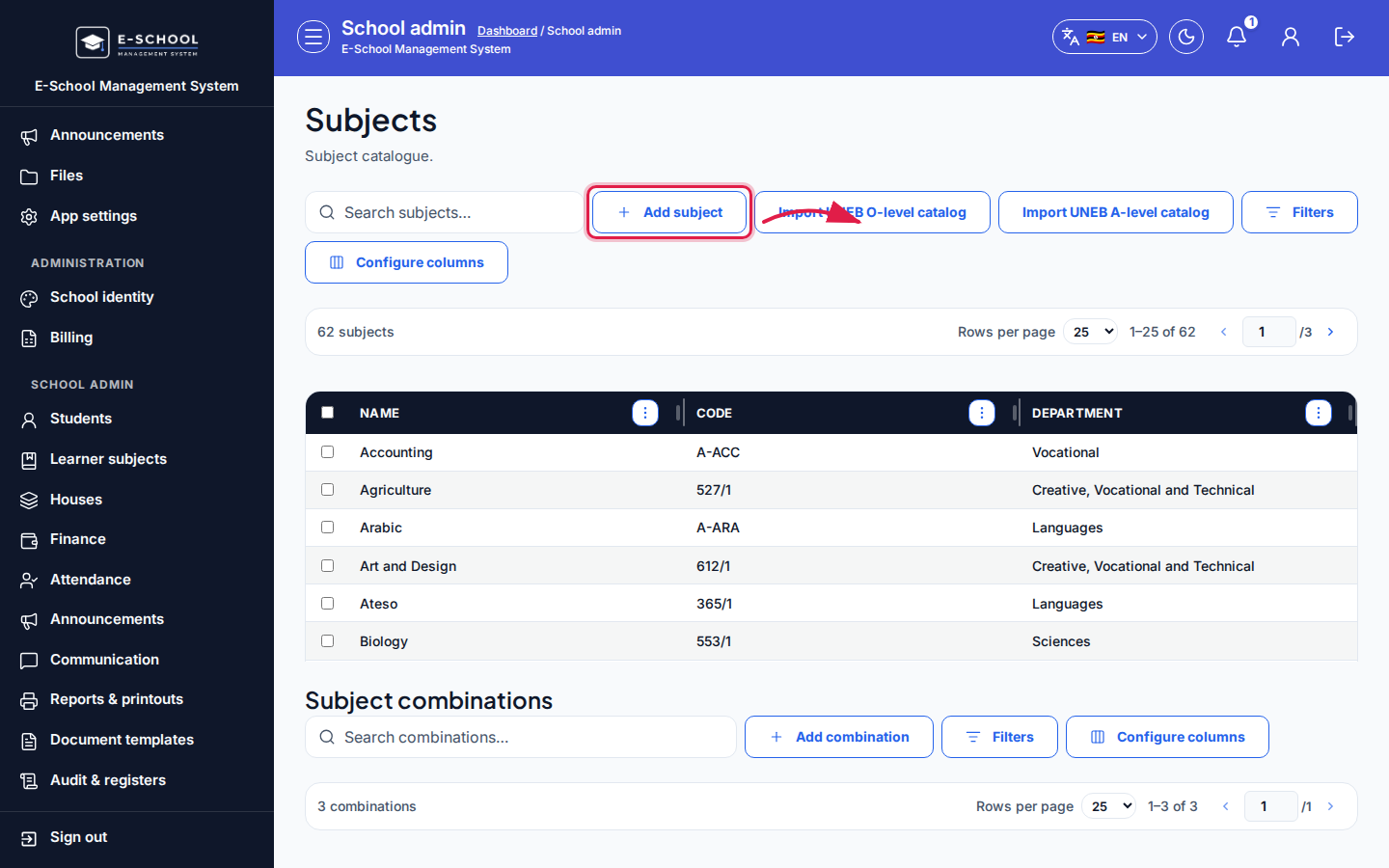 Desktop - focus for step 2
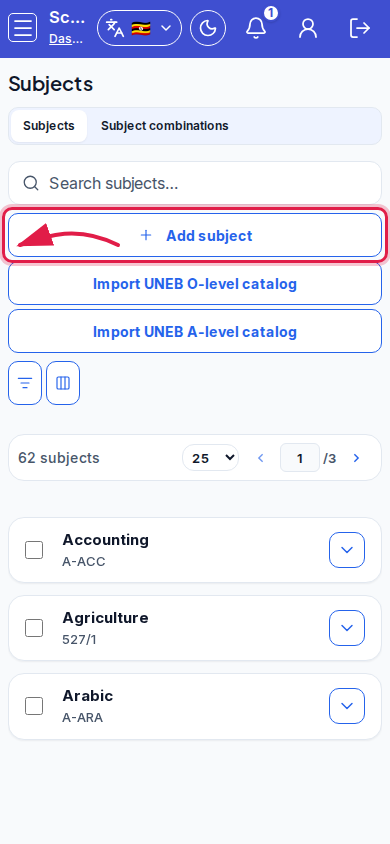 Mobile - focus for step 2
- Edit a subject to set department, compulsory levels (S.1-S.4), and notes, then Save subject.
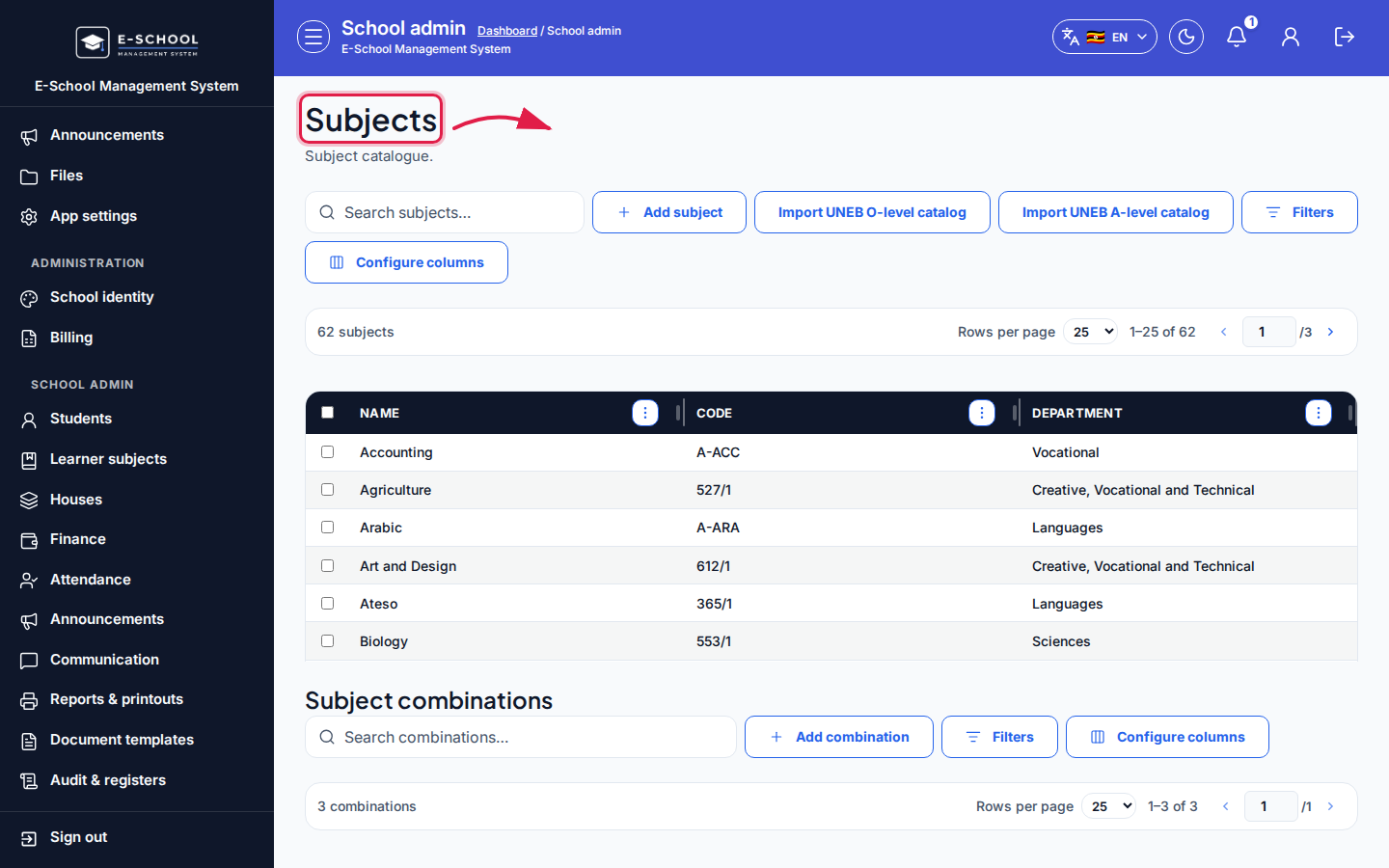 Desktop - focus for step 3
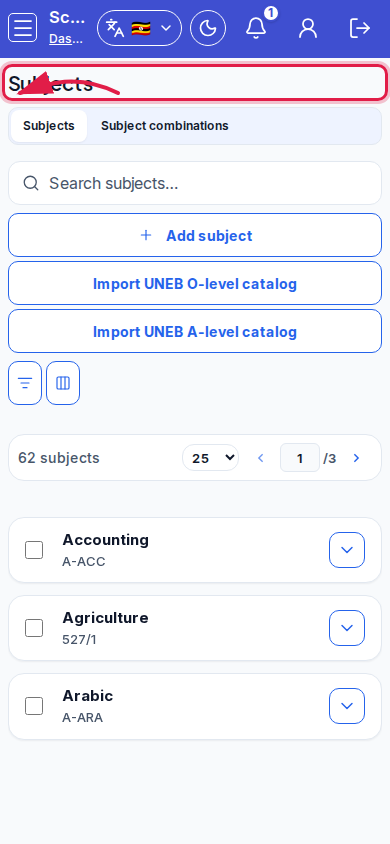 Mobile - focus for step 3
- On desktop, use the Subject combinations table (mobile: Subject combinations tab). Click Add combination, name it, and save.
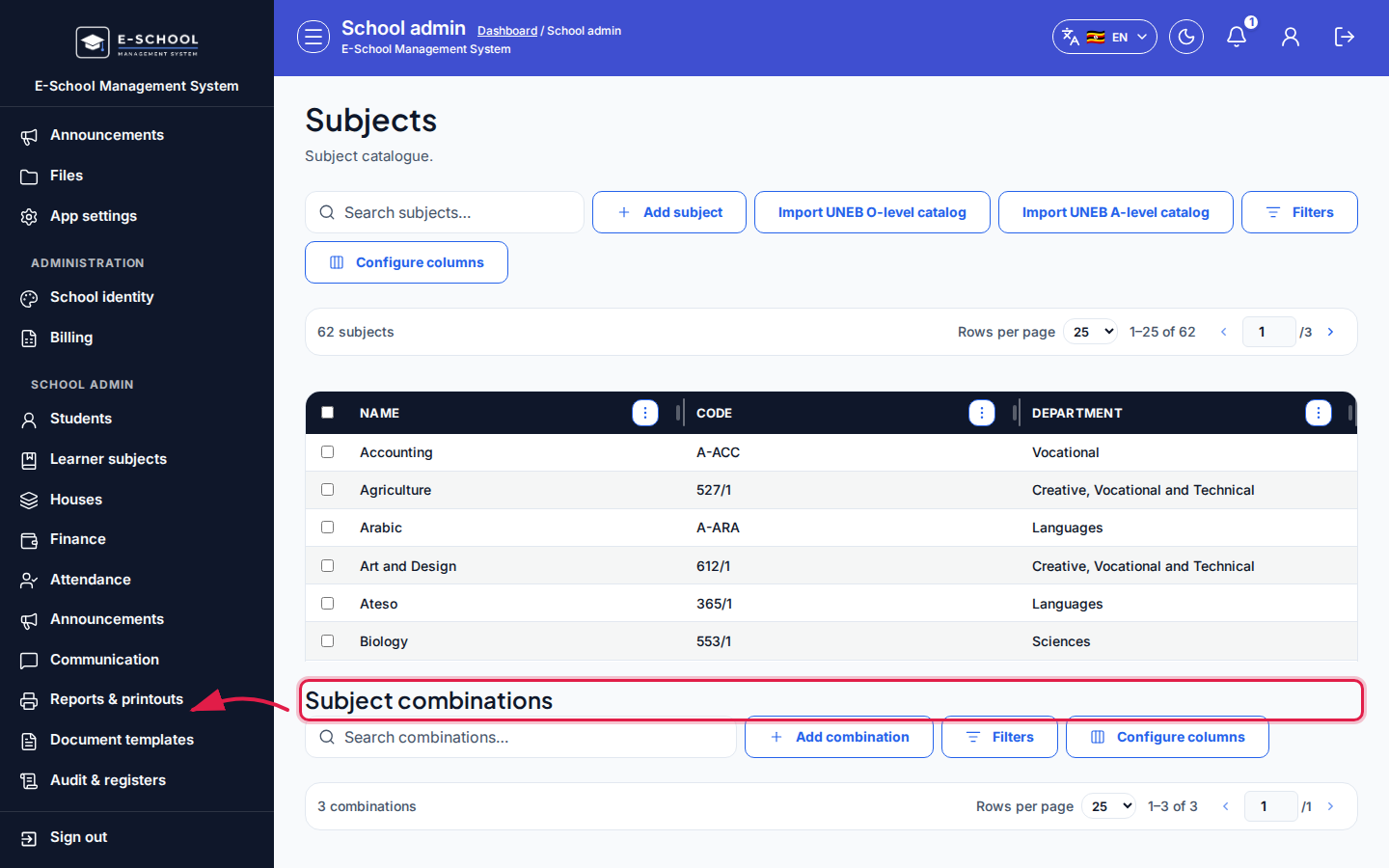 Desktop - focus for step 4
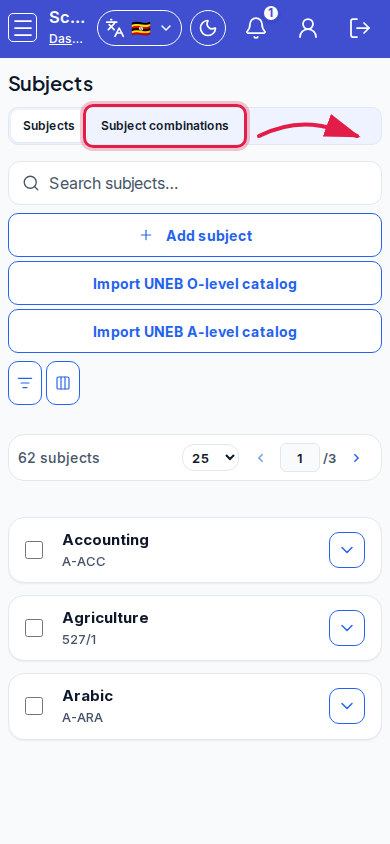 Mobile - focus for step 4
- Search subjects or combinations before creating duplicates.
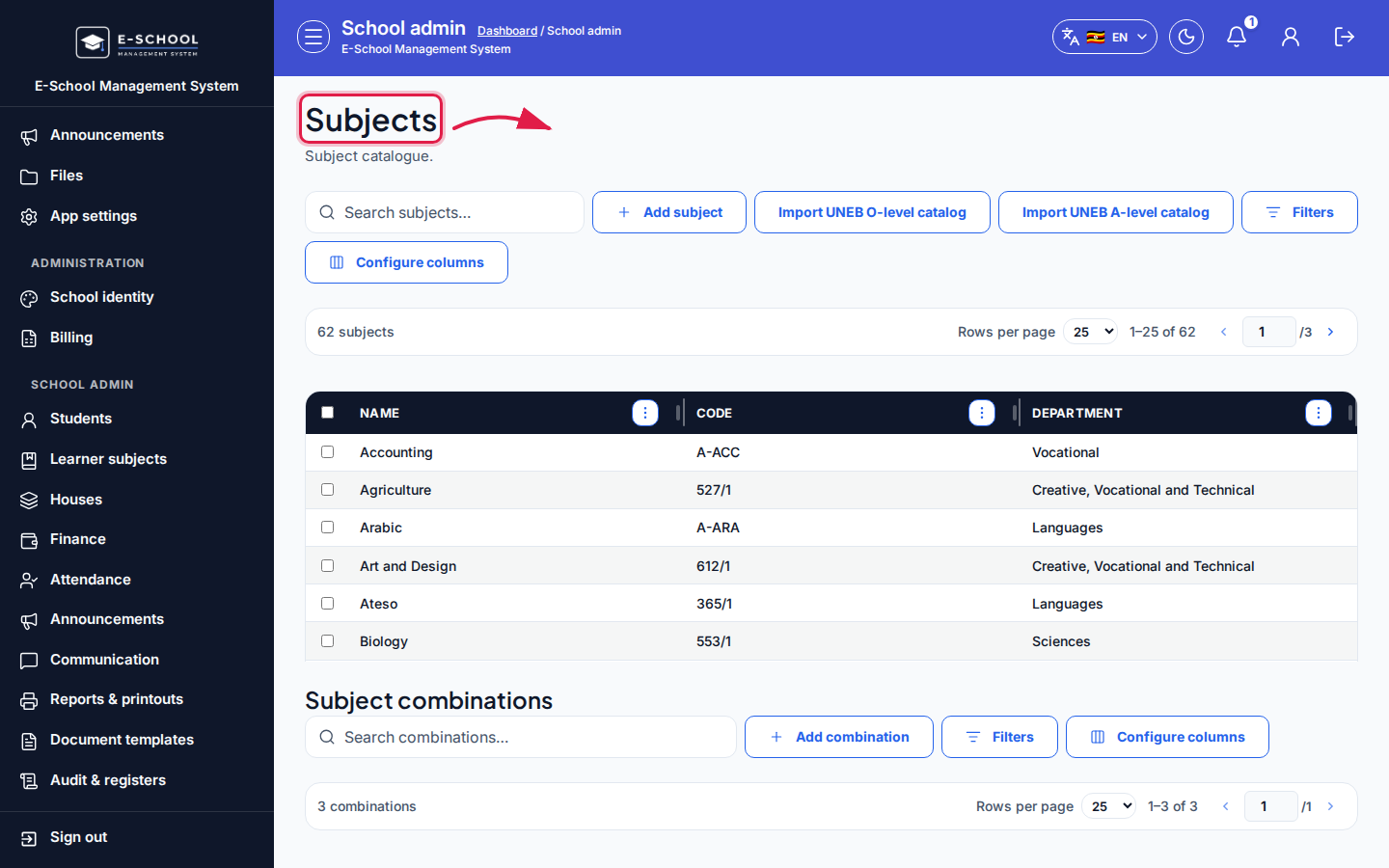 Desktop - focus for step 5
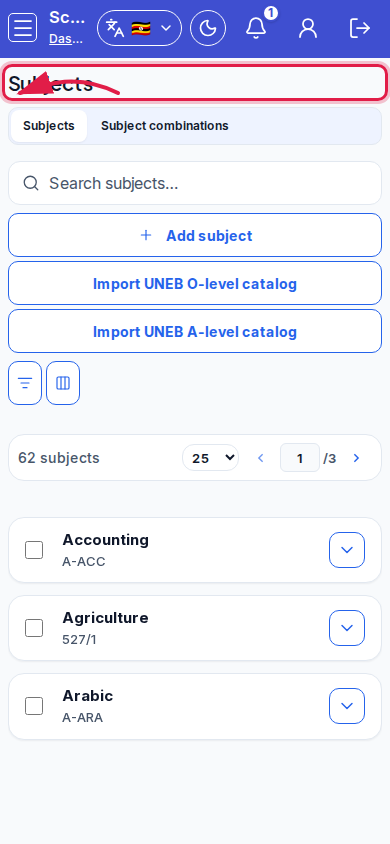 Mobile - focus for step 5
Fields and actions
- Add subject / Edit / Save subject
- Import UNEB O-level catalog / Import UNEB A-level catalog
- Add combination / Save combination
- Columns: Name, Code, Department, Notes; combinations Name, Description
- Mobile tabs: Subjects | Subject combinations
Common mistakes
- Creating exams before subjects exist
- Leaving learner subjects empty because the catalogue was never saved
- Importing UNEB twice and ending with duplicate names
- Skipping combinations needed for A-level registration