User permissions panel
Grant or revoke domain permission codes for a school user. Opened from Staff & users as a dialog titled User permissions that hosts the school-user-permissions-panel panel.
Who can use this
- ADMIN
Path
(panel / dialog - [Staff & users](/screens/admin/admin-staff-users) Accounts list)
Dependencies
- Target user exists under Staff & users / Accounts.
- Role already assigned; this panel adds extra grants beyond the role.
Screenshot
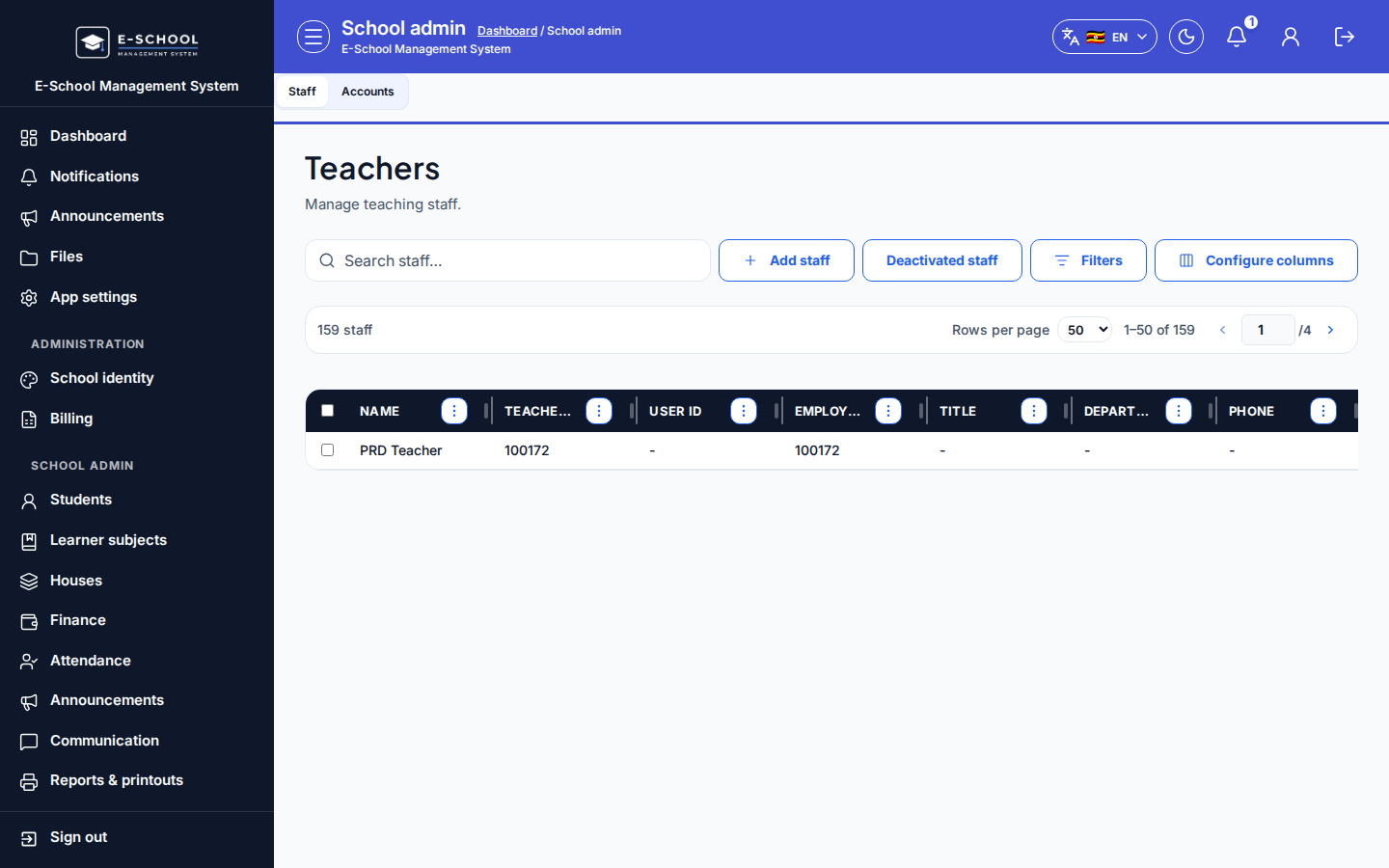
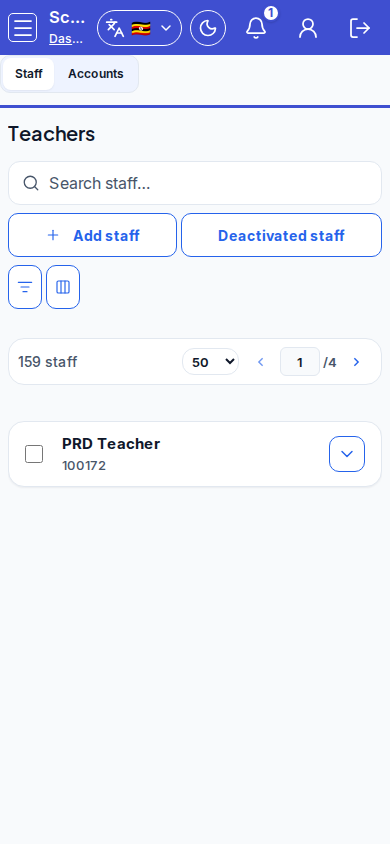
Dialog appears when
On Staff & users, select one user row and click Permissions (admin-users-permissions). The shell opens with title User permissions and description about extra assessment (and other domain) rights; the body is school-user-permissions-panel.
Steps
- Open Staff & users and select the Accounts / staff user row.
- Click Permissions.
- Read the effective line at the top (Extra grants beyond the role. Effective: ...).
- Expand domain groups (
+/-) and tick or untick permission codes. - Click Save, wait for the saved feedback, then Close.
- Ask the user to sign out and back in if nav or actions do not update.
Fields and actions
- Permissions (toolbar open)
- Effective grants caption (
school-user-permissions-effective) - Domain group toggles and permission checkboxes
- Save (
school-user-permissions-save) - Close
- Saved / error feedback
Common mistakes
- Saving without reading the effective grants line
- Expecting nav changes without re-login when the session still caches grants
- Granting finance or destructive assessment permissions to every teacher by mistake
- Editing the wrong user row after multi-select