App settings
Personal preferences for the signed-in user: language, theme, tips, PWA install, and browser notifications.
Who can use this
- ADMIN
- TEACHER
- STUDENT
- FINANCE
- SECRETARY
- LIBRARIAN
- NURSE
- PARENT
Path
/settings
Dependencies
- Any signed-in role.
- School-wide logo and name are under Branding / School settings, not here.
Screenshot
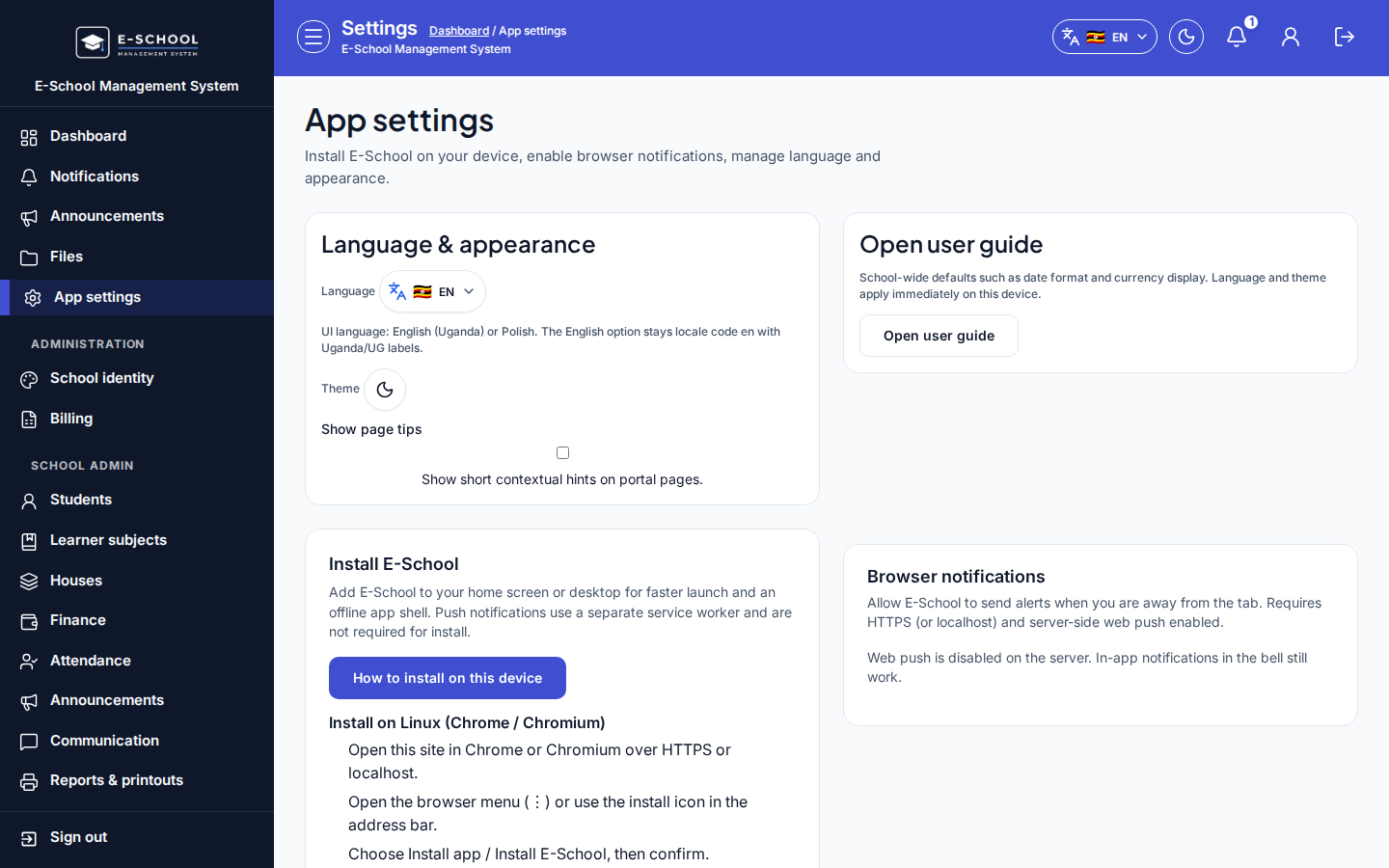
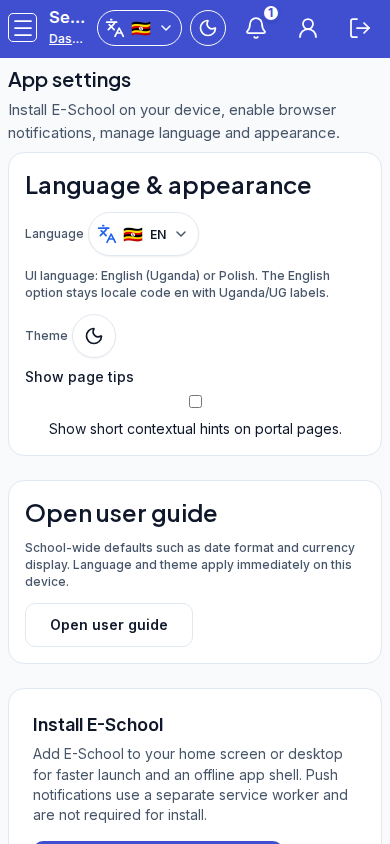
Steps
- Open App settings at
/settings/app(or/settings) as the signed-in user. - Under Language & appearance, set Language (Uganda EN / Polish), theme (light/dark), and Show page tips.
- Click Open user guide when you need product help.
- Under Install E-School, use Install app or How to install on this device.
- Enable or disable Browser notifications for this device.
Fields and actions
- Language & appearance: Language, Theme, Show page tips
- Open user guide
- Install E-School: Install app / How to install on this device
- Browser notifications: Enable / Disable on this device
Common mistakes
- Expecting app settings to change school branding
- Disabling notifications then wondering why alerts stopped
- Changing language without noticing remaining untranslated labels