Dashboard
Role-specific home: welcome, KPIs, quick actions, module cards, and optional admin dashboard builder.
Who can use this
- ADMIN
- TEACHER
- STUDENT
- FINANCE
- SECRETARY
- LIBRARIAN
- NURSE
- PARENT
Path
/
Dependencies
- Signed-in portal access for the school.
- Empty widgets usually mean upstream screens (students, fees, attendance) were never configured.
Screenshot
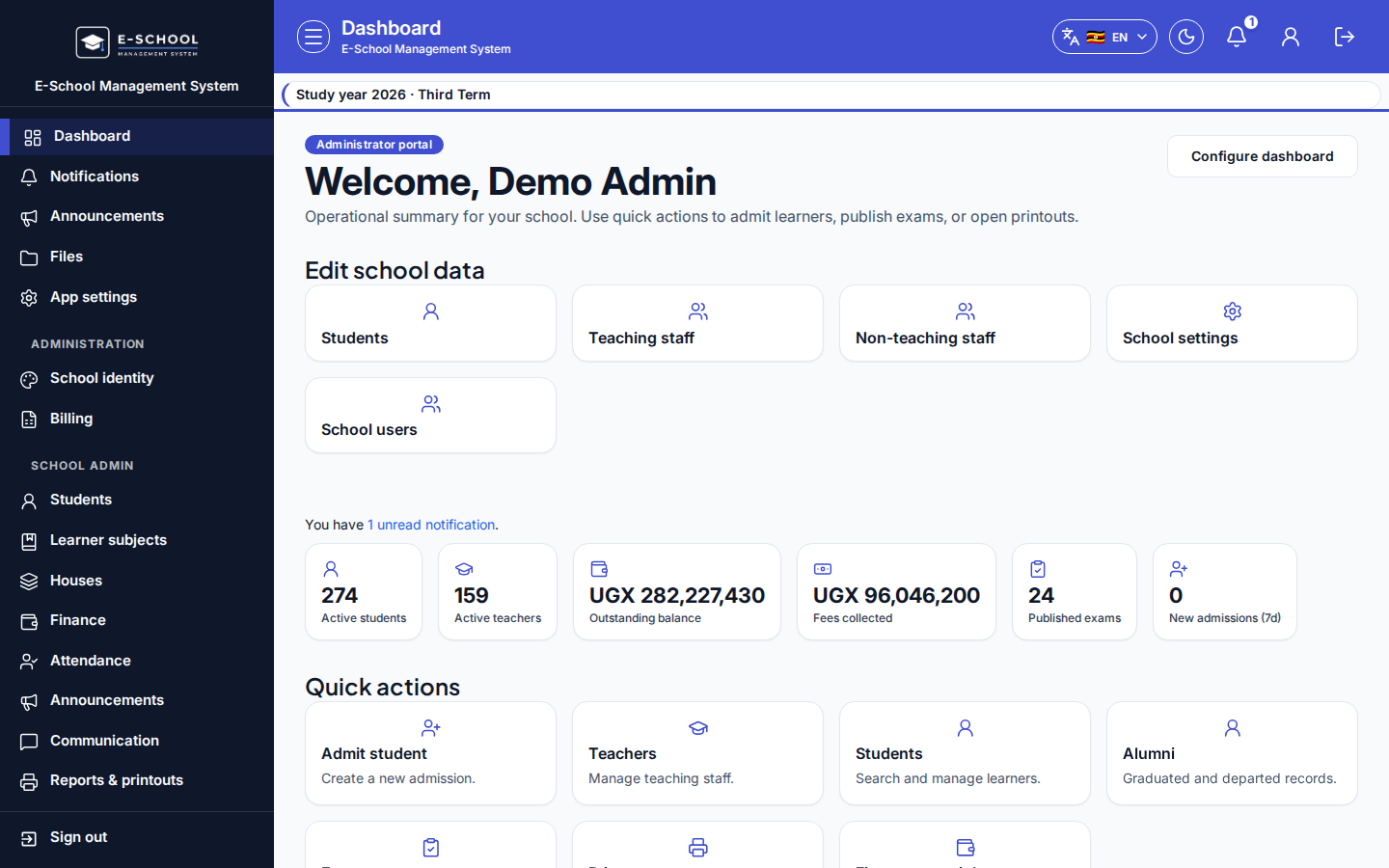
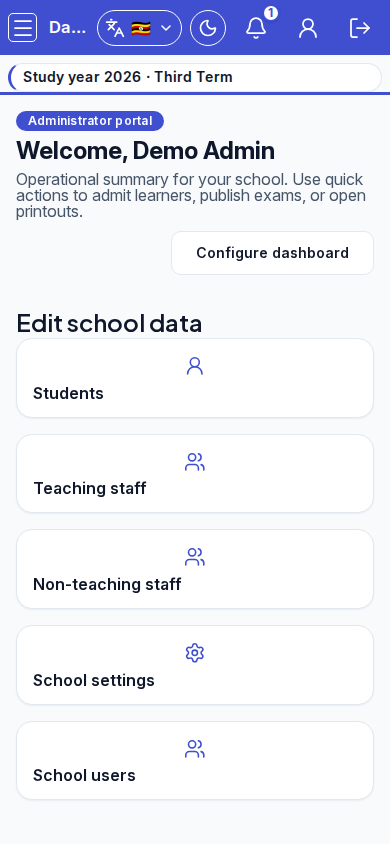
Steps
- Open Dashboard at
/after login. - Confirm the role chip (
ADMIN portal,TEACHER portal, …) and welcome name. Use Quick actions and module cards for daily work. - ADMIN: use Edit school data shortcuts (Students, Teaching staff, Non-teaching staff, School settings, School users) when onboarding.
- ADMIN: Configure dashboard to add/remove tabs and widgets, then Save (or Reset).
- Follow unread notifications or secretary Recent admissions when shown.
Fields and actions
- Role chip / Welcome
- ADMIN: Edit school data, Configure dashboard (Add tab, Add widget, Save, Reset)
- Quick actions / KPI widgets / module cards
- Notifications link
Common mistakes
- Wrong school session shows another tenant's activity
- Ignoring empty cards when upstream data was never set up
- Configuring dashboard widgets for the wrong role layout