Move student
Promote / move is a form section on student detail - not a separate modal. Choose destination class and academic year, then Confirm move. Movement history appears above the form.
Who can use this
- ADMIN
Path
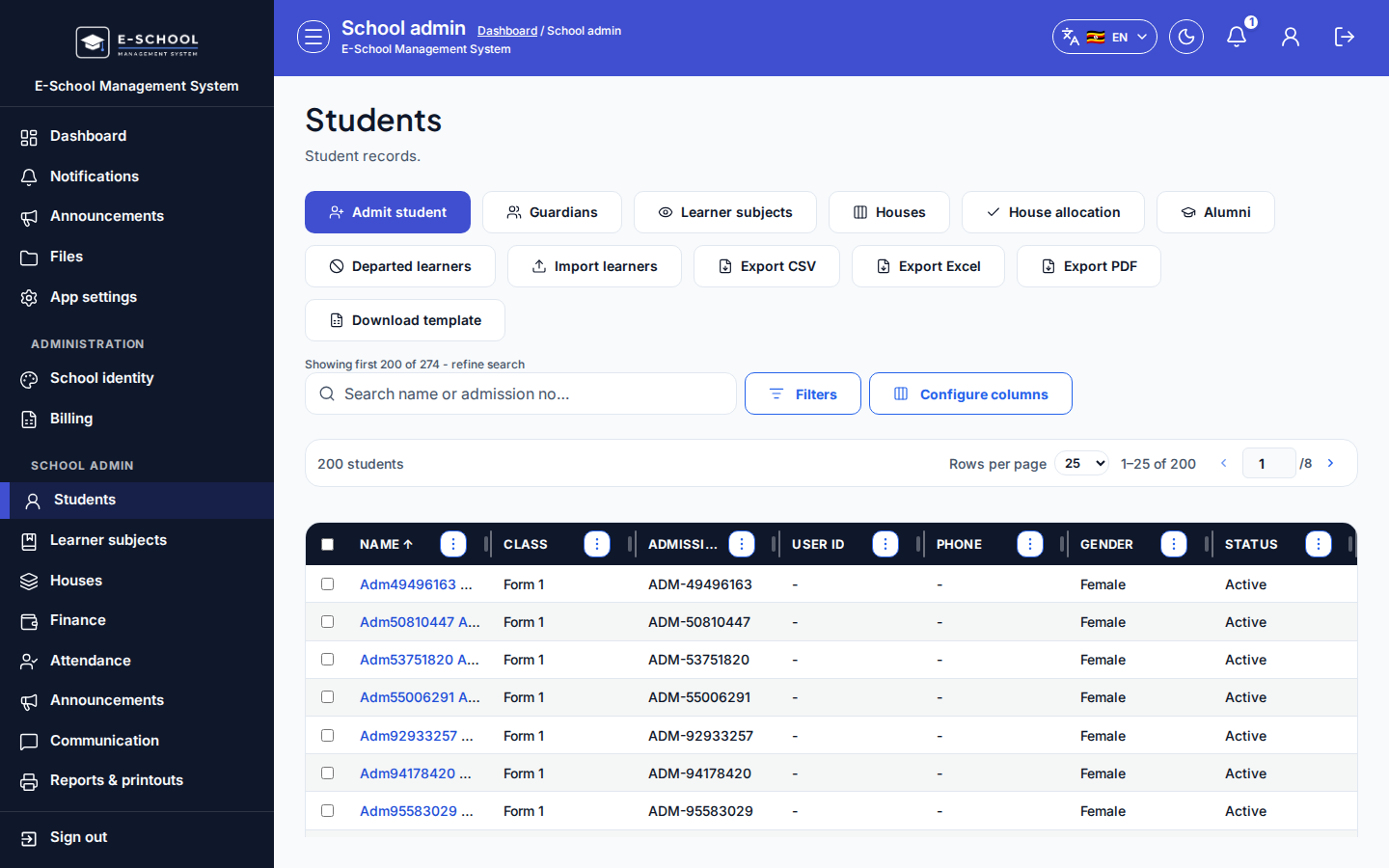
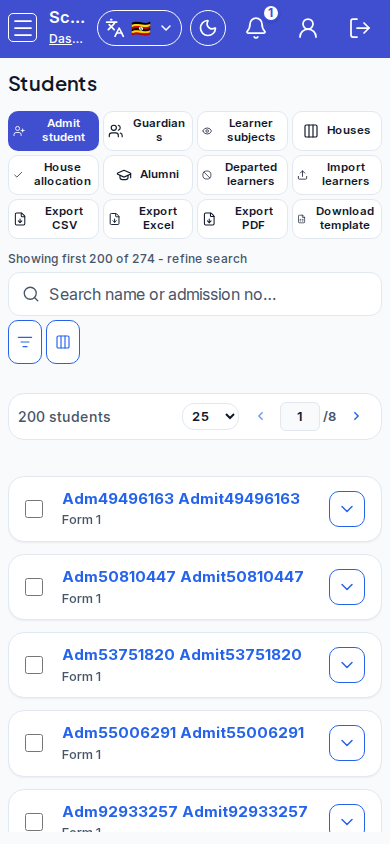
(Student detail - Promote / move form on [Students](/screens/admin/admin-students))
Dependencies
- Destination class and academic year already exist (Classes, Academic calendar).
- After the move, update class filters and learner subjects for the new class.
Screenshot
Dialog appears when
Open a learner on student detail and scroll to the Promote / move heading. This is an in-page form (Destination class + Academic year + Confirm move), not a pop-up dialog. Docs captures may look like an overlay for framing; the live product keeps the controls on the detail page.
Steps
- Open Students and open the learner.
- Scroll past movement history to Promote / move.
- Select Destination class and Academic year (Confirm stay disabled until both are set).
- Click Confirm move.
- Re-check class/stream filters on lists, learner subjects, fees, and timetable for the new class.
Fields and actions
- Promote / move (section heading)
- Destination class
- Academic year
- Confirm move
- Movement history table: Effective date, From class, To class, Academic year, Notes
Common mistakes
- Expecting a modal - the controls live on the detail page under Promote / move
- Moving with the wrong academic year
- Leaving list filters on the old class so the learner seems "missing"
- Skipping learner subjects after the move (empty report cards later)