Record Payment
Office walk-in payments: look up the learner, enter amount and method, preview allocation, then post and print the receipt.
Who can use this
- FINANCE
- ADMIN
Path
/finance/payments/record
Dependencies
- Open invoices should already exist from Generate Invoices (unallocated cash is possible but harder to reconcile).
- Know the learner's name, admission number, or payment code before posting.
- Amounts are in school currency (demo: USh).
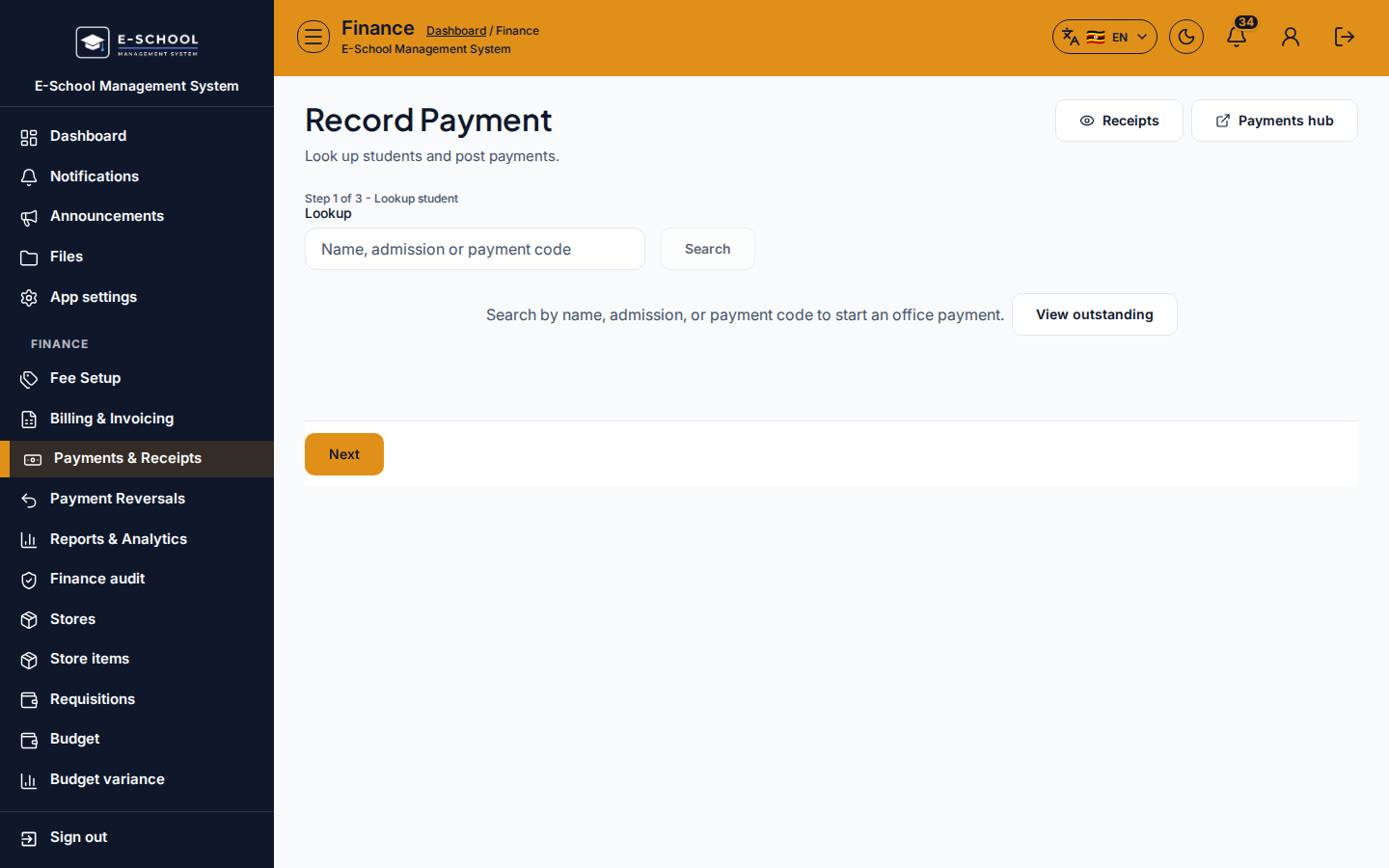
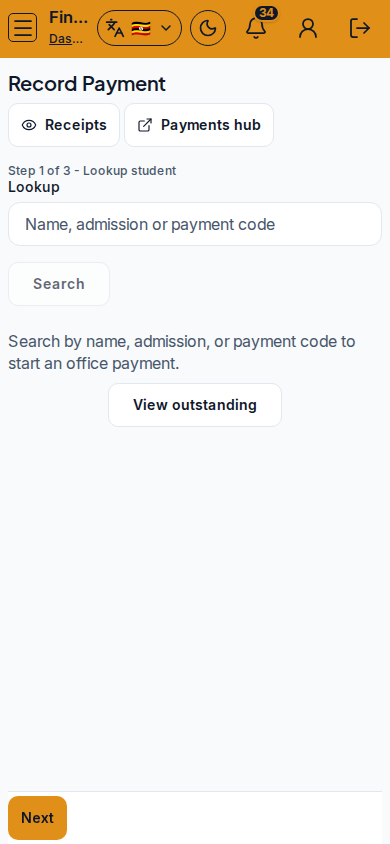
Screenshot
Steps
- Open Record Payment at
/finance/payments/recordas FINANCE. - Step 1 of 3 - Lookup student: search by name, admission, or payment code, then Select the correct row. Confirm name and balance before continuing.
- Step 2 of 3 - Amount & method: enter amount (partial pays allowed), method (Cash / Card / Mobile / Bank), and optional reference. Review how lines allocate to open invoices.
- Step 3 of 3 - Preview & confirm: check Allocated vs Unallocated, then post. Toast returns the receipt number.
- Click Print receipt immediately, or open Receipts / View receipts if the printer was busy.
- Use Record another for the next walk-in, or View outstanding when chasing balances.
Fields and actions
- Lookup (name / admission / payment code)
- Amount (USh), method, reference
- Allocation preview (invoice, due, balance)
- Next / Back / post confirm
- Print receipt / Record another / View receipts / Receipts / Payments hub / View outstanding
Common mistakes
- Posting to the wrong learner after a fuzzy name search (costliest office error)
- Skipping Print receipt after post
- Entering zero or blank amount
- Ignoring unallocated remainder when invoices were never generated
- Reusing a payment reference that already exists (UI warns)