Outstanding Balances
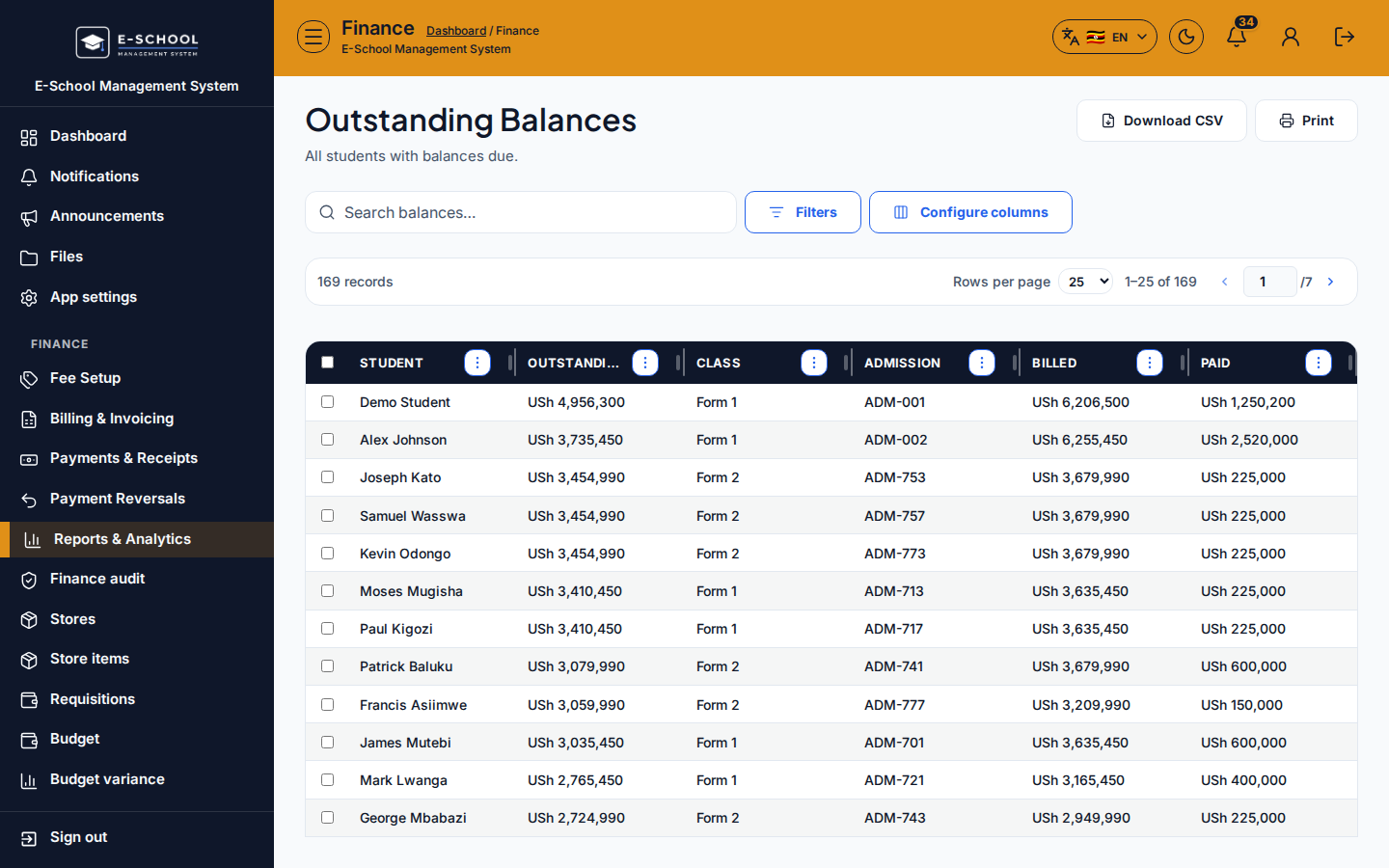
Balances still due by learner after invoicing. Export or print for office follow-up; post payments when families settle.
Who can use this
- FINANCE
- ADMIN
Path
/finance/reports/outstanding
Dependencies
- Invoices must exist from Generate Invoices; an empty list often means billing never ran for the filtered class/term.
- Use Defaulters when you need past-due only (due date passed), not every open balance.
Screenshot
Steps
- Open Outstanding Balances at
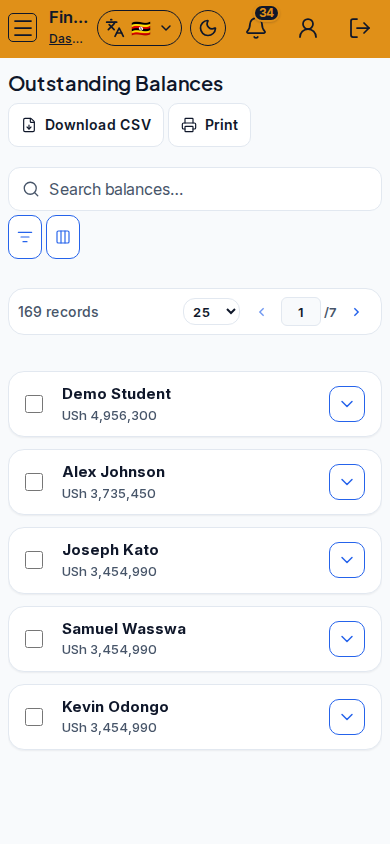
/finance/reports/outstandingas FINANCE. - Search balances; narrow by class/filters so the list matches the chase list for today.
- Use Configure columns to show admission, class, billed, paid, and balance as needed.
- Download CSV or Print for office/SMS planning outside the app.
- When a family pays at the counter, open Record Payment (hint link on this page) rather than editing balances by hand.
Fields and actions
- Search balances…
- Filters / Configure columns
- Download CSV / Print
- Columns typically include student, class, billed, outstanding / balance
- Hint link to Record payment
Common mistakes
- Assuming nobody owes when filters hide the billed term
- Using Outstanding when you meant Defaulters (past-due only)
- Including reversed receipts in a manual spreadsheet total
- Chasing Alumni rows that should not be billed as active