Daily attendance
Take the class register for the correct date and stream, save statuses, then confirm reports and parent visibility.
Steps
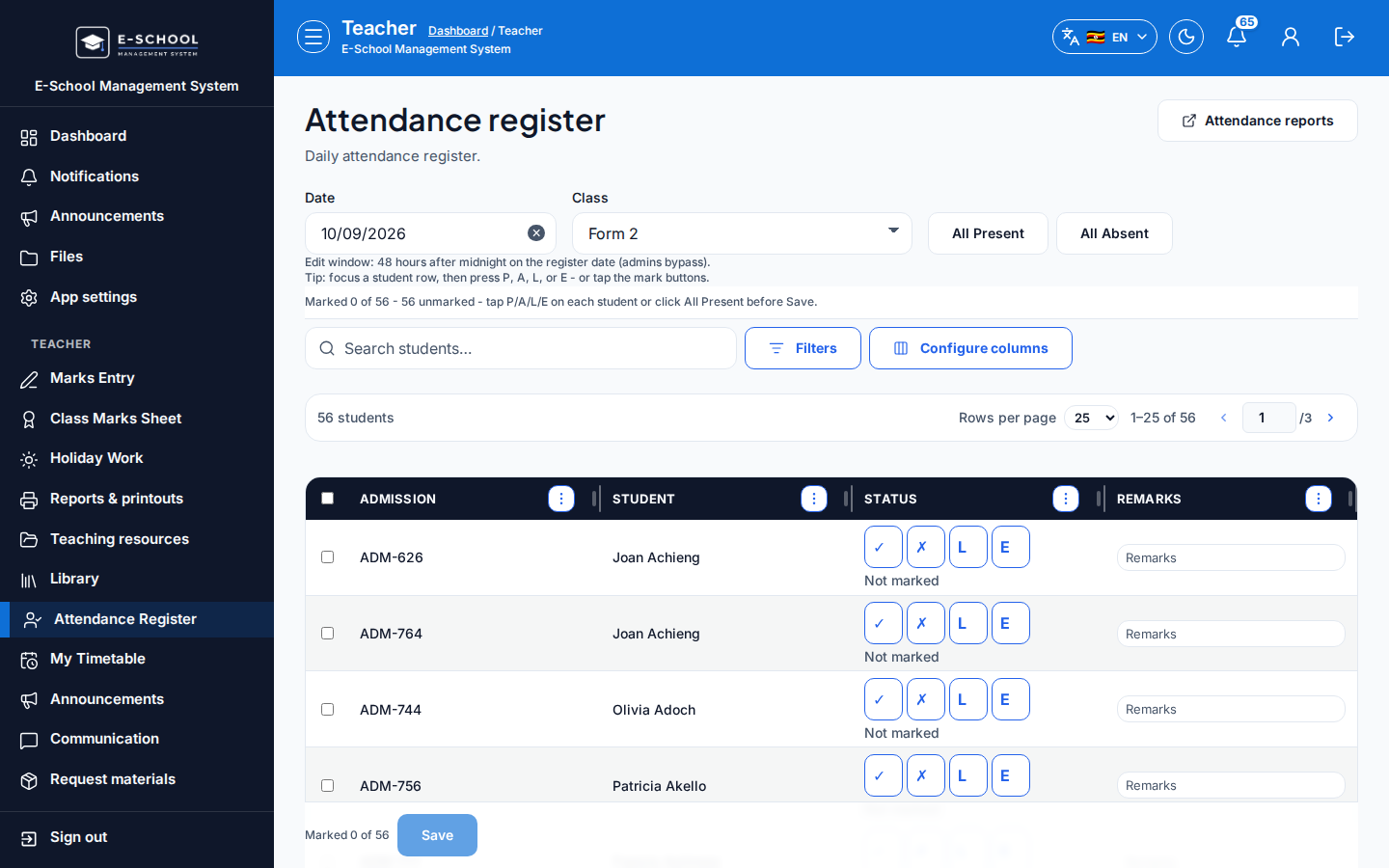
- Open the register - Attendance Register
- Path
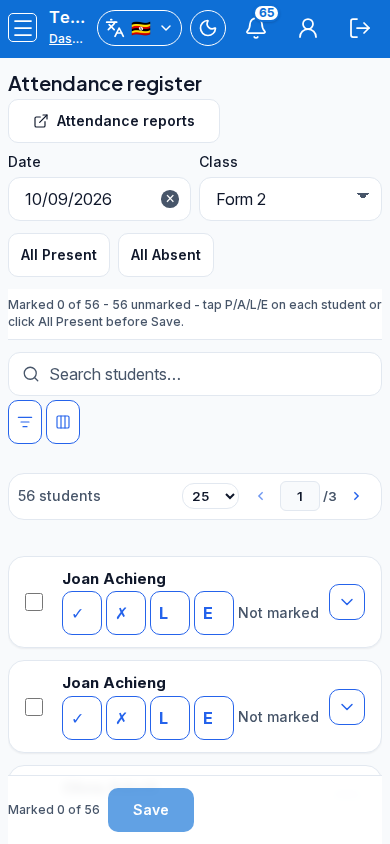
/teacher/attendance. Confirm class, stream, and date. - Tip: wrong stream shows the wrong roll (or empty). On mobile, open Filters before hunting missing columns.
- Path
-
Mark statuses
- Use Present (P), Absent (A), Late (L), Excused (E) per row, or All Present / All Absent then adjust exceptions.
- Optional remarks per learner.
- Tip: mark every row before Save. Partial saves look "done" in the room but leave gaps for parents.
-
Save
- Click Save.
- Tip: changing date after marking without re-saving writes to the wrong day.
-
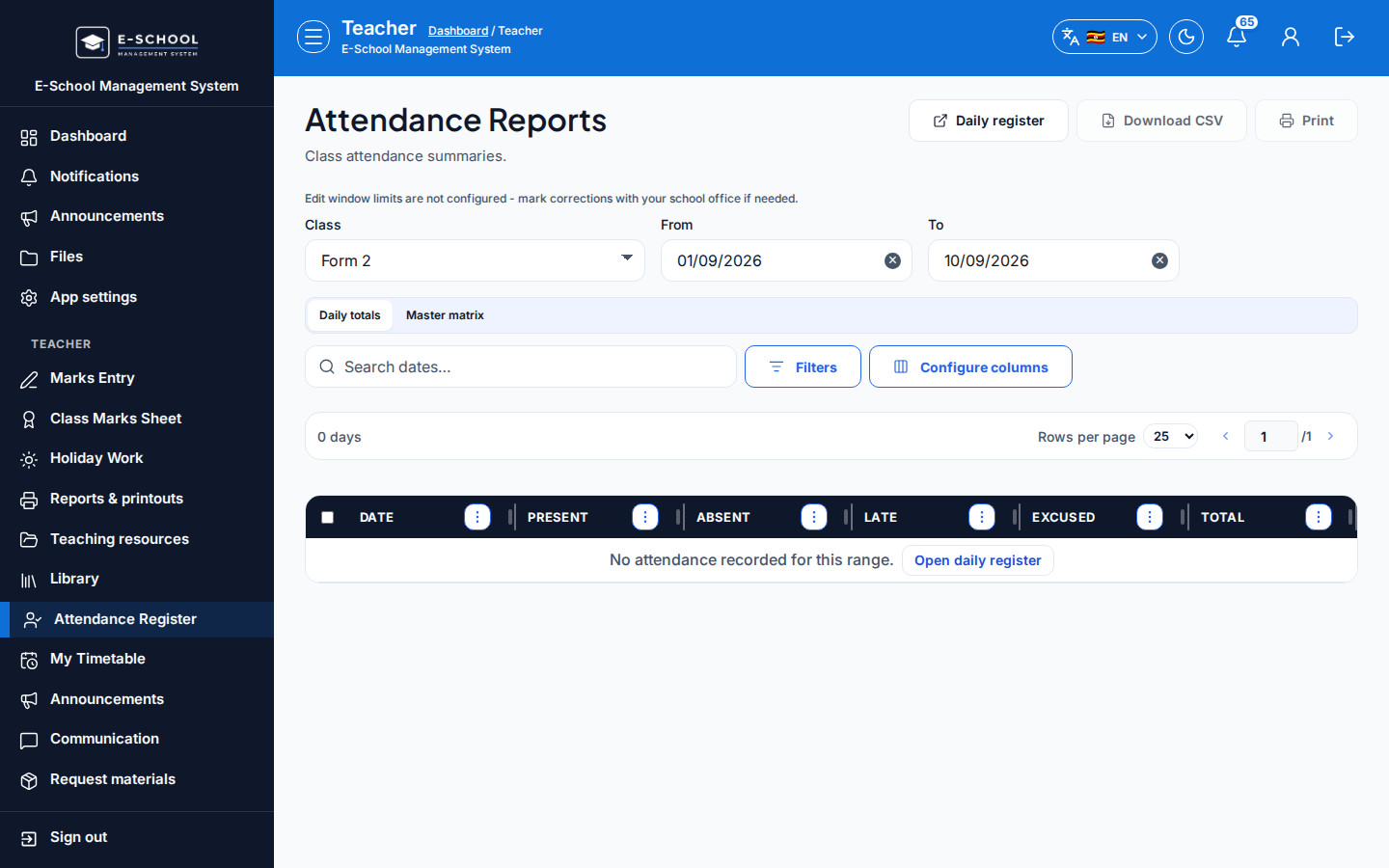
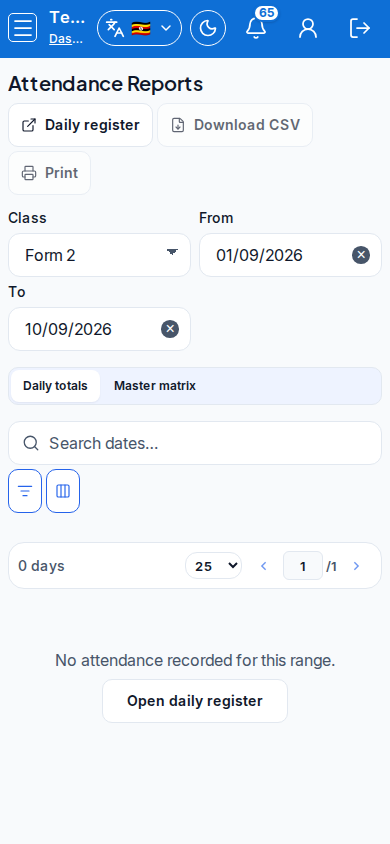
Review reports - Attendance Reports
- Confirm totals for the day/week.
- Tip: Admin/Secretary hubs (Attendance, Attendance) are for oversight, not a substitute for the teacher save.
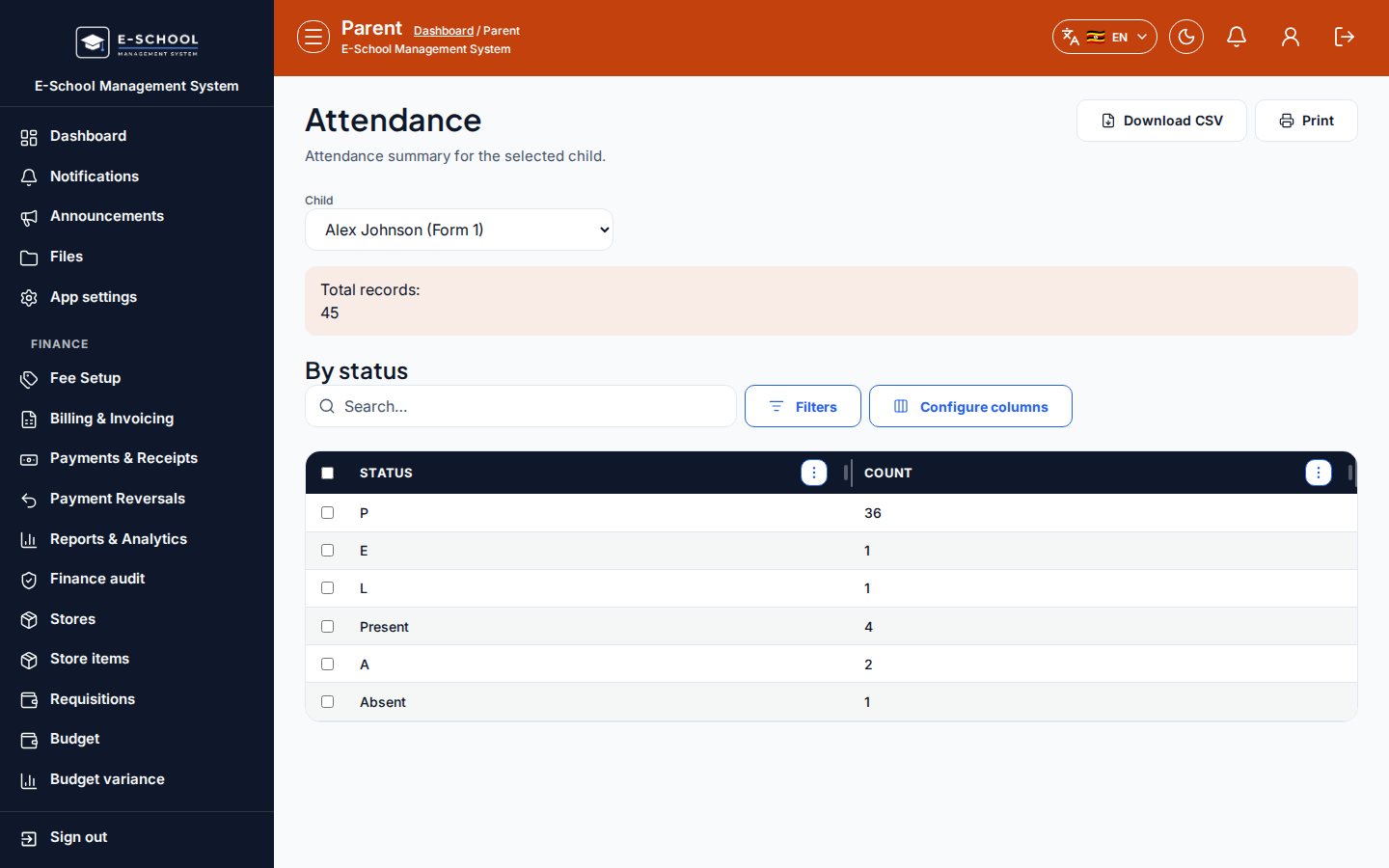
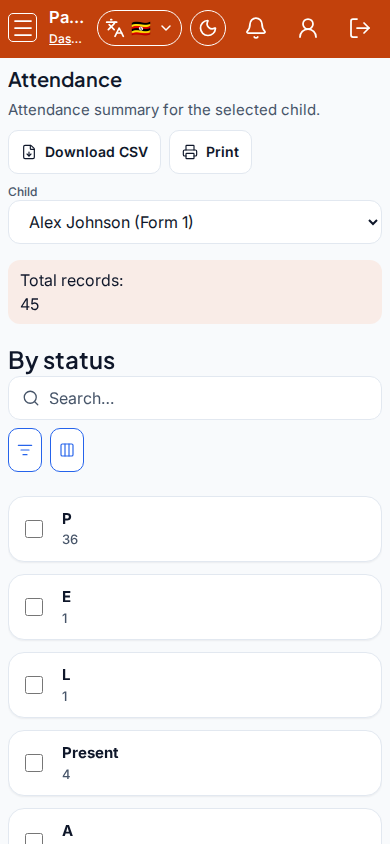
- Parent view - Attendance
- Parents see outcomes only after a register was taken and saved.
- Tip: empty parent attendance almost always means the register was never taken for that date.
Role handoff
Teacher owns the daily register. Admin/Secretary review hubs for oversight. Parents read the outcome only.
Common mistakes
- Wrong date or stream selected
- Saving before all learners are marked
- Parents seeing empty data when the register was never taken
- Relying on All Present without fixing absentees