Announce and notify
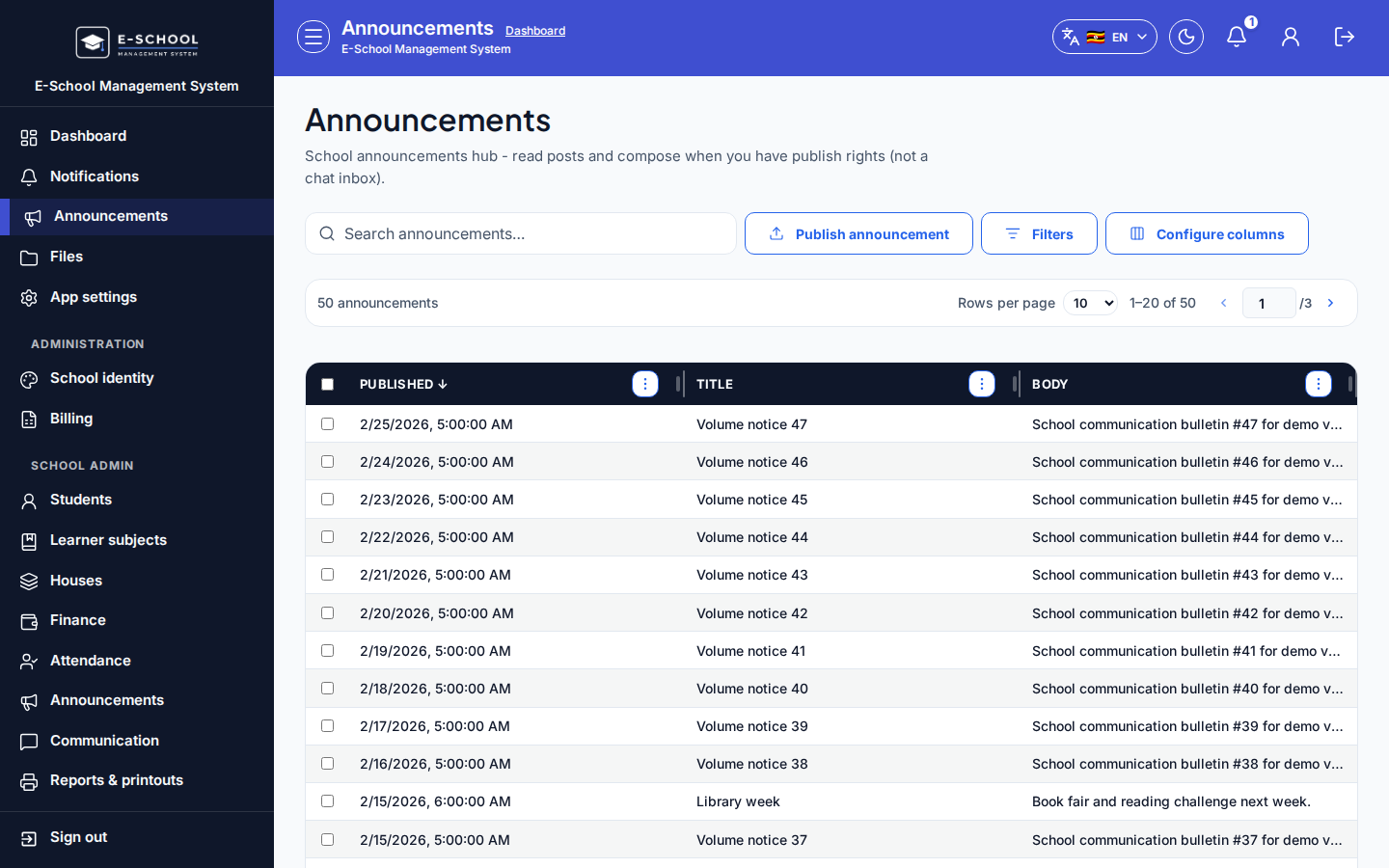
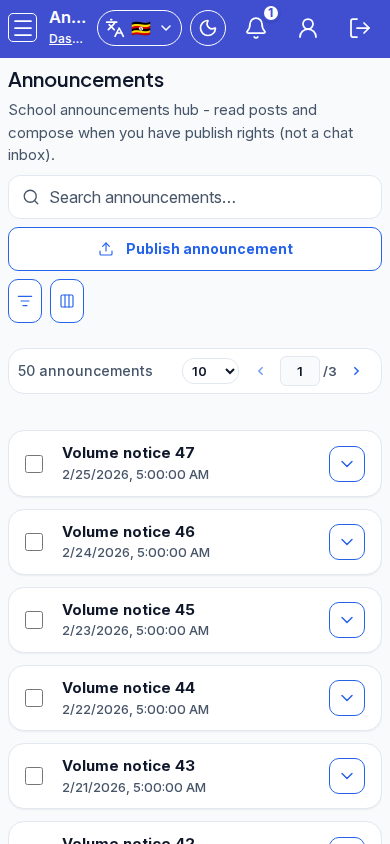
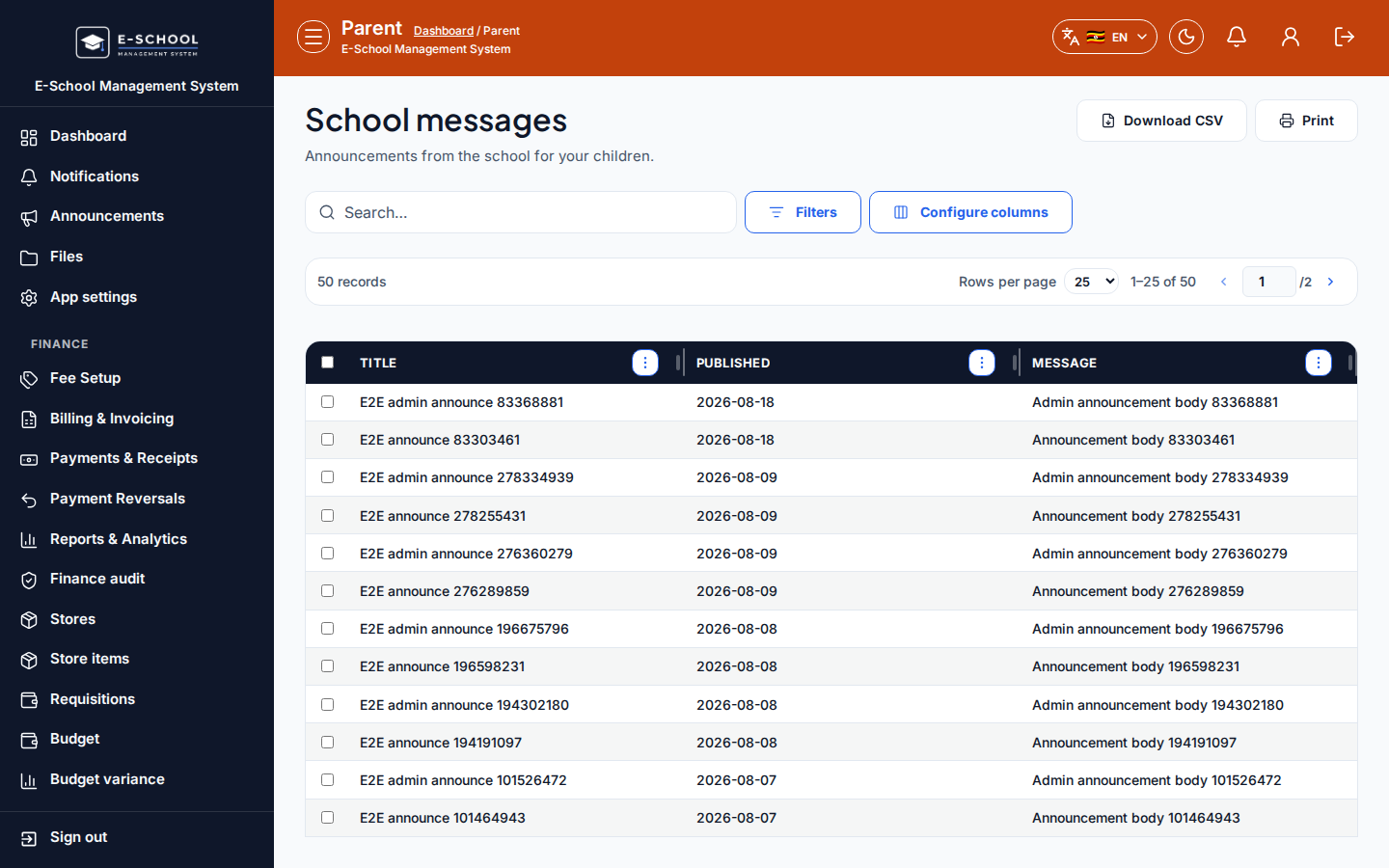
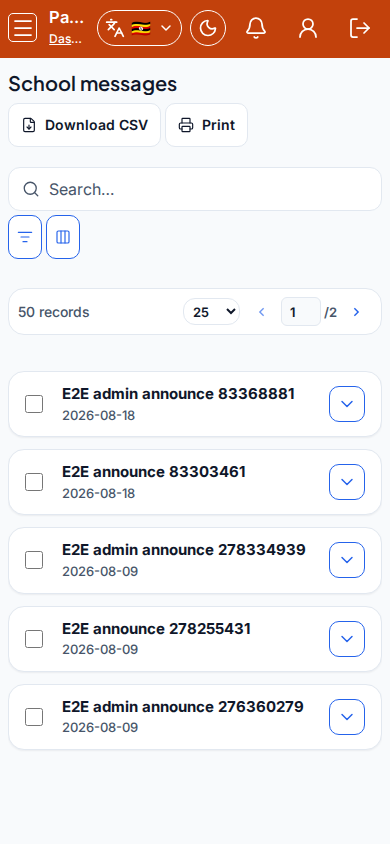
Compose an announcement for the right audience, publish it, then confirm recipients can see it in Notifications or Parent messages.
Steps
- Compose - Announcements or role hubs
- Admin: Announcements / Communication
- Teacher: Announcements
- Secretary: Communications
- Tip: put
https://on external links. Broken or bare URLs fail on mobile.
-
Pick the audience
- Choose parents, teachers, students, or a class-scoped group as shown in the composer.
- Tip: wrong audience (parents vs teachers) is the most common miss. Preview the scope before send.
-
Publish / send
- Save and send. For SMS paths, confirm credit and the SMS log under Secretary if delivery looks quiet.
- Tip: SMS credit exhaustion looks like "send succeeded" in the UI but nothing arrives.
-
Confirm delivery
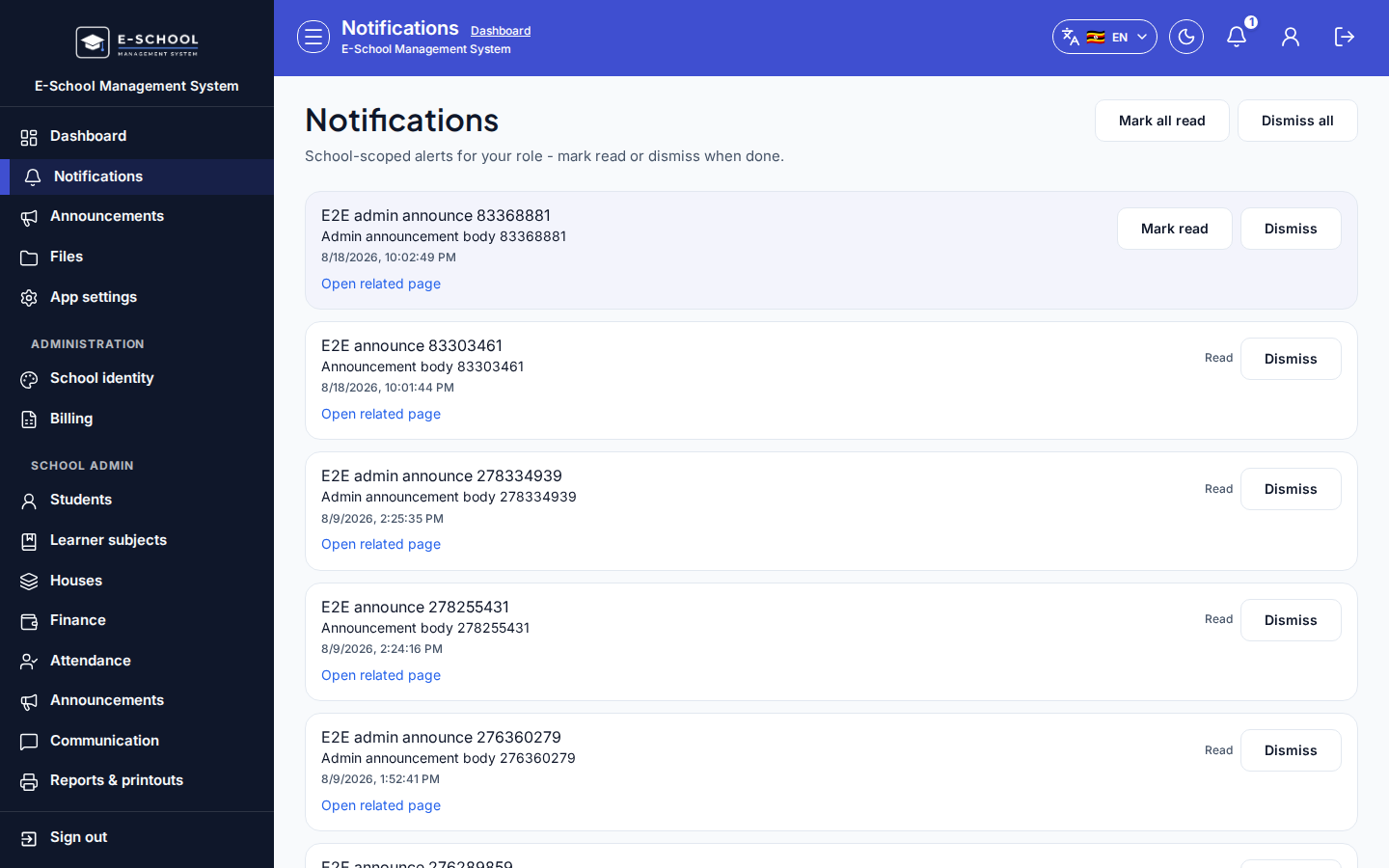
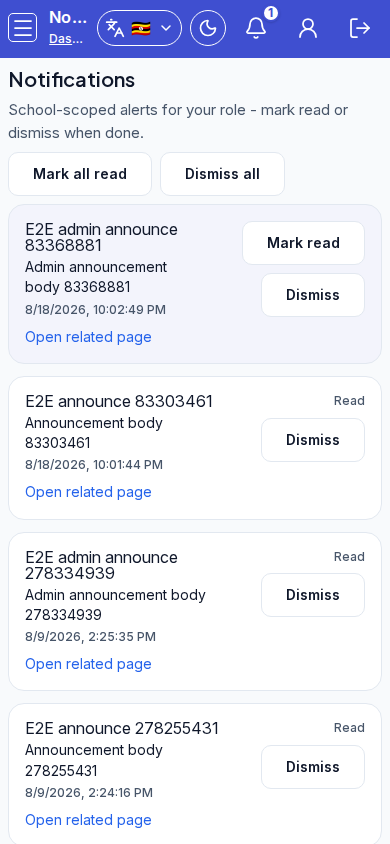
- Recipients open Notifications (
/notifications). - Parents also check Messages.
- Tip: if the author can see the post but parents cannot, re-check audience and whether the parent account exists.
- Recipients open Notifications (
Role handoff
Staff (Admin/Secretary/Teacher) publish. All roles read Notifications. Parents use Messages for the parent-facing inbox. Events on the school calendar are scheduled separately under School Events.
Common mistakes
- Wrong audience (parents vs teachers)
- SMS credit exhaustion
- Links without
https:// - Expecting guardians without parent logins to see Messages