Budget period cycle
Open a budget period, plan lines, post expenses against those lines, then review variance before closing the period.
Steps
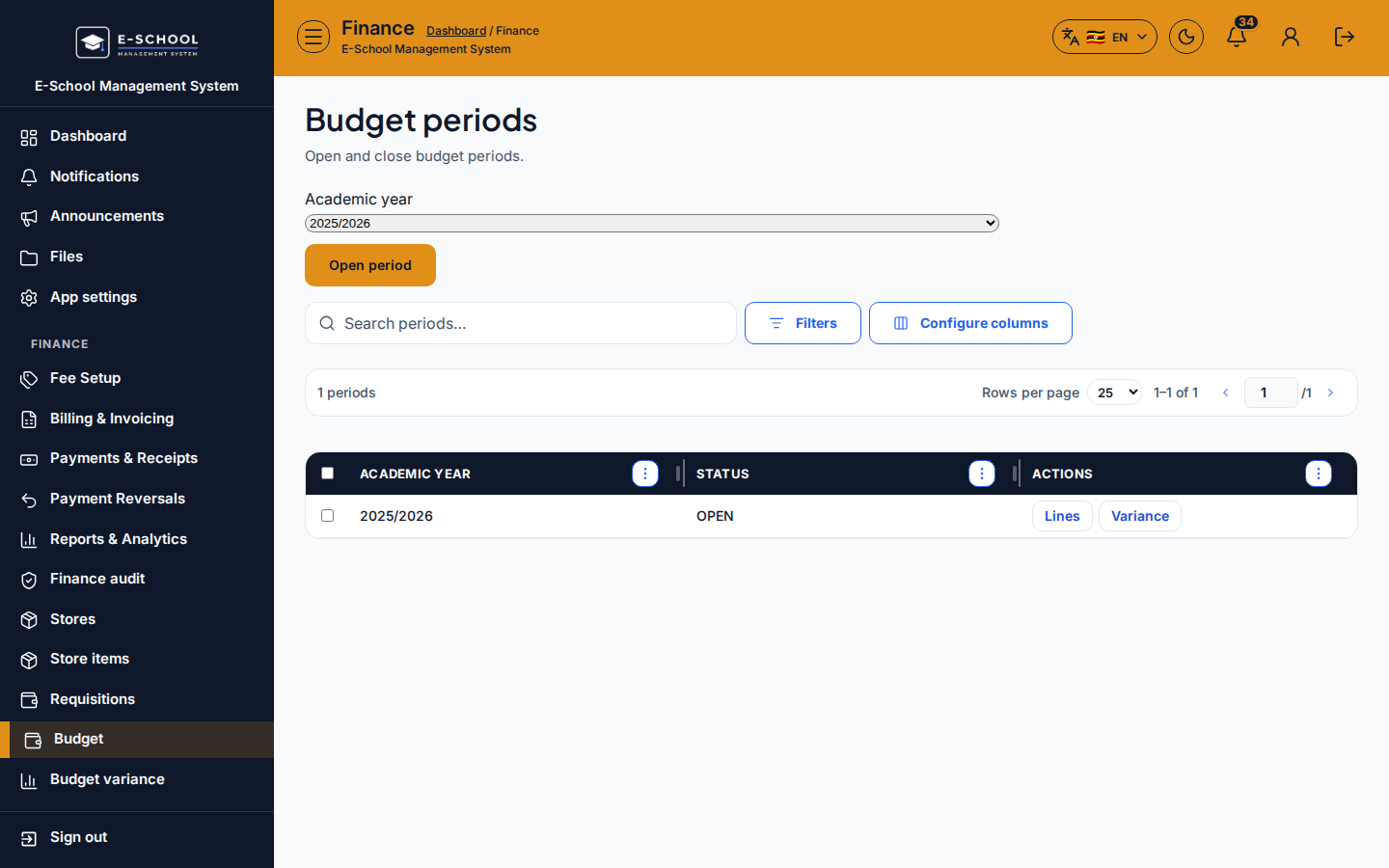
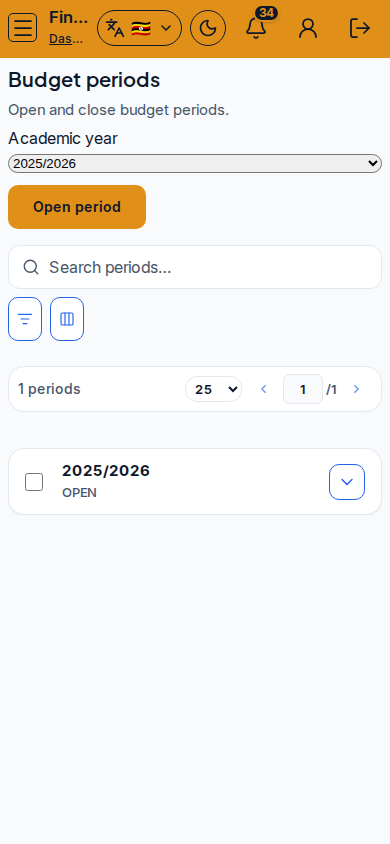
- Budget periods - Budget periods
- Create or open the period and mark it active/open.
- Tip: expenses posted outside an open period will not land cleanly on variance reports.
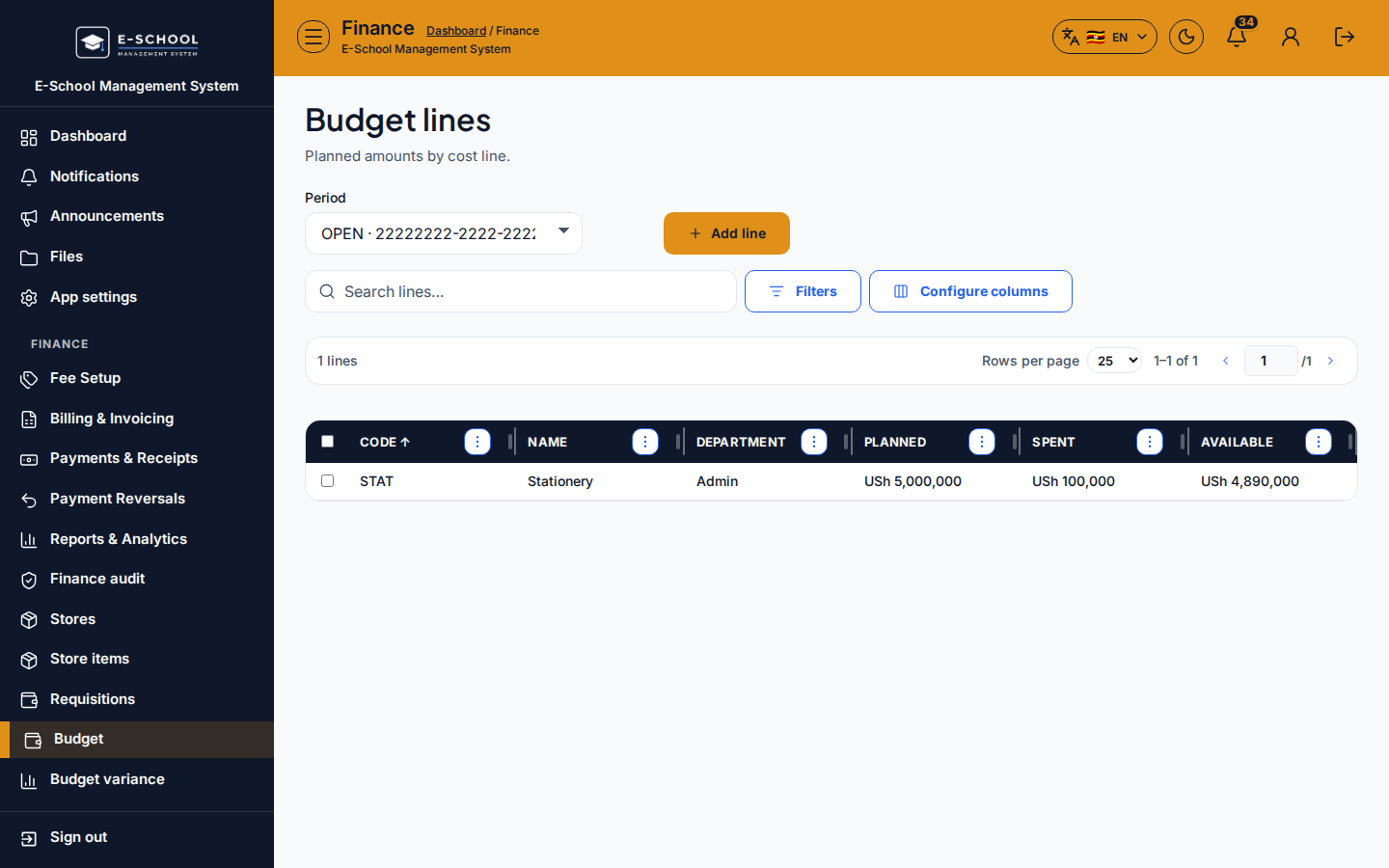
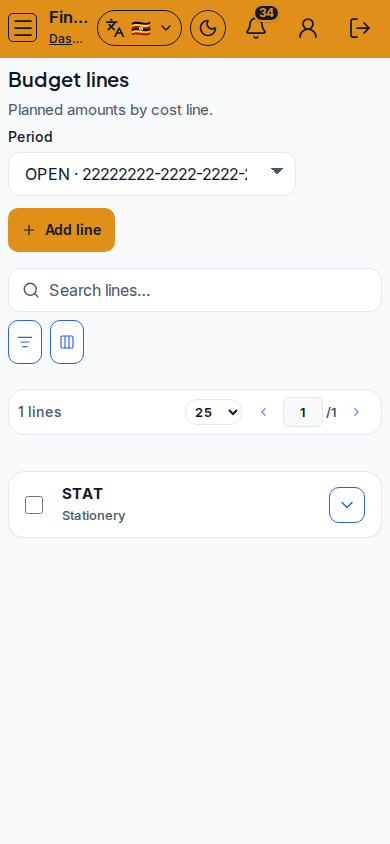
- Budget lines - Budget lines
- Add lines (categories/amounts) for the open period.
- Tip: lines must exist before expense posting. Mirror how the school actually spends (departments, projects).
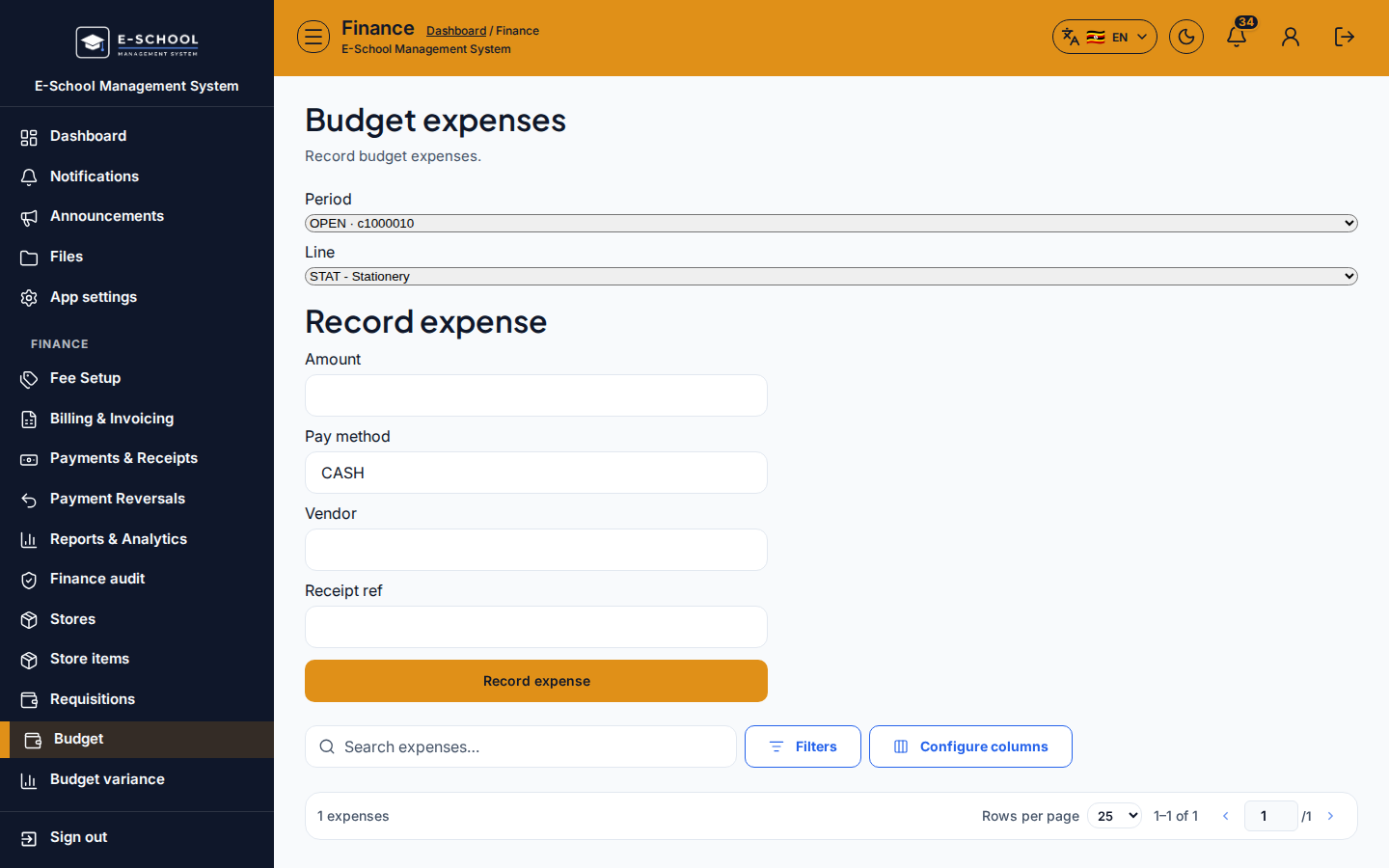
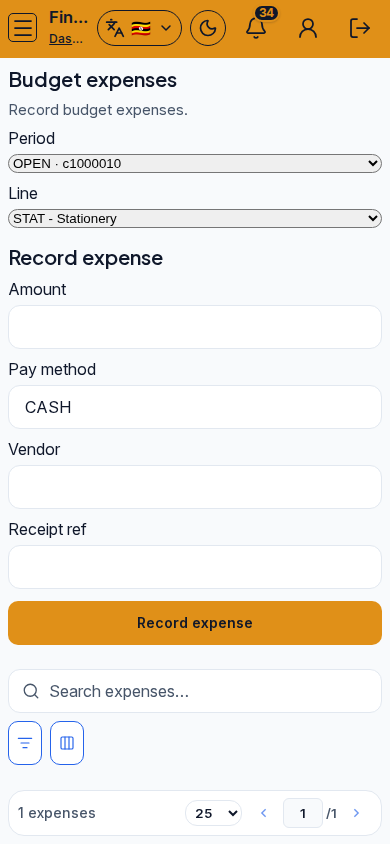
- Budget expenses - Budget expenses
- Post expenses against the correct line with date and reference.
- Tip: wrong line selection is the usual cause of "mystery" variance.
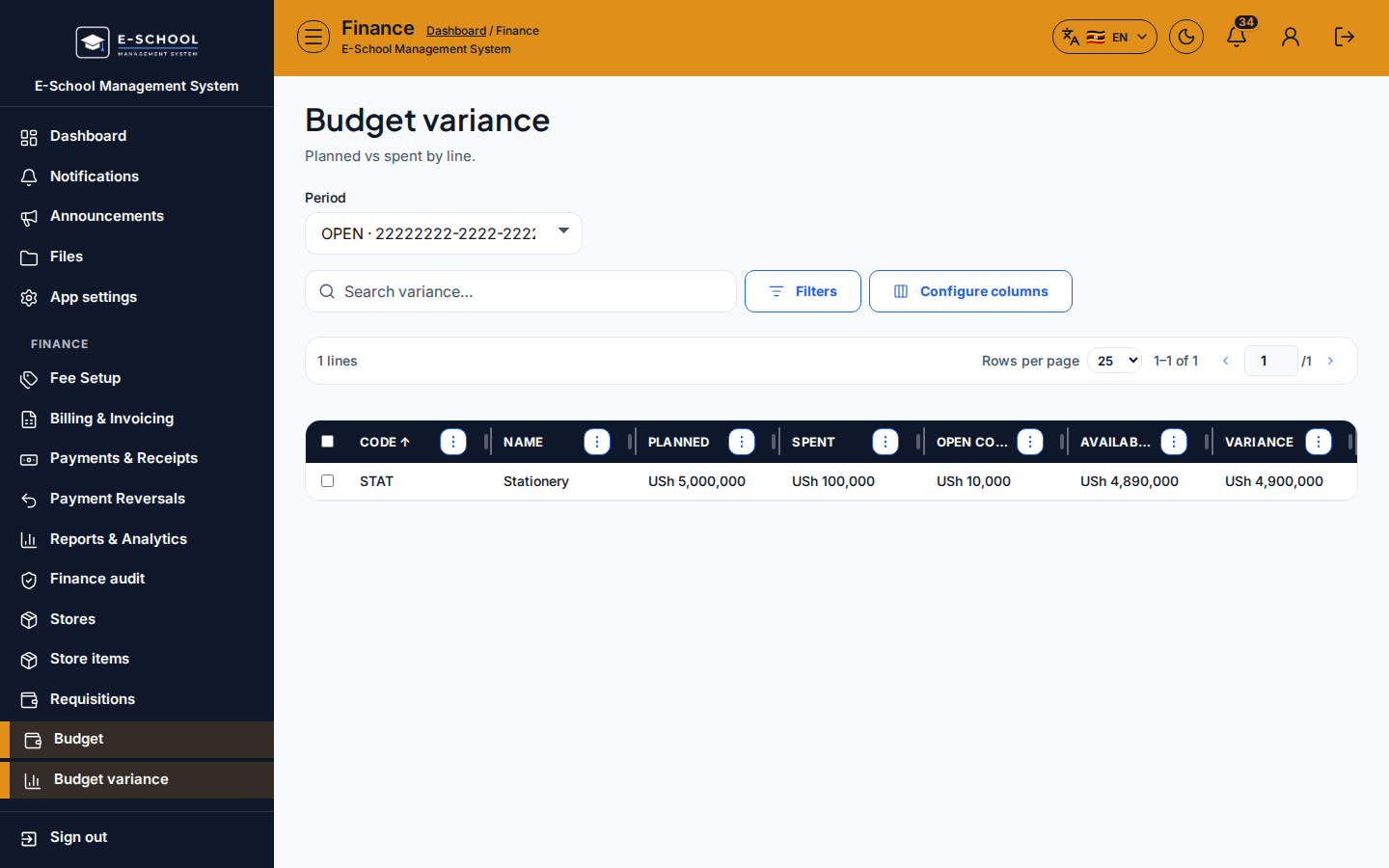
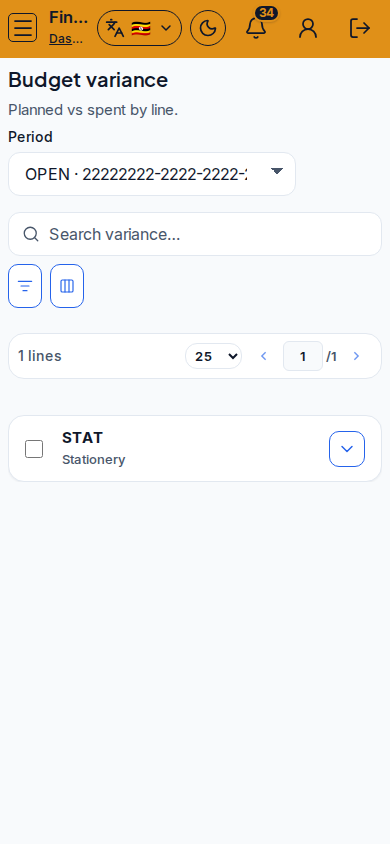
- Budget variance - Budget variance
- Compare plan vs actual for the period; investigate overruns.
- Tip: start from the Budget dashboard for a period overview, then drill into variance.
Role handoff
Finance opens the period, plans lines, posts expenses, and reviews variance. Admin may view Stores & Budget for oversight. Teachers do not post budget expenses.
Common mistakes
- Expenses outside an open budget period
- Posting to the wrong budget line
- Reviewing variance for the wrong period filter
- Closing a period while pending expenses remain