First login
Hand a new staff member, learner, or parent their School ID and User ID, then walk them through the first successful sign-in and password change.
Steps
- Issue credentials (Admin or Secretary)
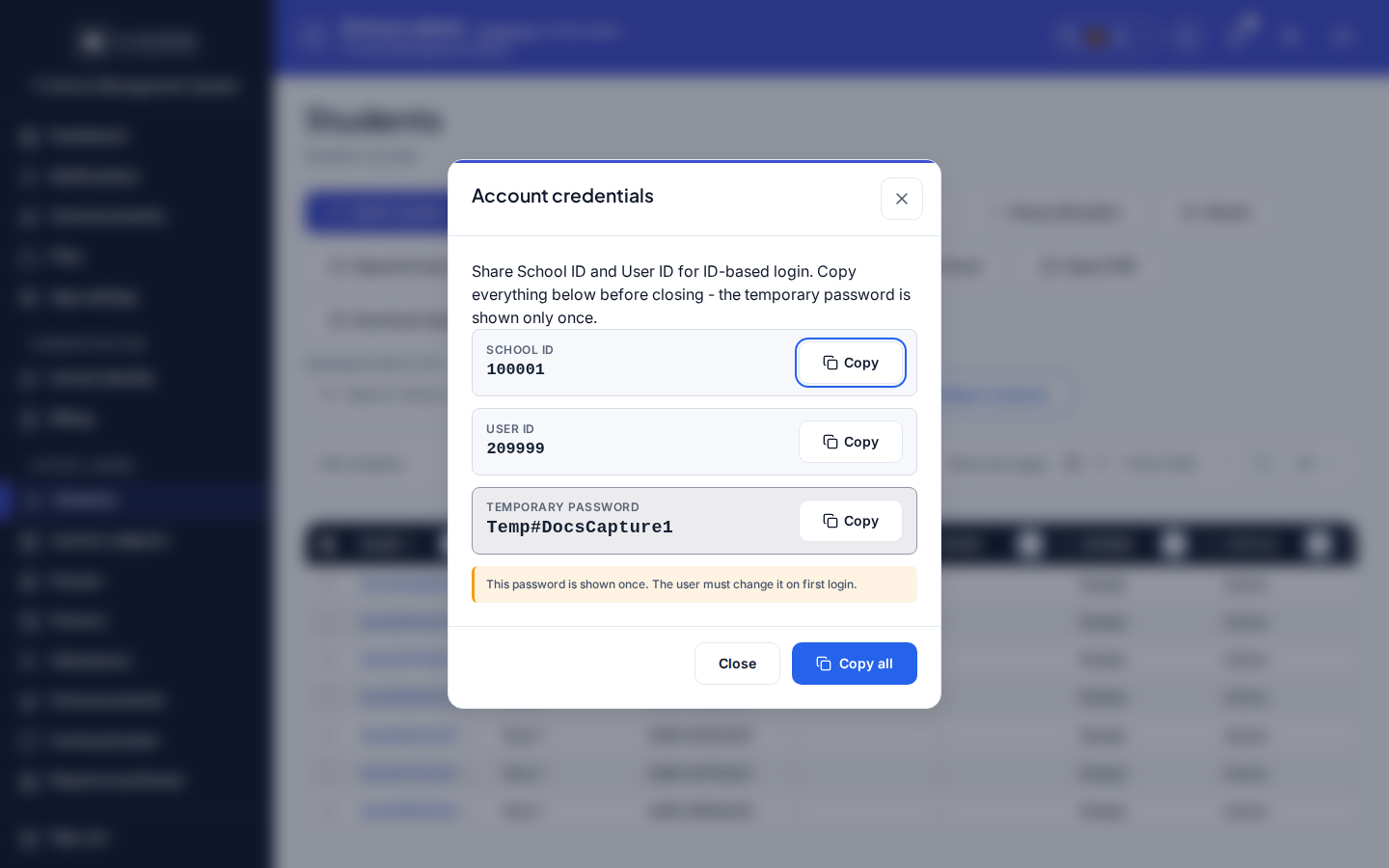
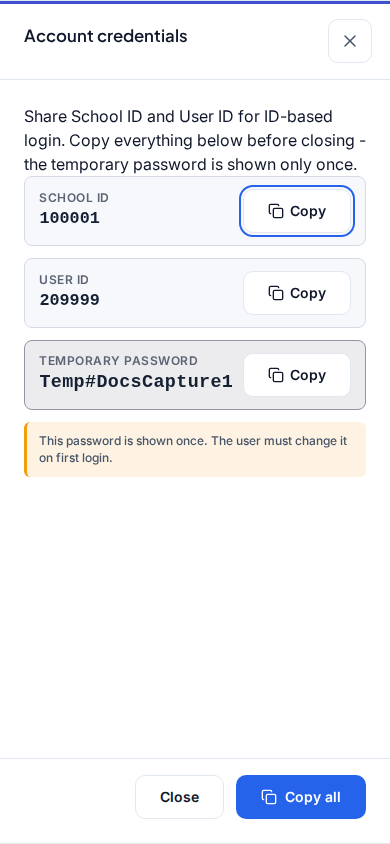
- Finish Add staff, Admit, or Add user until the Account credentials (copy now) dialog opens.
- Copy School ID, User ID, the temporary password, and the recovery codes before clicking Close.
- Tip: temporary password and the current recovery-code set cannot be retrieved later. If you close early, use Reset password on Staff & users / Password help instead of guessing.
-
Sign in at the school portal (
/app/)- Enter School ID, then User ID (not Teacher ID, admission number, or email for students/parents).
- Enter the temporary password.
- Tip: after a school switch or re-issue, confirm School ID on the credentials sheet matches School settings.
-
Change the temporary password
- Complete the forced change prompt on first login.
- Tip: share the permanent password only through your school's secure channel; do not paste it into chat logs.
-
Set personal preferences
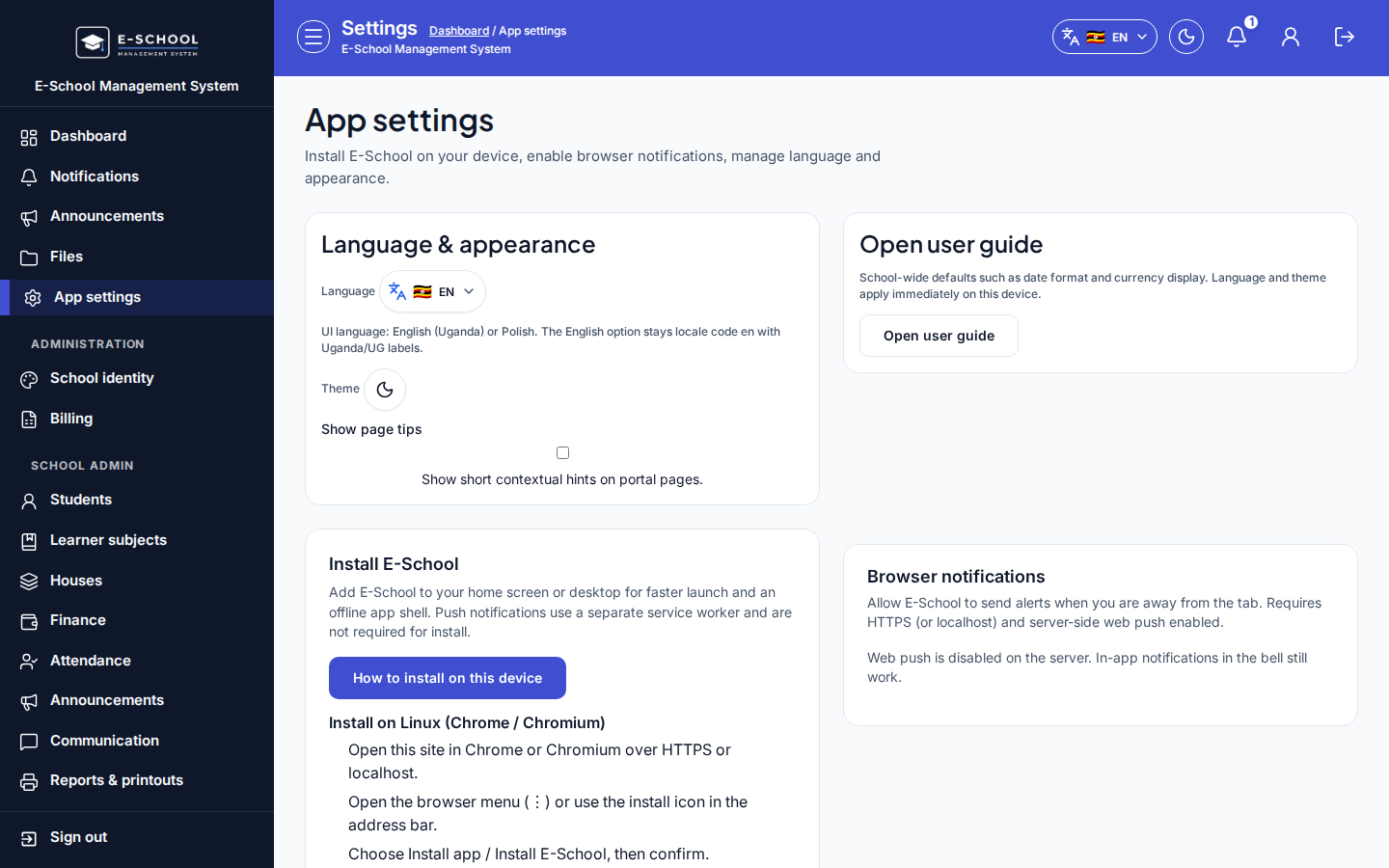
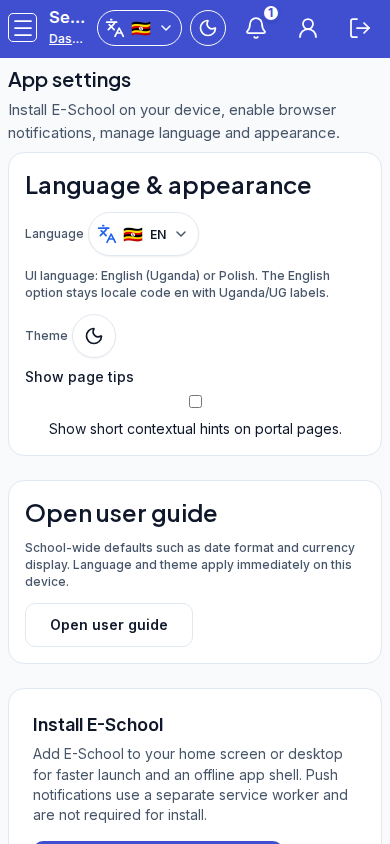
- Open App settings (
/settings). - Use Open user guide and How to install on this device if needed.
- Tip: language, theme, and page tips are personal. School branding stays under Branding, not App settings.
- Open App settings (
Role handoff
Admin/Secretary issue credentials and confirm the person can open the portal. The new user owns sign-in, password change, and App settings. Parents/students always use School ID + User ID.
Common mistakes
- Using Teacher ID or admission number instead of User ID
- Closing Account credentials (copy now) without copying the temporary password
- Wrong School ID after the school was renamed or re-provisioned
- Expecting App settings to change school-wide branding