Exam Score Entry
Per-exam score entry: draft, import, and submit scores for a subject.
Who can use this
- TEACHER
- ADMIN
Path
/teacher/exams
Dependencies
- Exam created under Assessments; subject assigned.
- Download template before Import scores.
Screenshot
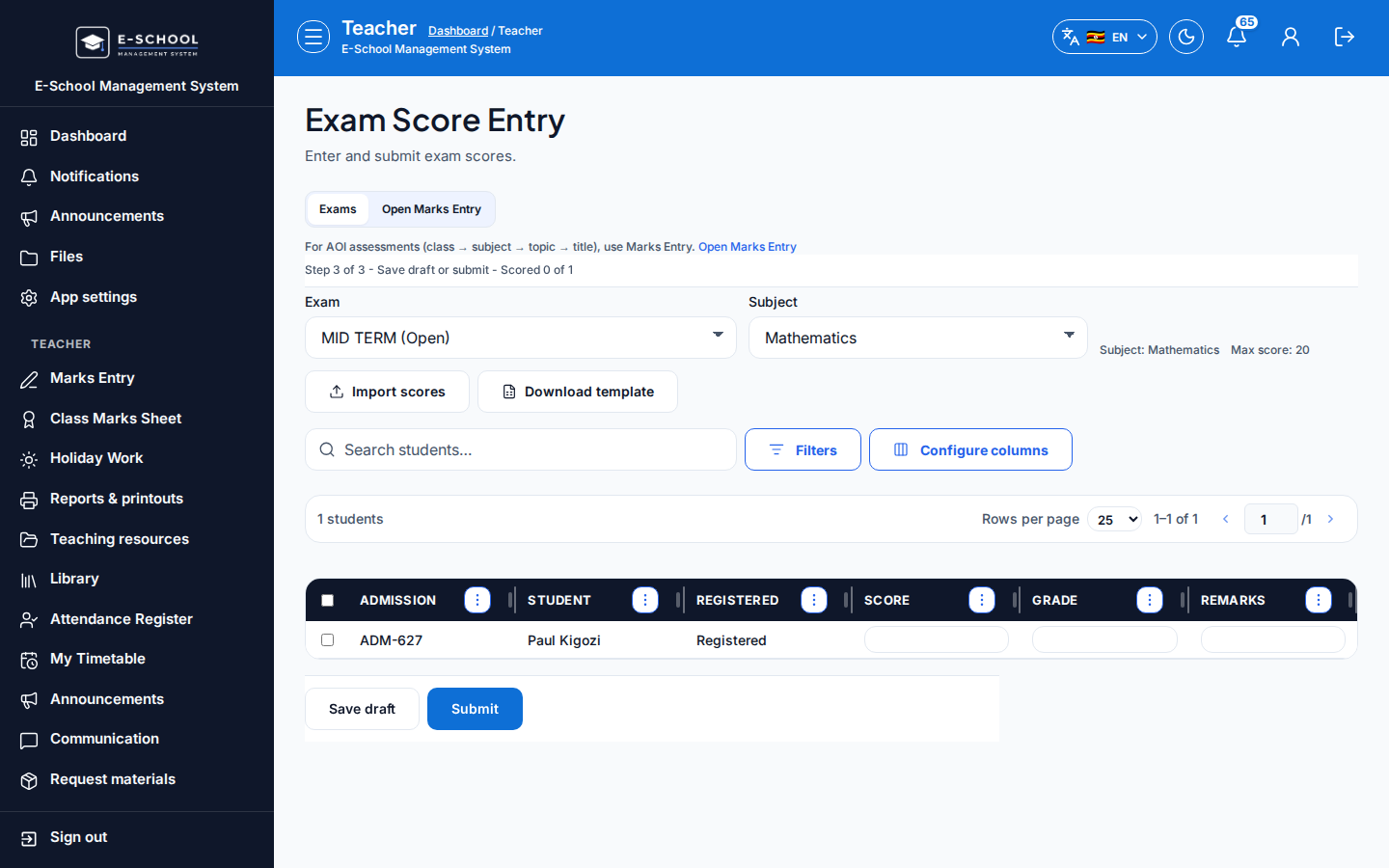
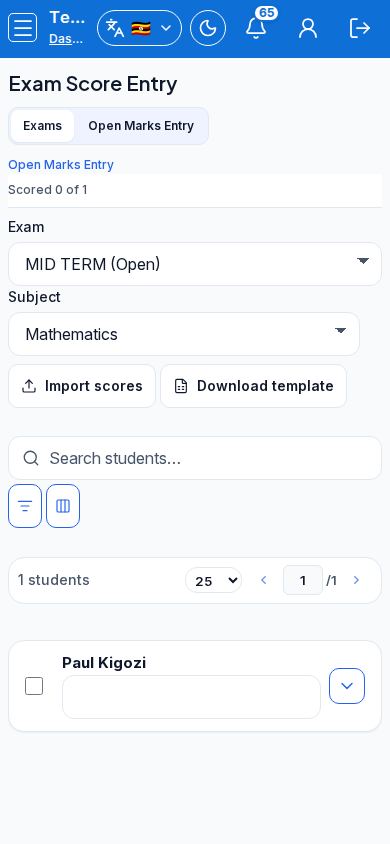
Steps
- Open Exam Score Entry at
/teacher/examsas TEACHER.
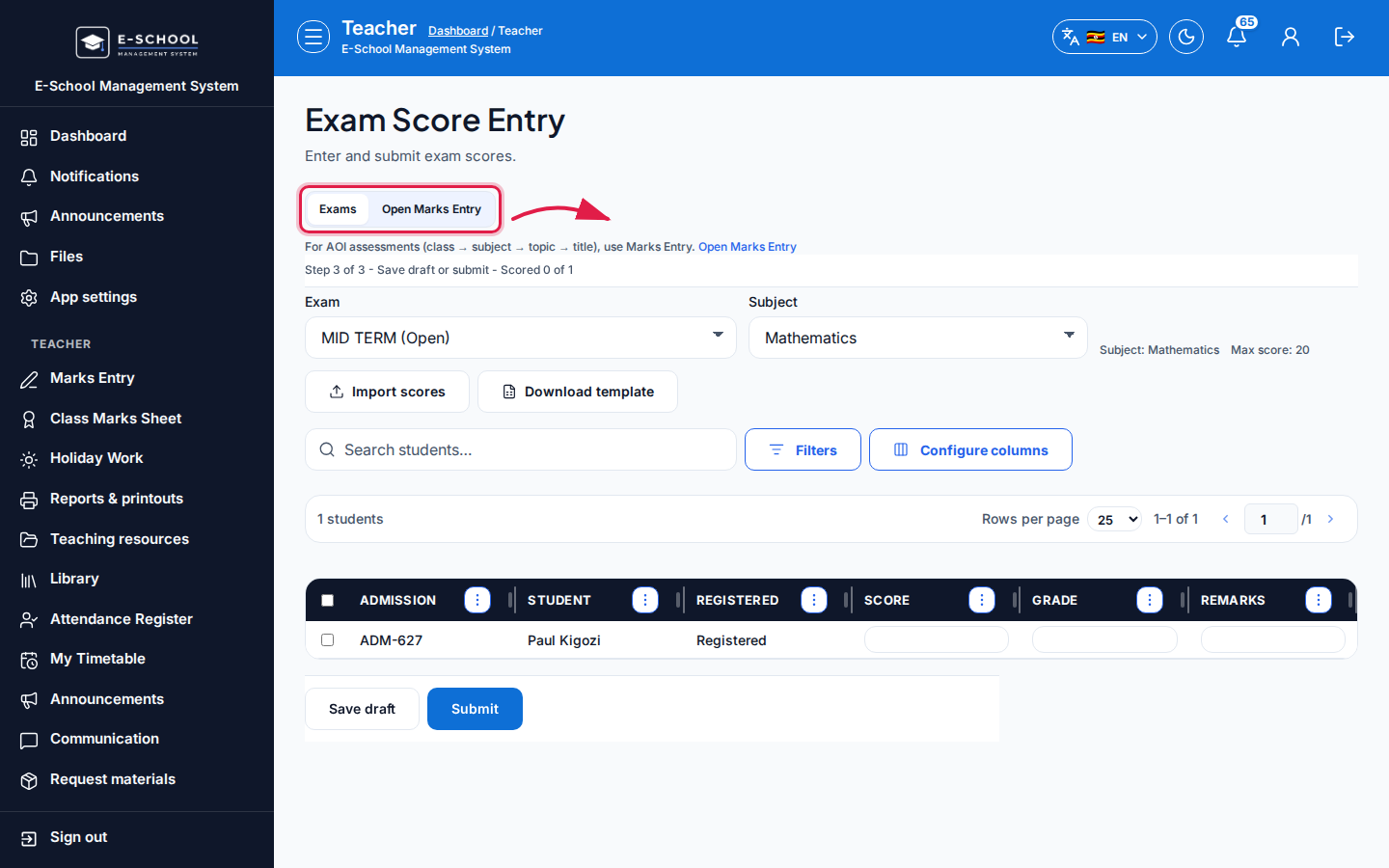 Desktop - focus for step 1
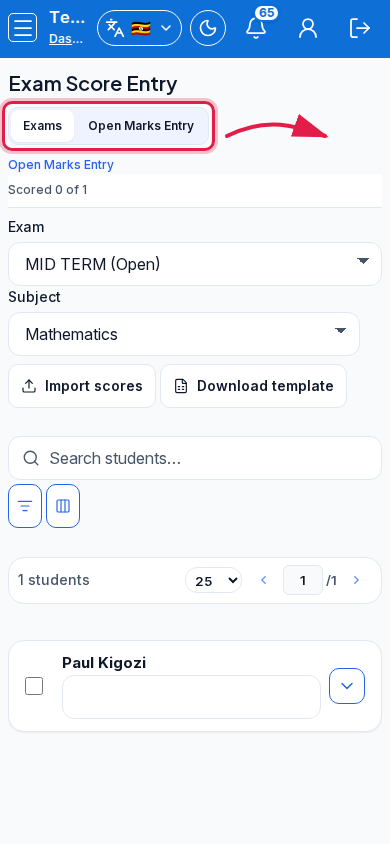 Mobile - focus for step 1
- Select Exam and Subject.
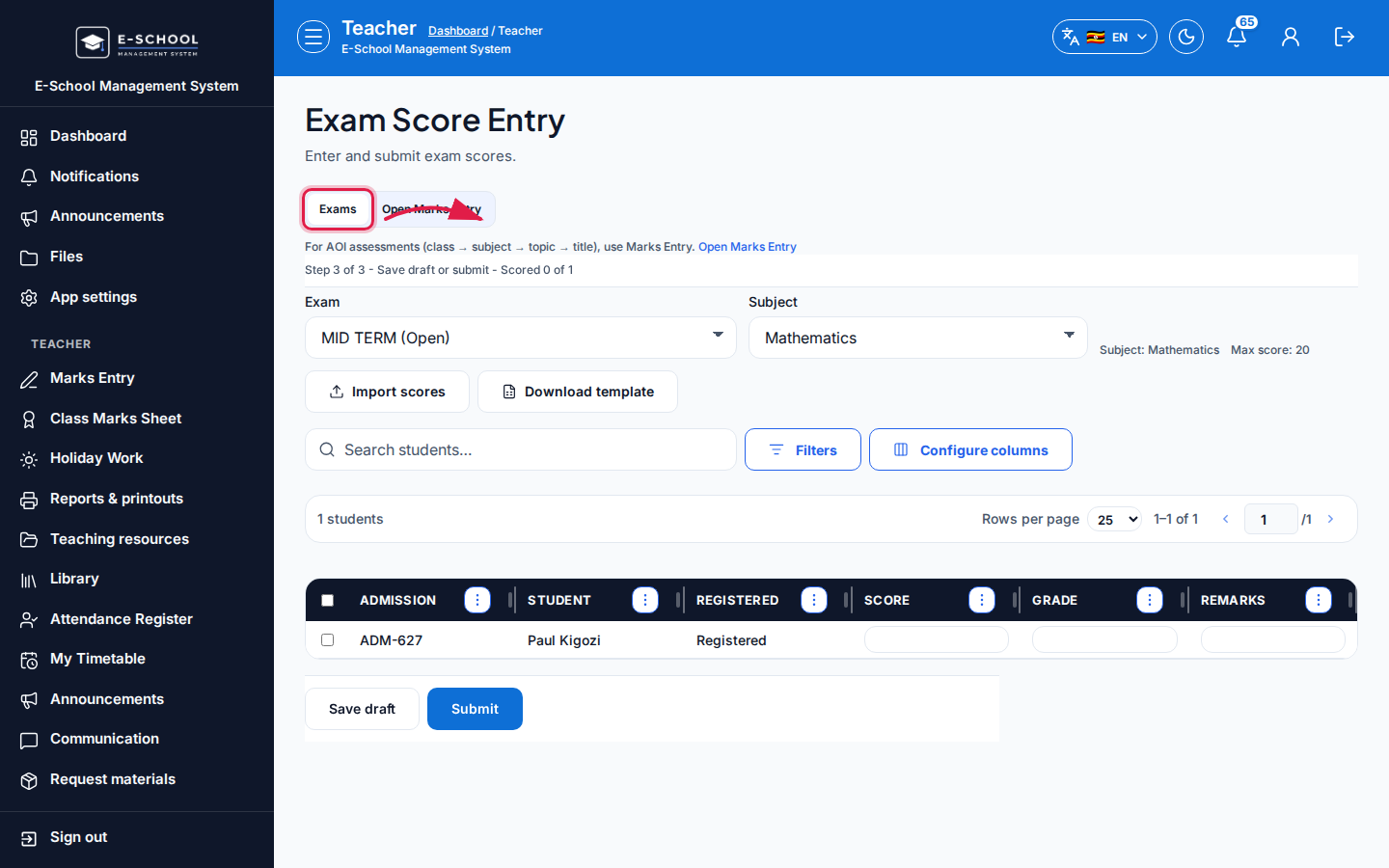 Desktop - focus for step 2
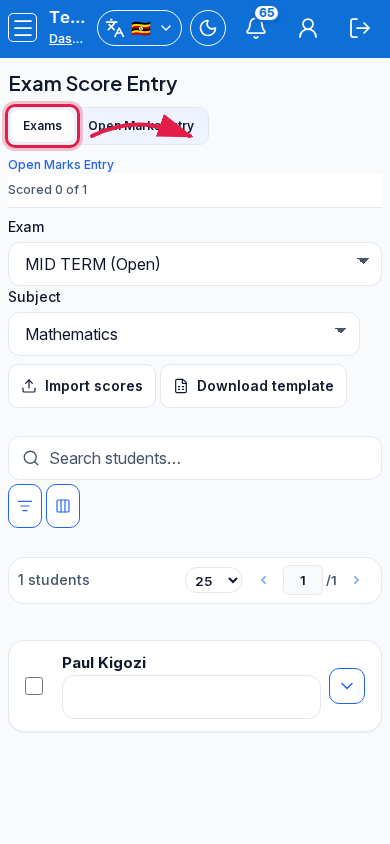 Mobile - focus for step 2
- Enter Score / Grade / Remarks per learner, or Import scores after Download template.
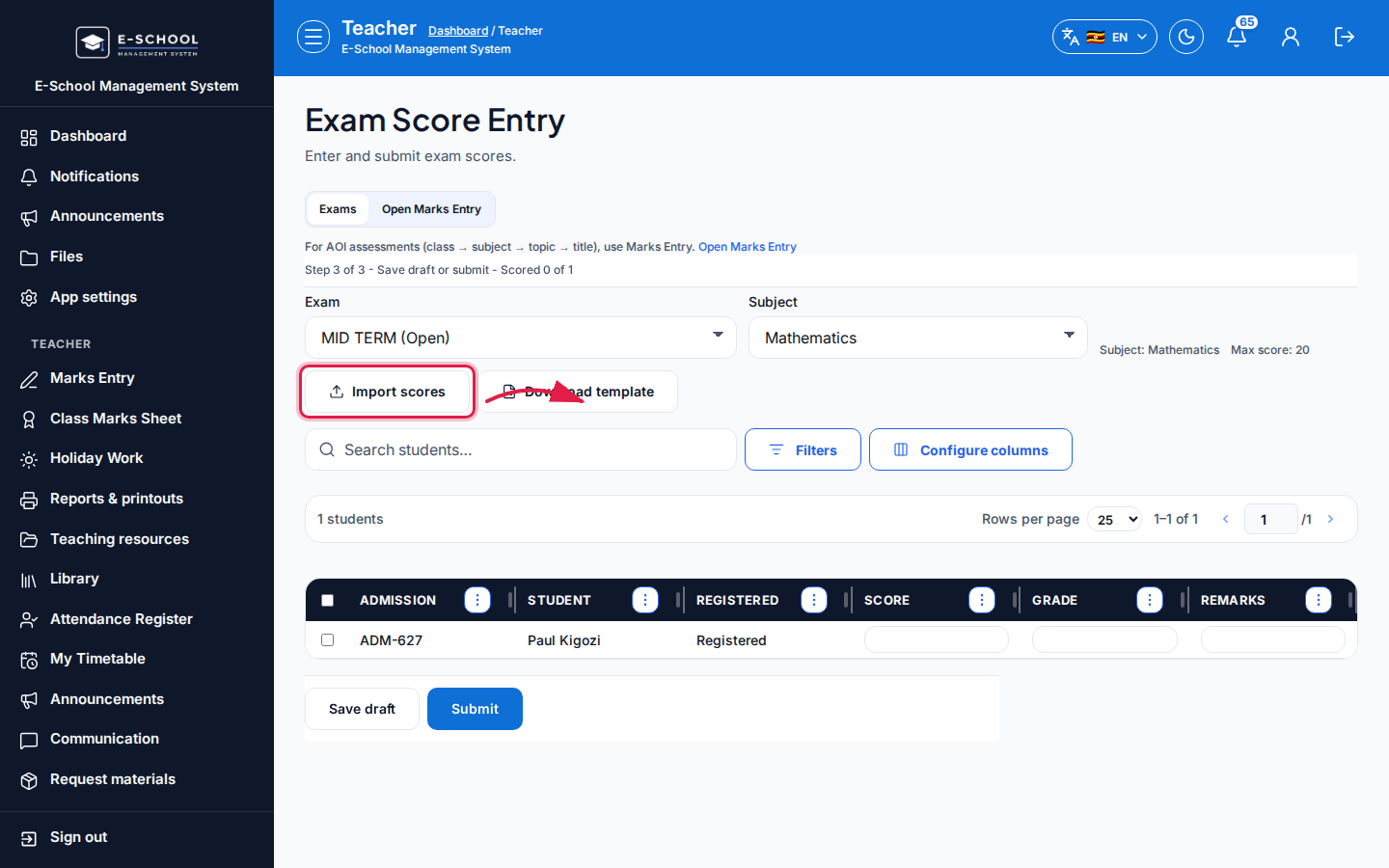 Desktop - focus for step 3
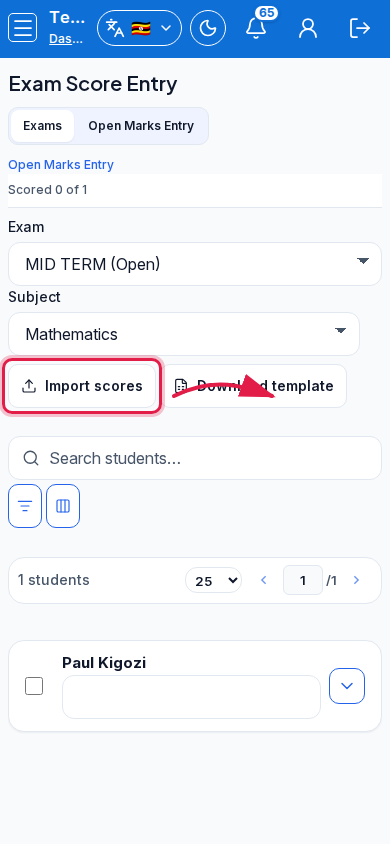 Mobile - focus for step 3
- Save draft while working; Submit when ready (confirm Submit scores?).
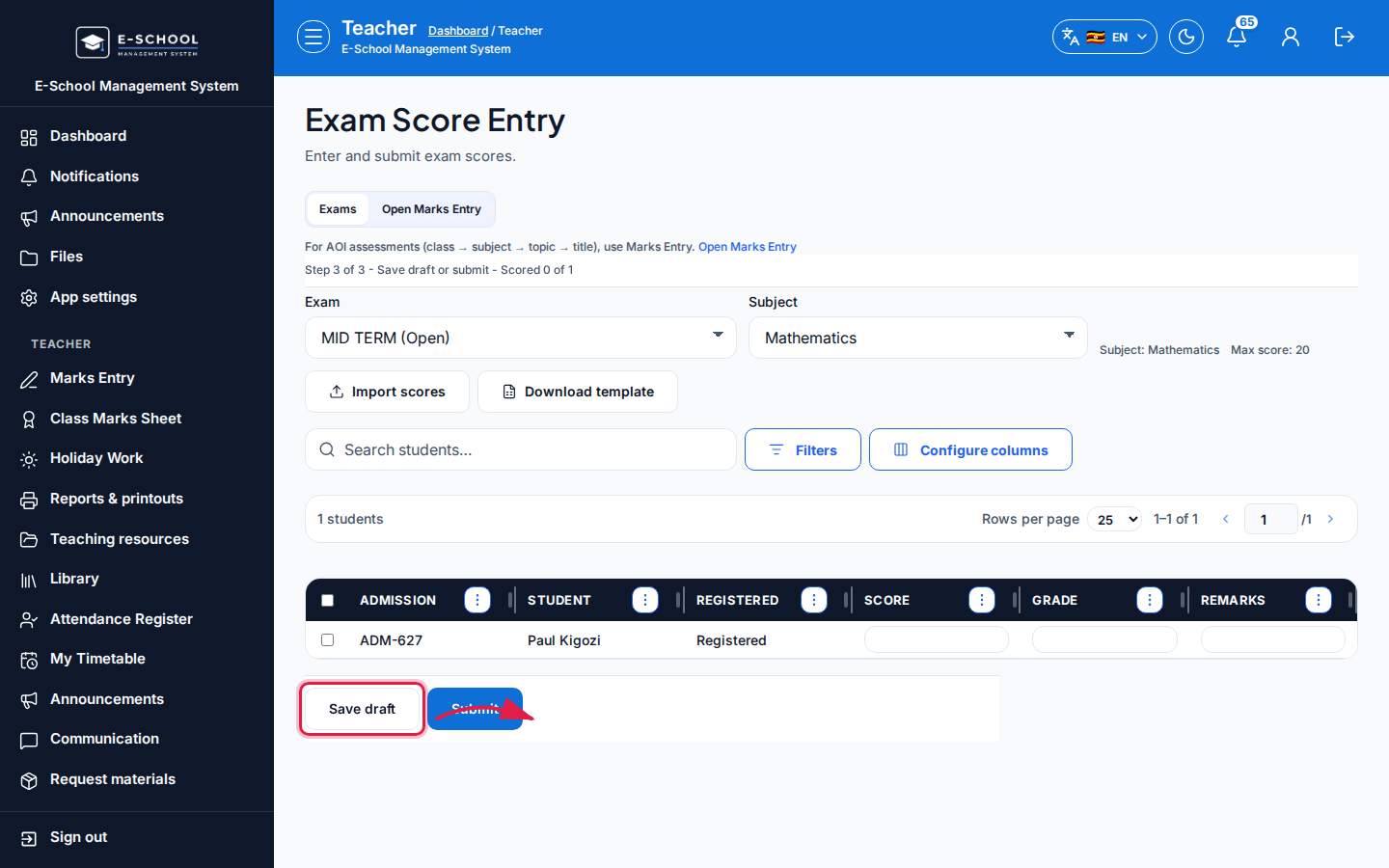 Desktop - focus for step 4
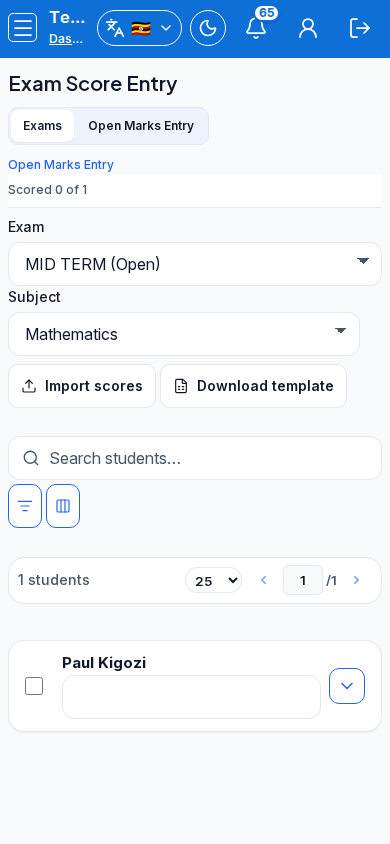 Mobile - focus for step 4
- Cross-check Missing scores on admin scoresheets afterward.
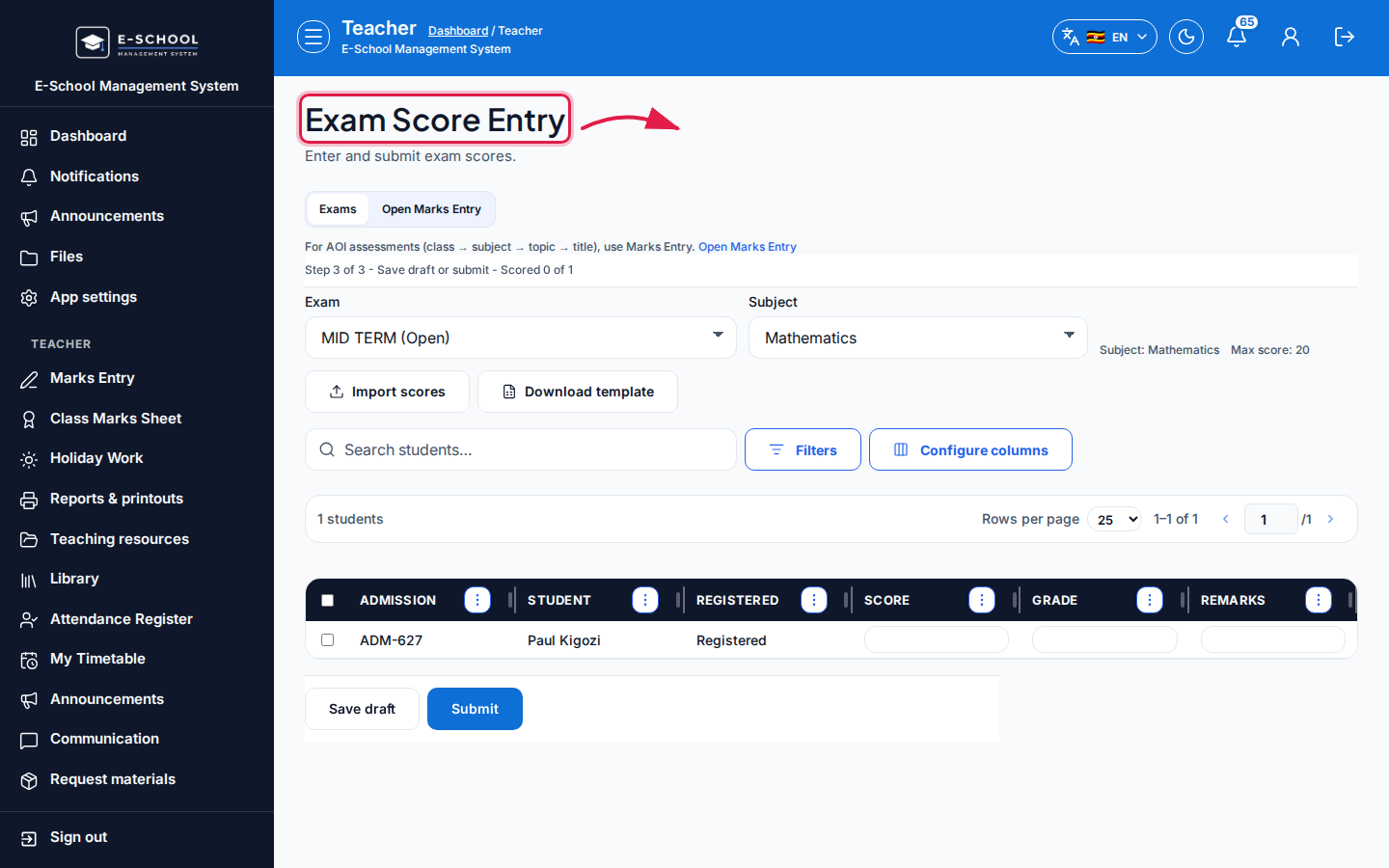 Desktop - focus for step 5
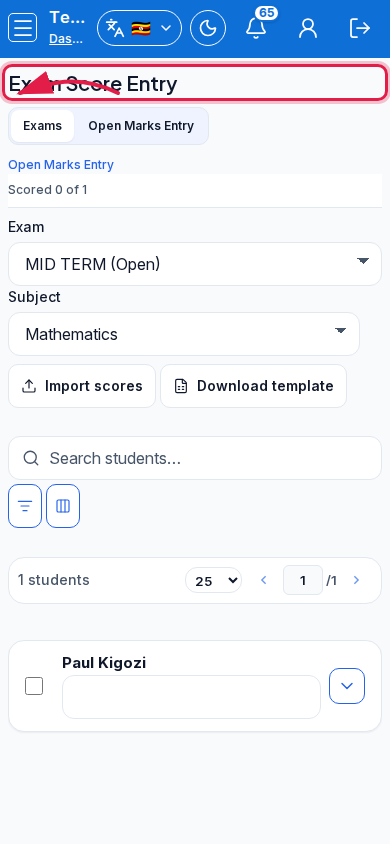 Mobile - focus for step 5
Fields and actions
- Exam, Subject
- Save draft / Submit / Import scores / Download template
- Columns: Admission, Student, Score, Grade, Remarks
Common mistakes
- Submitting the wrong subject
- Import without template columns
- Leaving drafts unpublished past results day