Report cards (teacher)
Generate, print, and release report cards for your assigned classes. When printing, choose whether to stamp your profile e-signature on every page.
Who can use this
- TEACHER (assigned classes only)
- ADMIN (same screen via teacher portal)
Path
/teacher/report-cards
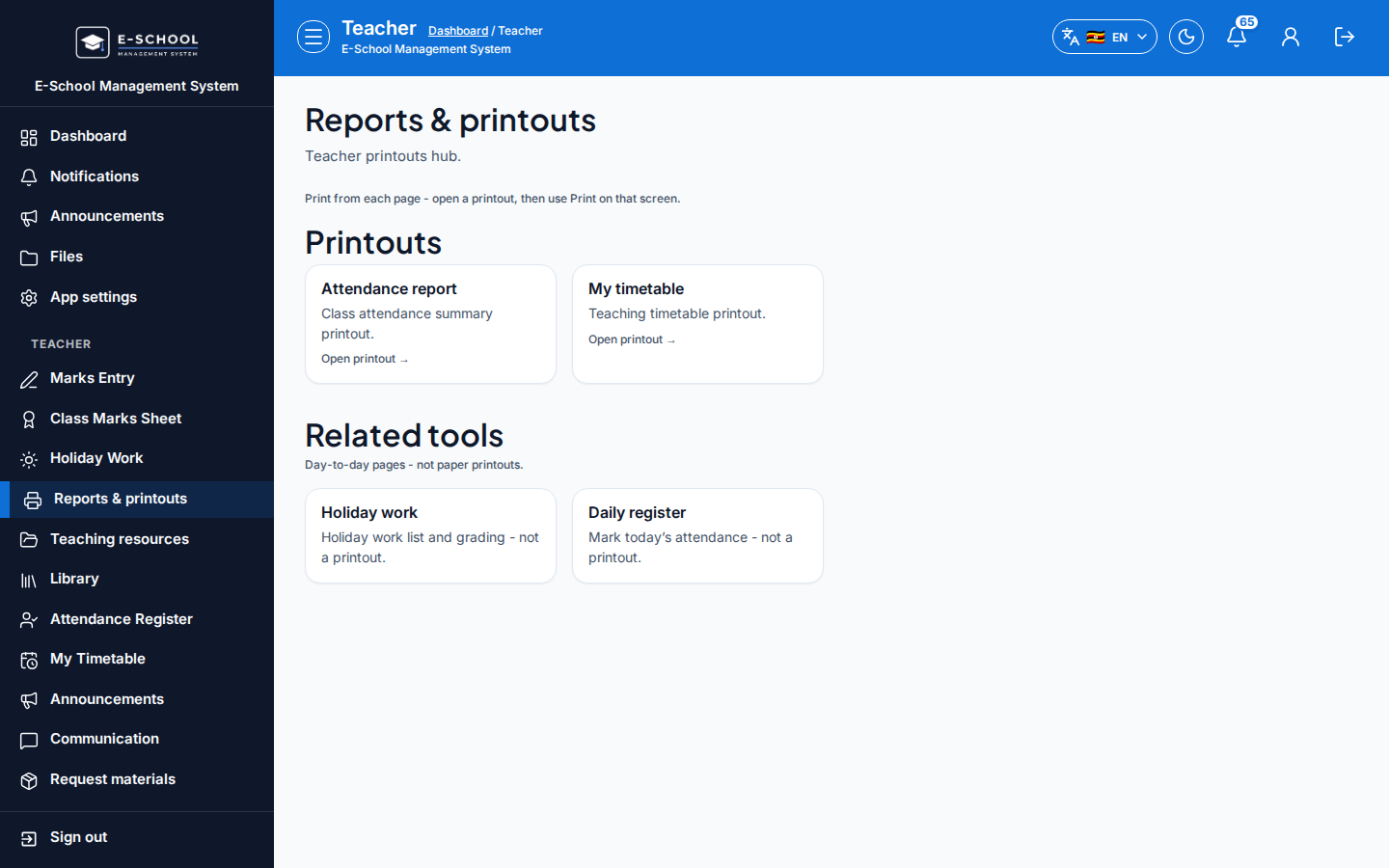
Also linked from Reports & printouts and Class Marks Sheet.
Dependencies
- Learner subjects registered and marks published for the term
- Profile e-signature optional (My profile) if you want to sign each printed page
- Class must be one you teach (timetable or class teacher)
Screenshot
Fields and actions
| Control | Purpose |
|---|---|
| Academic year / Term | Scope which term cards are generated for |
| Class | Required - only assigned classes |
| Generate report cards | Opens the generate wizard |
| Print report cards / Print selected | Browser print; asks whether to sign each page |
| Release term to students | Releases cards for the selected class |
Steps
- Open Report cards at
/teacher/report-cards. - Select academic year, term, and your class.
- Click Generate report cards and complete the wizard (class is required).
- Print all or selected cards - answer whether to sign every page with your profile signature.
- Release term to students for that class so learners and parents can open their cards.
Common mistakes
- Generating without selecting a class (teachers cannot run school-wide generate)
- Expecting cards for a class you are not assigned to
- Printing with "sign each page" when no signature is saved in My profile
- Releasing before marks are published